4 Ways to Change a Model's Face in Product Photos
How to change model face in photo for apparel selling? This post figured out 4 practical methods to do that, including AI visual creation and photo editing tool.


Apparel brands often have many SKUs and frequent new arrivals. Hiring models, booking studios, and working with retouching teams again can be expensive and time-consuming. You want to unify or expand your product image style effeciently. Or maybe you’re expanding into a new region and your current model visuals don’t feel local enough.
Either way, you need to change a model's face in your product photos — without scheduling, shooting, and editing an entirely new batch of images. The good news: AI face swap and model replacement tools can now create results that are realistic enough for many ecommerce use cases. And you don't need Photoshop expertise to do it.
This guide walks through 4 practical methods to change a model's face in product photos. Check and choose one that fits your needs.
Key Takeaways
AI face swap is useful for product pages: The best tools produce face swaps with consistent lighting and natural skin tone blending — human review is still neccessary.
For apparel sellers, full model replacement is often a better workflow than face-only swap: Tools like Koozee treat the garment as the main asset, not just the face as the editable area.
Copyright safety starts with the tool: Prefer tools that clearly document commercial usage rights, model consent, synthetic identity handling, and output ownership.
Free options exist but have limits: Some tools offer free credits or trial usage, but free plans usually limit resolution, export quality, or generation volume.
Why Change a Model's Face? The Ecommerce Reality
Before diving into the methods, it's worth understanding why this matters specifically for clothing sellers:
Model release, likeness, or usage-rights issues. If the original model release does not cover your current commercial use, region, channel, or time period, you may need to replace the model visual or create new AI-generated model images from your own product photos.
Market localization. For cross-border sellers, localization makes the same garment feel relevant to each market.
Model diversity without reshoots. AI face swap and model replacement can multiply your visual variety from a single shoot.
A/B testing model looks. Test whether a certain model aesthetic drives more clicks or conversions.
📌 Note: Face swapping solves a practical business problem. It's not about deception — it's about efficiency, compliance, and market adaptability.
Before You Edit: Rights and Commercial-Use Checklist
Before changing a model’s face in a product photo, check these points:
Do you have the right to use the original image? If the base photo came from a photographer, model agency, supplier, or marketplace listing, confirm that you can still use and modify it commercially.
Does the model release cover your current use? Check the allowed region, time period, sales channels, ad usage, and marketplace usage.
Are you using a real face or a synthetic face? Avoid using celebrities, influencers, customers, employees, or any recognizable person without written consent.
Does the AI tool allow commercial use? Review the tool’s terms for output ownership, commercial usage, and restrictions.
Do you need AI disclosure? Some markets are adding rules around synthetic or AI-altered commercial imagery. If you sell internationally, check the latest requirements before publishing.
Can you document the workflow? Keep records of the original product image, tool used, generation settings, approval notes, and final output.
⚠️ Warning: If you received a copyright strike or likeness complaint on a specific image, simply face-swapping it and republishing may not resolve the underlying issue if the photo itself (composition, lighting, garment styling) wasn't properly licensed. Always verify your rights to the base image, not just the face.
Method 1: How to Change Model Face or Make Full Model Replacement with Koozee
Best for: Apparel sellers who need to change the model look while keeping the garment as the core visual asset — and who want Shopify integration.
This isn't just a face swap — it's a full model replacement built around garment preservation. Koozee is designed specifically for clothing sellers: its "Change Model" feature replaces the entire person in a product photo while keeping your garment's appearance, fit, and details intact.
Why full model replacement beats face-only swap for apparel:
A face-only swap can create subtle mismatches — the face doesn't match the hands, the skin tone doesn't match the neck, the lighting angle is slightly off on the face vs. the body.
Full model replacement avoids these issues because the entire person is generated consistently.
The garment is the priority — Koozee's AI is built to preserve clothing details during model changes, which general face swap tools don't optimize for.
Step-by-step:
Start with a clean clothing product image — flat lay, mannequin, ghost mannequin, or an existing on-model photo depending on the workflow. Here I take "Change Model" as an example.
Upload original model image and a reference (choose a model style that fits your target market and brand look). Click Generate to start.
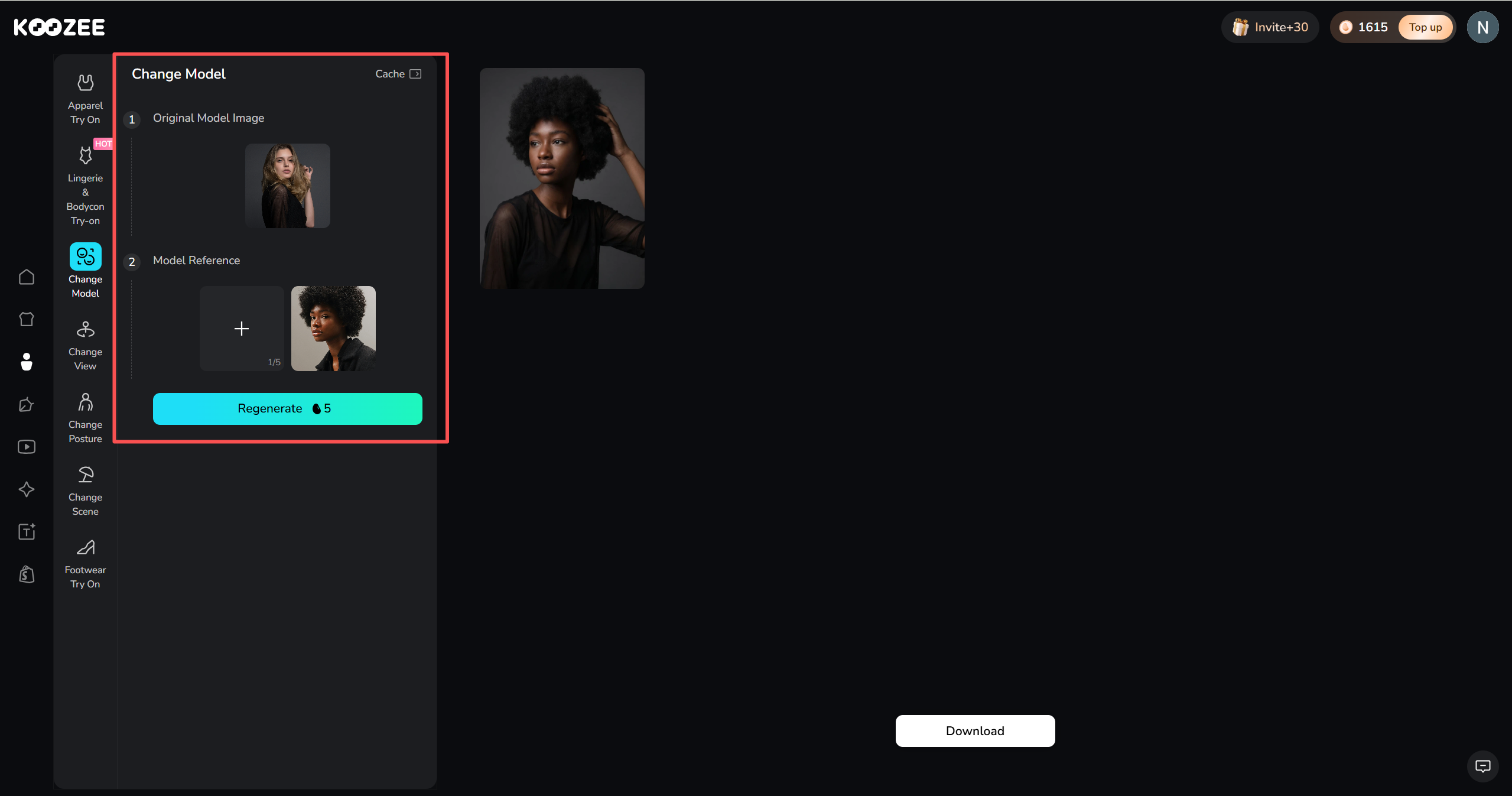
Click the zoom in icon on the result image to check garment details. Click the Download button to get the image.
If you use Shopify, connect your store, reuse an existing product image, preview the generated result, and manually publish the approved asset back to Shopify.
Pro tip: Generate 3–5 model variations from one product image and compare them side by side. You'll quickly identify which model looks work best for your specific garment types and brand.
Limitations: Multi-product batch model swapping is not yet the primary workflow.
Method 2: How to Use API-based Face Swap for Fashion Models
Best for: Fashion brands, marketplaces, and larger apparel teams that need to refresh model faces across many campaign or catalog images through an API workflow.
Claid.ai provides API that can swap faces on fashion models while keeping the original pose, lighting, outfit, and body shape intact. This makes it useful when you already have strong fashion photos but need to refresh the model look, localize visuals for different markets, or align older campaign assets with a new brand direction — without reshooting the entire catalog.
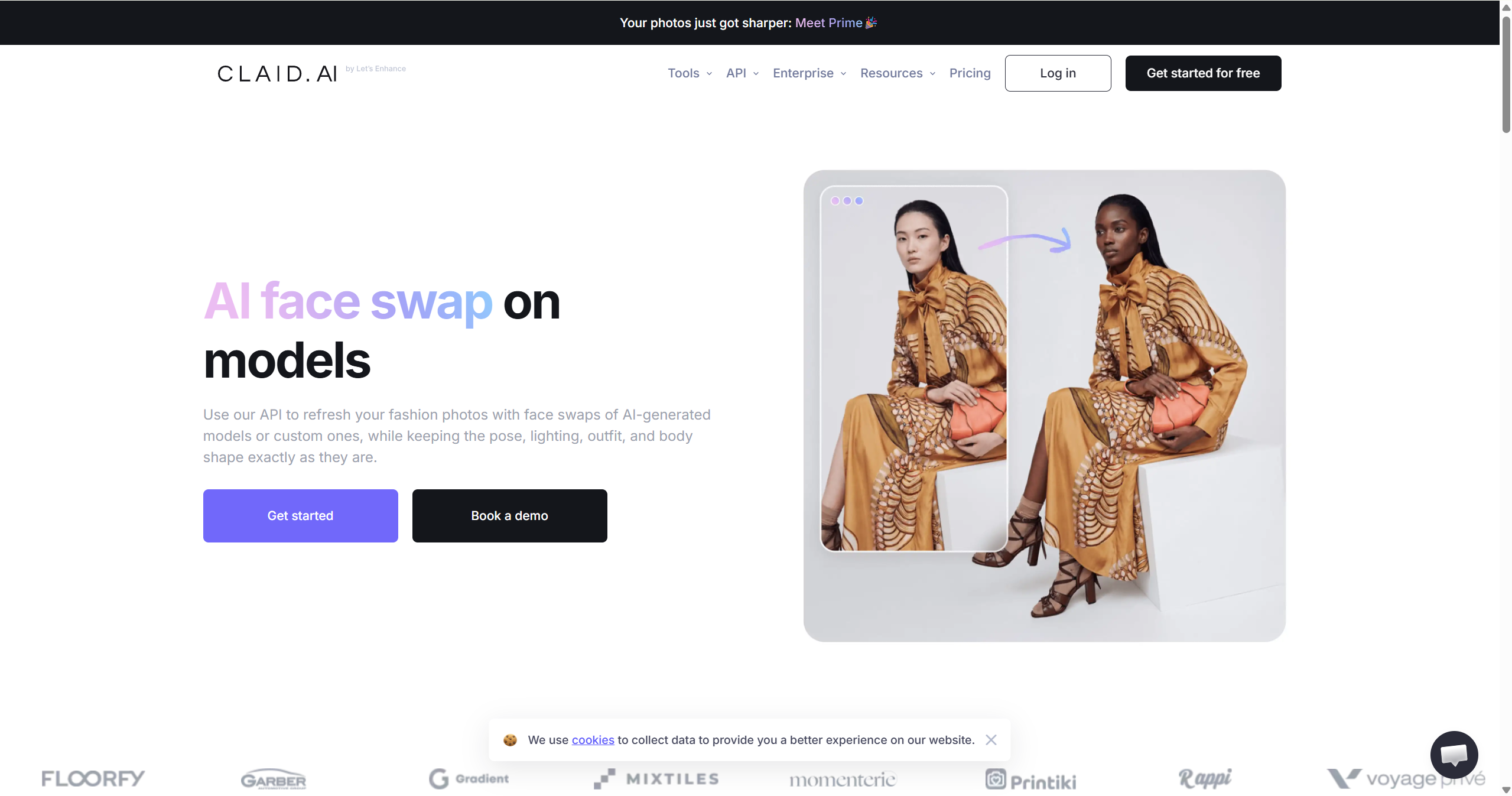
Step-by-step:
Confirm your rights first. Before uploading any model face, make sure you have the necessary rights and permissions to use that person’s likeness commercially.
Prepare your fashion images. Use existing model photos or AI-generated fashion shots where the outfit, pose, lighting, and body shape already work for your brand.
Use Claid’s face swap API. Claid’s face swap feature is currently available through API integration, not as a regular online editor tool. This makes it a better fit for technical teams, marketplaces, or brands with repeat image workflows.
Swap one face or many. Claid positions this workflow for both individual campaign images and large catalog updates, so it can work when you need consistency across many visuals.
Review the final image. Check whether the new face matches the lighting, angle, expression, and skin tone of the original image. Also review the neckline, hairline, hands, and garment edges before publishing.
Limitations: It may not be the fastest choice for a small seller who wants to manually edit one or two product photos. It also does not remove the need for likeness permissions. If you use a real person’s face, you are responsible for making sure you have the right to use it commercially.
Method 3: Manual Editing with Photoshop — Best for Final Cleanup and Creative Control
Best for: Sellers who need pixel-level control over the face swap and already have Photoshop skills — or who need to match a very specific brand aesthetic that AI tools can't quite capture.
Photoshop is useful when an AI-generated result is close but not ready to publish. For example, you may need to clean up the hairline, jawline, neck area, collar, skin-tone transition, or fabric distortion near the face. It is slower than dedicated AI tools, but it gives experienced editors more control.
Step-by-step:
Open the image and duplicate the original layer.
Mask the face, neck, or problem area carefully.
Use Generative Fill or manual compositing to adjust the face area.
Clean up the edges with healing, cloning, masking, and color correction.
Compare the result with the original product image and check that the collar, neckline, fabric, and garment shape remain unchanged.
💡 Pro tip: Photoshop's AI is powerful but not fashion-specific. After any face edit, always check: collar shape unchanged, fabric texture intact, neckline alignment preserved. These are the most common failure points.
Limitations: Requires Photoshop expertise and a Creative Cloud subscription. Much slower than dedicated AI face swap tools — 15–30 minutes per image vs. seconds. Generative Fill results can be inconsistent and may require multiple regeneration attempts.
Method 4: How to Generate New AI Model Images from Product Photos
Best for: Sellers who want the cleanest legal position — no existing photo, no likeness issues, no copyright ambiguity.
Instead of face-swapping an existing photo, generate entirely new AI model images from your product photos. This can reduce many likeness-related risks because you are not editing an existing model photo. However, you still need to confirm that you own or can use the product photo, that the AI tool allows commercial use, and that the final image meets your marketplace or advertising requirements.
Step-by-step:
Start with a product-only image. A clean flat-lay, mannequin shot, or hanger photo — no existing model in the frame. This is your "clean input."
Upload to an AI model generator. Koozee, Claid.ai, and WearView all support flat-lay-to-model generation.
Select your AI model, pose, and scene. Choose from the tool's model library. Because you're generating from scratch, you have full control over the model's entire appearance — not just the face.
Generate multiple variations. Create 5–10 variations with different models, poses, and scenes. This gives you a diverse image set from a single product photo.
Review for commercial quality. Check garment accuracy, model realism, and overall image quality. Select the best 2–3 for each product.
Document the generation. Record which tool, settings, and source image you used — this is your commercial usage paper trail.
✅ Recommended when: You do not fully trust the usage rights of the original model photo, or you want to rebuild product visuals from your own flat-lay, mannequin, or product-only images. For apparel sellers, this is often the cleaner long-term workflow because the new image starts from the garment rather than from a potentially problematic model photo.
Limitations: You can't preserve the exact composition, lighting, and styling of an existing model photo — you're creating new images, not editing existing ones. Slightly more work upfront since you're generating from scratch, but the legal peace of mind is worth it for many sellers.
Method Comparison Table
| Method | Best For | Speed | Legal Safety | Garment Preservation | Skill Required |
| Koozee full model replacement | Apparel sellers with Shopify | Minutes | High (synthetic models) | Excellent — built for clothing | Low |
| Claid.ai model generation | Catalog-scale diversity | Minutes per batch | High (100+ virtual models) | Very good | Low |
| Photoshop AI manual edit | Maximum creative control | 15–30 min per image | Medium — depends on source | Manual verification required | High |
| Generate new AI model images | Cleanest legal position | Minutes | Highest (no existing photo) | Very good | Low |
How to Choose the Right Method for Your Situation
If you have one existing model photo and only need a new face, consider Claid.ai or a similar AI product photography tool.
If you sell clothing and garment accuracy matters most, use Koozee. It is built for apparel visual workflows, so it is better aligned with model replacement, try-on visuals, scene changes, and listing assets.
If an AI result is almost right but needs manual cleanup, use Photoshop.
If the original model photo has unclear usage rights, generate new model images from your own product-only photos instead of editing the flagged image.
If you use Shopify, Koozee is the strongest fit because it supports a Shopify-connected workflow where sellers can reuse product images, generate visuals, preview results, and manually publish approved assets back to Shopify.
FAQs about How to Change Model Face in Product Photos
Is face swapping legal for ecommerce product images?
It depends on the source image, the replacement face, and the tool’s commercial-use terms. Do not use a real person’s face without permission. If the original product photo has unclear licensing or an expired model release, changing the face may not be enough. You may need to create new product visuals from your own product-only images instead.
Can AI face swap tools preserve the clothing in my product photos?
Face-only tools usually focus on the face area, but they can still create issues around the jawline, neck, hair, collar, or neckline. For apparel sellers, a garment-focused workflow like Koozee is often a better fit because the product image is treated as the main commercial asset. Still, every output should be reviewed before publishing.
How do I avoid copyright strikes?
Make sure you have rights to the original image, permission to use any real person’s face, and commercial rights for the AI output. If the original photo is already risky, the safer workflow is to generate new model visuals from your own product-only images.
What's the difference between face swap and model replacement?
Face swap changes only the face in an existing photo — the body, pose, scene, and lighting remain identical. Model replacement changes the entire person while preserving the garment.
Do I need Photoshop skills to change a model's face?
No. AI face swap tools can produce listing-ready results with zero Photoshop expertise.
How much do AI face swap tools cost?
Pricing changes often. For testing, free credits or trial usage may be enough. For commercial product images, compare cost per usable output, export resolution, and usage rights.
Can I use face swap for video content, not just photos?
Yes, some tools support AI face swap or model changes for video, but video is harder because the face, body, lighting, and garment need to stay consistent frame by frame. For Koozee, the stronger angle is apparel video production: product videos, dynamic lookbooks, fit checks, OOTD clips, short outfit videos, and Shopify or social-commerce visual workflows.
You May Be Interested

How to Use AI Models for TikTok Shop: 3 Methods for Sellers

9 Best AI Fashion Model Generators for E-commerce (2026)
6 Best Plus Size AI Model Generators for Apparel Sellers
