How to Achieve Kling AI Character Consistency: 5 Methods
How to maintain Kling AI character cnsistency? Here we introduced 5 methods to keep face and clothing consistent.


You've spent time generating the perfect AI model wearing your new collection — and then the next clip shows a completely different face. The hair changed. The jacket looks different. The whole sequence is unusable.
This is the "character drift" problem that frustrates clothing sellers, content creators, and anyone using Kling AI to produce multi-shot video content. Kling AI has made significant strides with its 3.0 release, but keeping a character's face, outfit, and physical traits locked across separate generations still requires knowing the right tools and workflow.
This guide covers five proven methods for solving Kling AI character inconsistency, so your model looks the same in every clip you generate. Let's dive in!
Key Takeaways
Character drift is solvable: Kling AI's Element Binding and Character ID features are specifically designed to lock a character's face and clothing across multiple video generations.
Reference images are everything: A clean, front-facing, well-lit reference image on a plain background is the single most important input for consistent results.
Multiple angles prevent drift in motion: For dynamic shots, provide 3–4 reference angles (front, three-quarter, side, close-up) so the model has a complete visual anchor.
Keep clips short: Character identity tends to soften in clips longer than 5–6 seconds — generate shorter clips and cut between fresh generations.
Apparel sellers face a unique challenge: While Kling AI's Element Binding is incredible for cinematic character consistency, locking exact garment details (stitching, logos, intricate patterns) in motion often requires specialized e-commerce AI platforms designed specifically for clothing rather than general video generation.
What Is Kling AI Character Consistency?
Kling AI character consistency refers to the platform's ability to maintain a character's face, clothing, and physical characteristics identically across multiple generated video clips or during complex camera movements and scene changes.
When consistency breaks, you see:
Face melting: Facial features subtly shift between frames or clips — different eye shape, altered jawline, changed skin tone
Character drift: The character's age, hair, or overall appearance gradually changes across a longer sequence
Clothing inconsistency: The garment changes color, texture, or style between shots
Identity softening: Fine details like jewelry, scars, or distinctive accessories disappear or change
For apparel sellers producing product videos, clothing inconsistency is especially damaging.
How to Maintain Character Consistency in Kling AI
Method 1: Use Element Binding (Subject Library) to Lock Character Identity
Element Binding — also called the Subject Library or Character ID in different parts of the Kling AI interface — is the most reliable method for maintaining Kling AI character consistency. It works by uploading reference images that the model uses as a visual anchor throughout generation.
How to Use Element Binding in Kling AI
Navigate to the Elements section in your Kling AI workspace (found in the left sidebar or within the video generation panel).
Create a new Element and select "Character" as the element type.
Upload 1–4 reference images of your character. For best results, include:
A clear front-facing image
A three-quarter angle view
A side profile
A close-up of the face
Name and save the Element — this creates a reusable character anchor you can apply to any future generation.
When generating a new video, open the Elements panel and select your saved character Element before submitting the prompt.
Confirm the binding — Kling AI will display a preview showing the reference images are attached.
Generate — the model will use the Element as a hard visual constraint, keeping the character's face and clothing consistent with your reference.
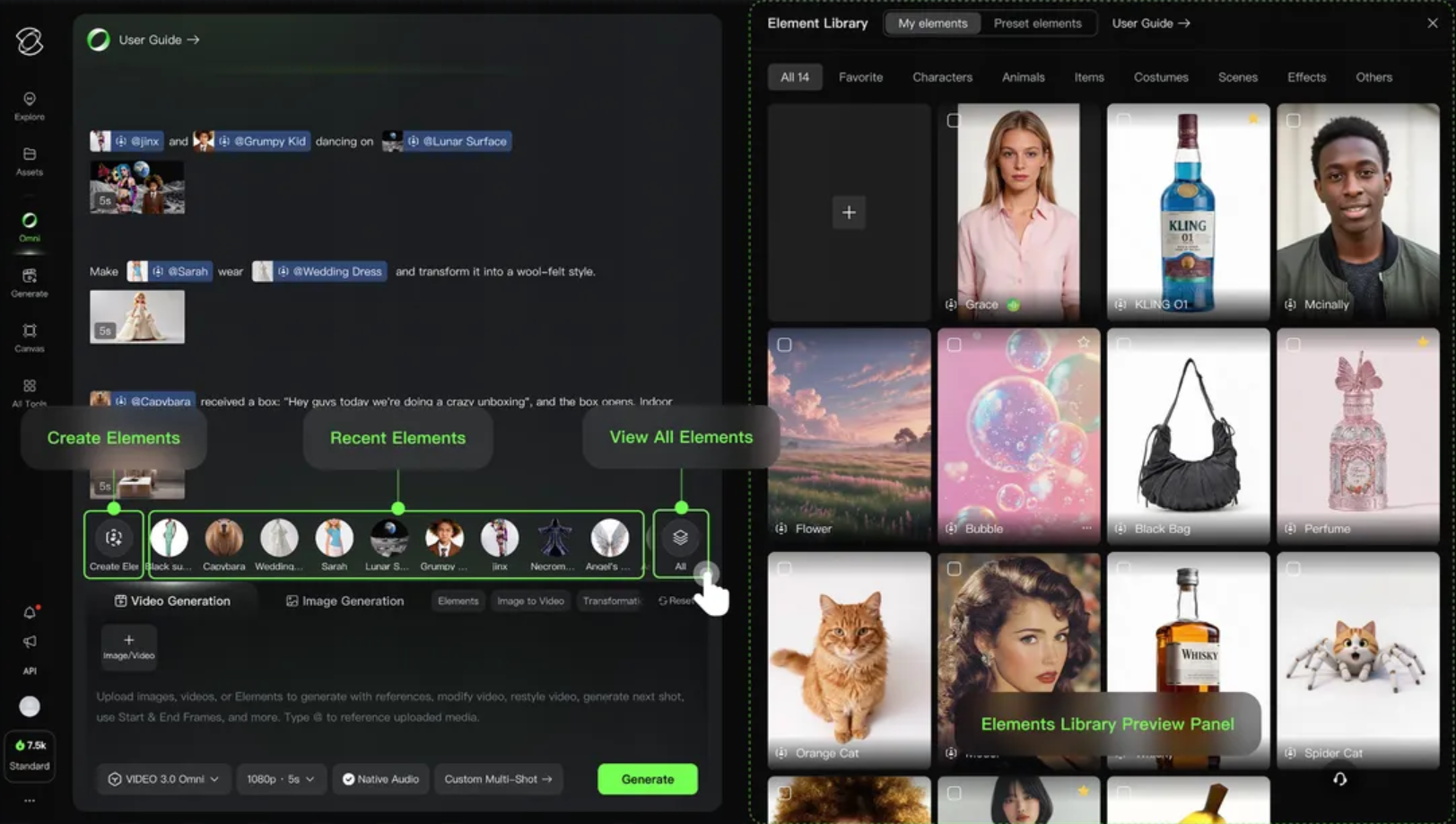
💡 Pro tip for apparel sellers: You can create separate Elements for the model face and for specific garments. Binding both simultaneously lets you keep the model consistent and ensure the clothing item looks identical across every shot. However, for highly complex fabrics (lace, sheer materials) or exact logo placements, general video models may still hallucinate minor details. Always double-check outputs if using them for official product listings.
Best for:
Sellers generating multi-clip product videos featuring the same model
Brands building a consistent visual identity across a campaign
Anyone producing a sequence of shots that need to cut together seamlessly
Method 2: Build a High-Quality Character Reference Sheet
Element Binding is only as good as the reference images you feed it. Weak reference images — blurry, cluttered backgrounds, partial face, inconsistent lighting — produce inconsistent outputs even with binding enabled.
How to Create a Strong Character Reference Sheet
Start with a clean base image: Use a front-facing, evenly lit photo or AI-generated image of your character against a plain white or neutral background. Avoid busy backgrounds — the model may accidentally bind background elements to the character.
Capture the full character: The reference should show the face, hair, body, clothing, and any accessories you want to preserve. Cropped or partial images give the model less to anchor to.
Generate multiple angles: For dynamic motion or multi-angle shots, create versions showing:
Front view (0°)
Three-quarter view (45°)
Side profile (90°)
Close-up face crop
Keep lighting consistent across angles: Inconsistent lighting between reference images can cause the model to interpret them as different characters.
Use high resolution: Kling AI performs better with sharp, high-resolution reference images. Avoid compressed or low-quality inputs.
Save the full reference sheet as a set — upload all angles together when creating your Element.
⚠️ Warning: Cluttered backgrounds in reference images are one of the most common causes of character drift. If your reference image has a complex background, the AI may accidentally incorporate background elements into the character's appearance across generations. Always use plain backgrounds for reference images.
Best for:
Anyone starting a new character from scratch
Sellers who want to reuse the same model across multiple product lines
Creators building a character library for ongoing content production
Method 3: Write a Master Character Description and Use It Consistently
Visual references handle the heavy lifting, but prompt engineering is the second layer of character consistency. A well-written master character description, reused identically across every generation, reinforces the visual anchor and reduces drift.
How to Build and Use a Master Character Description
Write a detailed character description covering:
Physical features: hair color and length, eye color, skin tone, facial structure, approximate age
Clothing: specific garment name, color, material, fit (e.g., "fitted red satin midi dress with thin straps")
Distinctive features: any unique identifiers like freckles, a specific hairstyle, or accessories
Save this description as a template — copy-paste it into every prompt that features this character. Do not paraphrase or summarize it differently each time.
Place the character description early in the prompt — before scene, action, or camera instructions.
Add negative prompts to block common drift patterns: different face, face change, aging, different hair, different clothing, inconsistent appearance
Keep the rest of the prompt consistent in structure: Use the same prompt format (character → action → scene → camera → style) across all generations in a sequence.
💡 Pro tip: Create a simple text file or note with your master character description and negative prompts. Before generating any clip in a sequence, paste both into the prompt fields. This takes 10 seconds and significantly reduces drift across a multi-clip project.
Best for:
Creators who want a free, no-setup consistency layer
Supplementing Element Binding for maximum consistency
Situations where you're generating many variations and want a quick copy-paste workflow
Method 4: Use Image-to-Video to Anchor Each Clip
Instead of generating video from a text prompt alone, use Kling AI's image-to-video feature to start each clip from a strong base image. This gives the model a concrete visual starting point — the character's face and clothing are already defined in the first frame, making drift far less likely.
How to Use Image-to-Video for Character Consistency
Generate or select a high-quality base image of your character — ideally the same reference image you used for your Element.
Navigate to Kling AI's Image-to-Video mode (available in the main generation panel).
Upload your base image as the starting frame.
Write your motion prompt describing only the action and camera movement — not the character's appearance (the image handles that).
Good: model walks forward, slight breeze in hair, camera slowly pulls back
Avoid: woman with brown hair in a red dress walks forward — redundant with the image and can cause conflicts
Attach your character Element (from Method 1) as an additional anchor if available.
Generate — the model uses the uploaded image as the first frame, keeping the character's appearance locked from the start.
For the next clip in the sequence, use the last frame of the previous clip as the starting image for the next generation. This creates a visual chain that maintains consistency across a longer sequence.
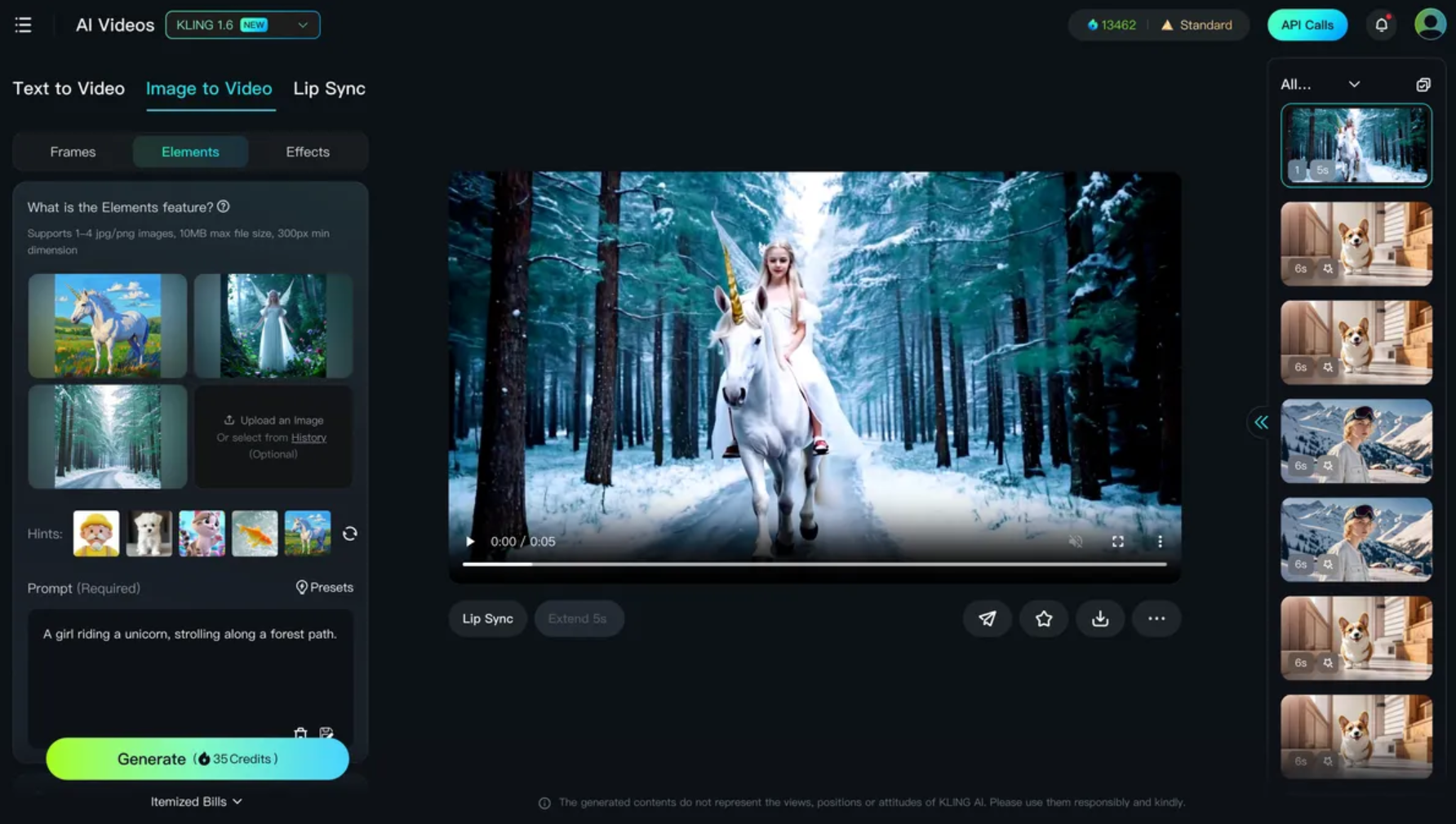
💡 Pro tip for apparel sellers: This "last frame chaining" technique is especially useful for product videos that show a model walking, turning, or posing in different positions. Each clip starts exactly where the last one ended, keeping both the model and the garment visually continuous.
Best for:
Multi-clip sequences that need to cut together
Sellers producing "model in motion" product videos
Anyone who has a strong reference image and wants to minimize prompt-based drift
Method 5: Use Kling AI's Motion Control for Facial Stability in Complex Shots
For shots involving significant camera movement, close-ups, or extended duration, Kling AI's Motion Control feature provides an additional layer of facial stability. Available in Kling Video 3.0, Motion Control enhances facial consistency even during multi-angle and long-duration motion sequences.
How to Apply Motion Control for Face Consistency
Enable Motion Control in the video generation settings (available in Kling Video 3.0 and later).
Use the Motion Brush tool to select specific regions of the frame:
Select the character's face and set it to minimal motion — this tells the model to keep facial features stable
Select background elements and set them to static — prevents background movement from destabilizing the character
Set camera motion parameters carefully — aggressive camera movements (fast pans, extreme zooms) increase the chance of facial drift. Use smooth, moderate camera movements for consistency-critical shots.
Keep clip duration under 6 seconds for shots with significant motion. Identity tends to soften in longer single clips — generate shorter clips and cut between fresh generations rather than trying to extend a single clip.
Review the output before using it in a sequence — check the face at the beginning, middle, and end of the clip for any drift.
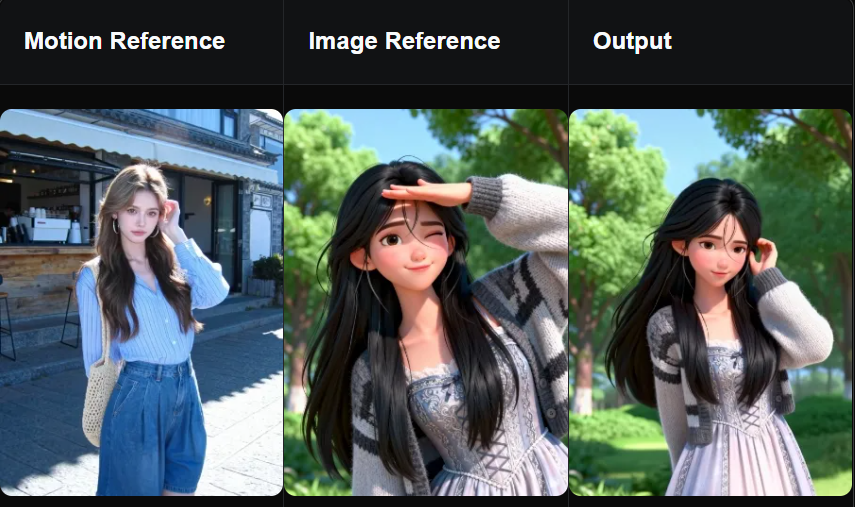
📌 Note: Fine details like jewelry, small accessories, or subtle facial features (freckles, light scars) are the most likely to drift even with Motion Control enabled. If these details are critical to your character, include them explicitly in your master character description (Method 3) and check outputs carefully.
Best for:
Close-up shots where facial detail is prominent
Sequences with significant camera movement
Long-duration clips where identity softening is a risk
Use Cases for Apparel Model Consistency
| Scenario | Recommended Method | Why |
| Product listing video (single model, multiple angles) | Element Binding + Image-to-Video | Locks model face and garment; last-frame chaining keeps continuity |
| Campaign with recurring brand model | Element Binding + Master Description | Reusable character anchor across all campaign content |
| Quick single-clip product video | Image-to-Video + Master Description | Fast setup, strong first-frame anchor |
| Close-up detail shot (fabric texture, fit) | Motion Control + Element Binding | Facial stability during close camera work |
| Lingerie or swimwear try-on video | Element Binding + Reference Sheet (multiple angles) | High-detail garment requires comprehensive visual anchoring |
Beyond Kling AI: How Apparel Sellers Create Consistent Product Visuals at Scale
Kling AI 3.0 is a cinematic powerhouse. However, if your primary goal is to sell clothing online, spending hours writing prompts and binding elements just to stop a dress from changing color is highly inefficient.
Koozee is an AI visual production platform for apparel-commerce first. It is built entirely around the needs of Shopify and marketplace sellers. It guarantees highly garment consistency without requiring complex prompt engineering. You can use it for AI model try-ons, apparel videos, viral video formats, listing page assets, and Shopify publishing.
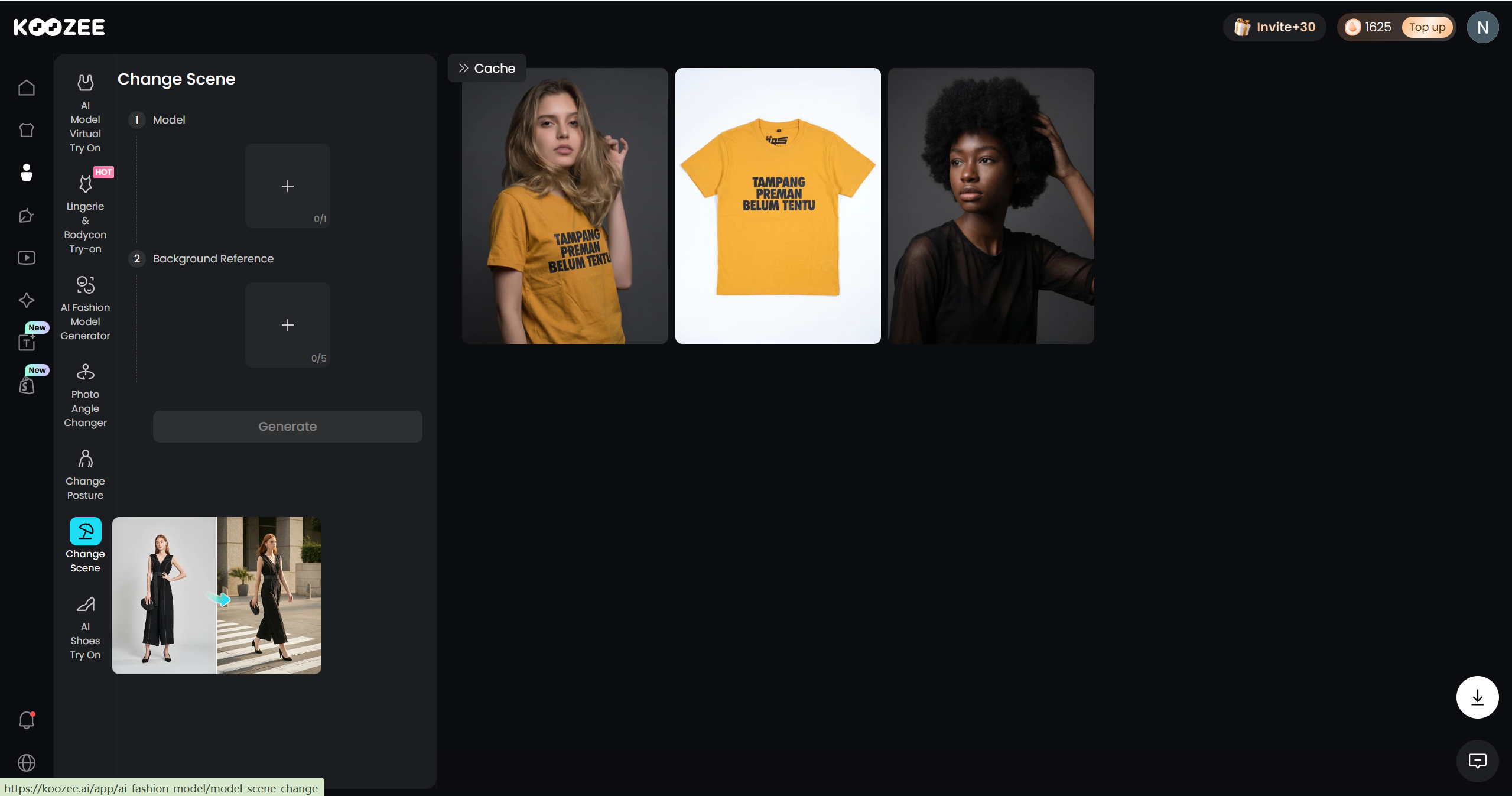
Key features for apparel visuals consistency:
The Shopify Workspace: Connect your Shopify store, select an existing product image, generate model try-ons or lookbook videos, and publish them directly back to your listing. No downloading or re-uploading.
Zero-Prompt Apparel Videos: Turn static garment photos directly into dynamic lookbooks, fit checks (OOTD), and short outfit clips.
Viral Video Clone: Replicate proven, high-converting TikTok/Reels short-form video formats using your own products instantly.
Safe Lingerie & Swimwear Try-On: General AI models (like Kling) often restrict or over-block intimate apparel. Koozee features a specialized, compliant workflow for lingerie, swimwear, and bodycon dresses.
For apparel sellers: Use Kling AI for your sweeping, cinematic brand campaigns. But for your daily product listings, try-ons, and TikTok product videos, claim your 30 free credits at Koozee and experience a workflow built strictly for selling clothes.
Frequently Asked Questions
How do I keep a face consistent in Kling AI?
The most reliable method is using Kling AI's Element Binding (Subject Library) feature. Upload 1–4 reference images of your character — including front, three-quarter, and side angles — to create a reusable character Element. Attach this Element to every generation in your sequence. Combine with a master character description in your prompt for maximum consistency.
Why does my Kling AI character keep changing appearance?
Character drift in Kling AI is usually caused by one of three things: (1) no visual reference anchor (Element Binding not used), (2) low-quality or cluttered reference images that don't give the model a clear visual anchor, or (3) clips that are too long — identity tends to soften in clips over 5–6 seconds. Address all three for the most stable results.
How do I keep clothing consistent on an AI character in Kling AI?
Upload a clean, product-style image of the specific garment as a separate Element in Kling AI. Use a plain background and ensure the full garment is visible. Binding both a character Element and a clothing Element simultaneously lets you keep the model face and the garment consistent across every shot.
Does Kling AI 3.0 fix character consistency issues?
Kling AI 3.0 significantly improved character consistency compared to earlier versions, particularly for preserving faces and signature outfits across separate shots. However, fine details like jewelry, small accessories, and subtle facial features can still drift.
Can I use Kling AI for apparel product videos with consistent model appearance?
Yes — Kling AI's Element Binding and image-to-video features make it possible to generate product videos with a consistent model wearing your clothing. For a more complete apparel seller workflow (try-on images, listing assets, Shopify publishing, and video), tools like Koozee are built specifically for this use case and integrate the full visual production workflow in one platform.
You May Be Interested

12 Best Virtual Try-On Apps for E-Commerce (2026)

What Exactly is Ecommerce Localization: Benefits & How-To Guide
How to Photograph Clothing Without Models: 6 Methods