How to Add Specific Clothes to a ChatGPT Image: 4 Methods for Apparel Sellers
Discover 4 methods to add clothes to a ChatGPT image. Given that they have quite a few drawbacks, you will also learn an excellent AI visual platform for virtual try on.


Can ChaGPT add clothes to an image? Yes, it can, powered by GPT-4o, but it has real limitations that matter for commercial clothing use.
This guide covers four methods for adding specific clothes to a ChatGPT image, what each one actually delivers, where each one breaks down, and what apparel sellers should use instead when ChatGPT isn't enough.
Key Takeaways
ChatGPT can add clothes via inpainting and prompting, but struggles with exact fabric texture, color accuracy, and consistent model appearance — critical factors for e-commerce product images.
Developer vs. No-Code: ChatGPT Images lets anyone perform apparel edits with prompts and reference images. With carefully structured prompts, GPT-Image-2 is significantly better at preserving facial identity and scene consistency than earlier OpenAI image models.
Content moderation is a real obstacle: ChatGPT may refuse or degrade clothing edits involving fitted garments, lingerie, or swimwear — categories that apparel sellers commonly need.
For commercial-grade apparel visuals, dedicated apparel AI tools produce more consistent, listing-ready results than ChatGPT's general-purpose image engine.
What ChatGPT Can (and Can't) Do with Clothing Images
Before diving into methods, it's worth being honest about what ChatGPT's image tools are built for — and where they fall short for apparel sellers.
What ChatGPT does well:
Generating a model wearing a described outfit from scratch (text-to-image)
Changing the color or general style of clothing in an existing image
Swapping backgrounds while keeping a model's outfit intact
Creating lifestyle or campaign-style images with described clothing
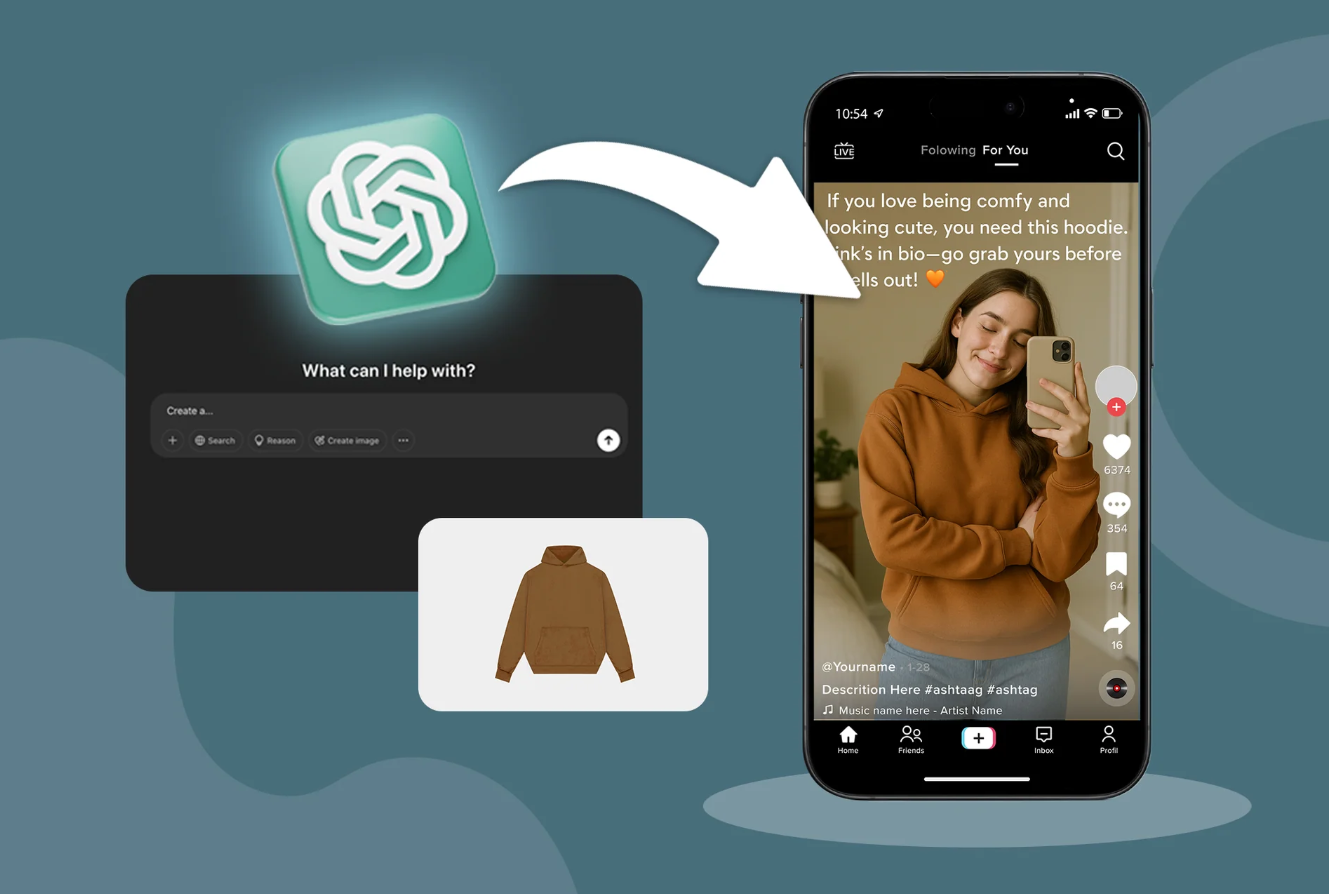
Where ChatGPT struggles for apparel sellers:
Exact garment replication: ChatGPT uses your reference image as guidance rather than directly mapping garment pixels onto the model — it doesn't "place" the actual garment onto a model. Fine details like prints, embroidery, or specific fabric textures are often lost or altered, although recent GPT-4o image models are significantly better at preserving reference-image attributes than earlier DALL-E models.
Color accuracy: AI image engines may shift colors, especially for subtle tones. A dusty rose may come back as coral. A specific navy may shift to royal blue.
Consistent model appearance: Unless the original person is used as a reference image, appearance consistency can vary between generations. Building a consistent visual identity across a product catalog is difficult.
Fitted and intimate apparel: ChatGPT's content moderation frequently blocks or degrades edits involving lingerie, swimwear, bodycon styles, or fitted garments — even for clearly commercial purposes.
Fabric drape and fit: AI-generated clothing often looks stiff or unnaturally fitted. The way a satin dress drapes or a knit sweater stretches is hard for general-purpose AI to replicate accurately.
ChatGPT performs AI-guided image regeneration rather than traditional pixel editing. While it can preserve much of the surrounding image, localized edits may still change nearby details or introduce small inconsistencies.
Method 1: Upload Both Images and Describe the Outfit Swap
The most direct way to add specific clothes to a ChatGPT image is to upload both a model image and a garment image in the same conversation, then prompt ChatGPT to combine them.
Step-by-Step
Open ChatGPT and start a new conversation with image generation enabled (requires ChatGPT Plus or higher).
Upload your model image — a clean, well-lit photo of a model or mannequin in a neutral pose, ideally against a plain background.
Upload your garment image — a flat-lay, ghost mannequin, or product-on-hanger image of the specific clothing item. Plain background works best.
Write a detailed prompt that references both images explicitly:
Using the model from the first image and the [garment type] from the second image, generate a photo of the model wearing the [garment]. Keep the model's face, hair, and pose identical. The garment should maintain its [color], [fabric], and [key design details]. Photorealistic style, clean white background.
Specify what to preserve: Explicitly tell ChatGPT what should NOT change — the model's face, the garment's color, the background. Without this, the model will make creative decisions you don't want.
Review the output for color accuracy, garment detail, and model consistency. If the result drifts, add more constraints in a follow-up prompt.
Iterate with corrections: If the garment color shifted, follow up with: "The dress should be [exact color], not [what it generated]. Regenerate keeping everything else the same."
💡 Pro tip for apparel sellers: Describe your garment's key visual identifiers in the prompt even though you've uploaded the image. ChatGPT uses both the image and the text — the more specific your text description, the closer the output will be to your actual product. Include: garment type, color (use specific names like "sage green" not just "green"), fabric type, and one or two distinctive design details.
Best for:
Quick concept visuals and mood board images
Sellers who need a fast first draft before investing in a dedicated tool
Generating lifestyle-style images where exact garment accuracy is less critical
Method 2: Use ChatGPT's Inpainting (Canvas Edit) to Replace Clothing
ChatGPT's image editing mode — sometimes called canvas editing or inpainting — lets you select a specific region of an existing image and replace it with something new. This is the closest ChatGPT gets to a true clothing swap tool.
Step-by-Step
Generate or upload a base image of a model in ChatGPT. The model should be in the pose and setting you want — you'll be replacing only the clothing.
Open the image in edit mode by clicking the edit/pencil icon on the generated image.
Use the selection brush to paint over the clothing area you want to replace. Be precise — select only the garment, not the model's skin, hair, or background.
Upload your garment reference image in the edit prompt (if the interface allows), or describe the replacement clothing in detail:
Replace the selected clothing with a [garment type] in [color], [fabric], [fit description]. Keep the model's body position, skin, and background unchanged.
Generate the edit — ChatGPT will regenerate only the selected region, attempting to match your description.
Check the edges: Inpainting often creates visible seams where the edited region meets the original image. If the transition looks unnatural, expand your selection slightly and regenerate.
Repeat for additional garment pieces — if you need to change both a top and bottom, do them in separate edit passes rather than all at once.
Note: ChatGPT's inpainting regenerates the selected region from scratch based on your text prompt — it does not physically "wrap" your garment image around the model. The output is an AI interpretation of your clothing, not a pixel-accurate reproduction. If your dress has a specific lace pattern, a unique hemline, or a highly specific brand color, ChatGPT will likely lose those details. This is exactly why commercial apparel sellers move away from ChatGPT and use dedicated virtual try-on tools for their apparel listings.
Best for:
Changing the color or style of clothing on an already-generated model image
Making quick adjustments to an existing image without regenerating from scratch
Sellers who need to show the same model in multiple outfit variations
Method 3: Text-to-Image with a Detailed Clothing Description (No Upload Required)
If you don't have a garment image to upload, or if your product is still in the design phase, ChatGPT's text-to-image capability can generate a model wearing a described outfit. This is the simplest method — and the one with the most creative flexibility.
Step-by-Step
Write a master garment description before prompting. Include:
Garment type (e.g., "midi wrap dress," "oversized linen blazer," "high-waist wide-leg trousers")
Color (specific: "dusty mauve," "off-white," "forest green")
Fabric (e.g., "matte satin," "ribbed cotton knit," "washed linen")
Fit and silhouette (e.g., "fitted through the waist, flared below the knee")
Key design details (e.g., "V-neckline, thin adjustable straps, side slit")
Describe the model with enough specificity to get consistent results across generations:
Body type, approximate age range, skin tone, hair color and length
Pose (e.g., "standing facing forward, hands relaxed at sides")
Set the scene and lighting:
Background: plain white, studio, lifestyle setting
Lighting: "soft studio lighting," "natural daylight," "golden hour"
Specify the output style: "photorealistic e-commerce product photo" or "editorial fashion photography"
Full example prompt:
"Photorealistic e-commerce product photo. A female model, mid-20s, medium skin tone, dark brown hair pulled back, standing facing forward in a relaxed pose. She is wearing a dusty mauve midi wrap dress in matte satin fabric, fitted through the waist with a V-neckline, thin adjustable straps, and a side slit. Plain white background, soft studio lighting."
Save your prompt as a template — reuse the same model description and prompt structure for every product in a collection to maintain visual consistency across your catalog.
💡 Pro tip: Paste your previous prompt at the start of a new generation or use the same reference image to maintain visual continuity. It reduces drift between shots.
Best for:
Pre-production concept visuals and design mockups
Sellers with products still in development who need visual references
Generating multiple colorway variations of the same garment quickly
Method 4. Using the gpt-image-2 API for True Virtual Try-On
For sellers with development resources, OpenAI's latest multimodal API capabilities have revolutionized virtual try-on. Using the gpt-image-2 model, you no longer need to create manual transparent masks. You can pass an array of images (a model photo plus several clothing pieces) directly into the API.
Step-by-Step (API Approach):
Set up your Python environment with your OpenAI API key.
Pass multiple images in the image array: your base model image, plus individual photos of the top, jacket, shoes, etc.
Use a highly specific "Identity Preservation" prompt. According to OpenAI's official cookbook, you must explicitly state what NOT to change.
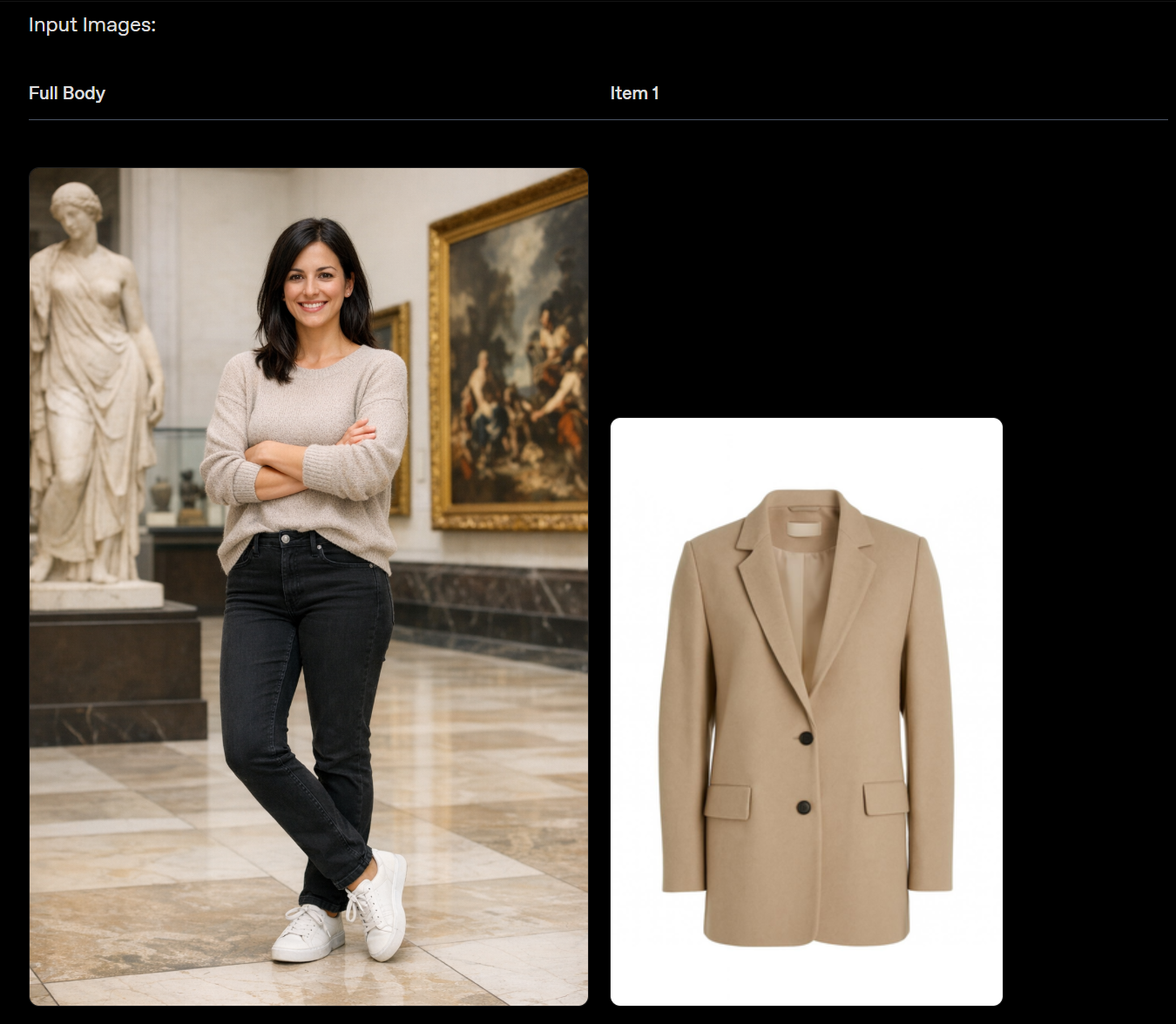
Example API:
prompt = """Edit the image to dress the woman using the provided clothing images. Do not change her face, facial features, skin tone, body shape, pose, or identity in any way. Replace only the clothing... Match lighting, shadows, and color temperature."""
result = client.images.edit(
model="gpt-image-2",
image=[
open("model.png", "rb"),
open("jacket.png", "rb"),
],
prompt=prompt,
size="1024x1536"
)
Bonus Tip: What Apparel Sellers Actually Need for Product Visuals
Inaccurate product images lead to higher return rates, negative reviews, and lost customer trust. This is why you need a "no-code" solution — Koozee is an AI visual production platform built exclusively for apparel e-commerce.
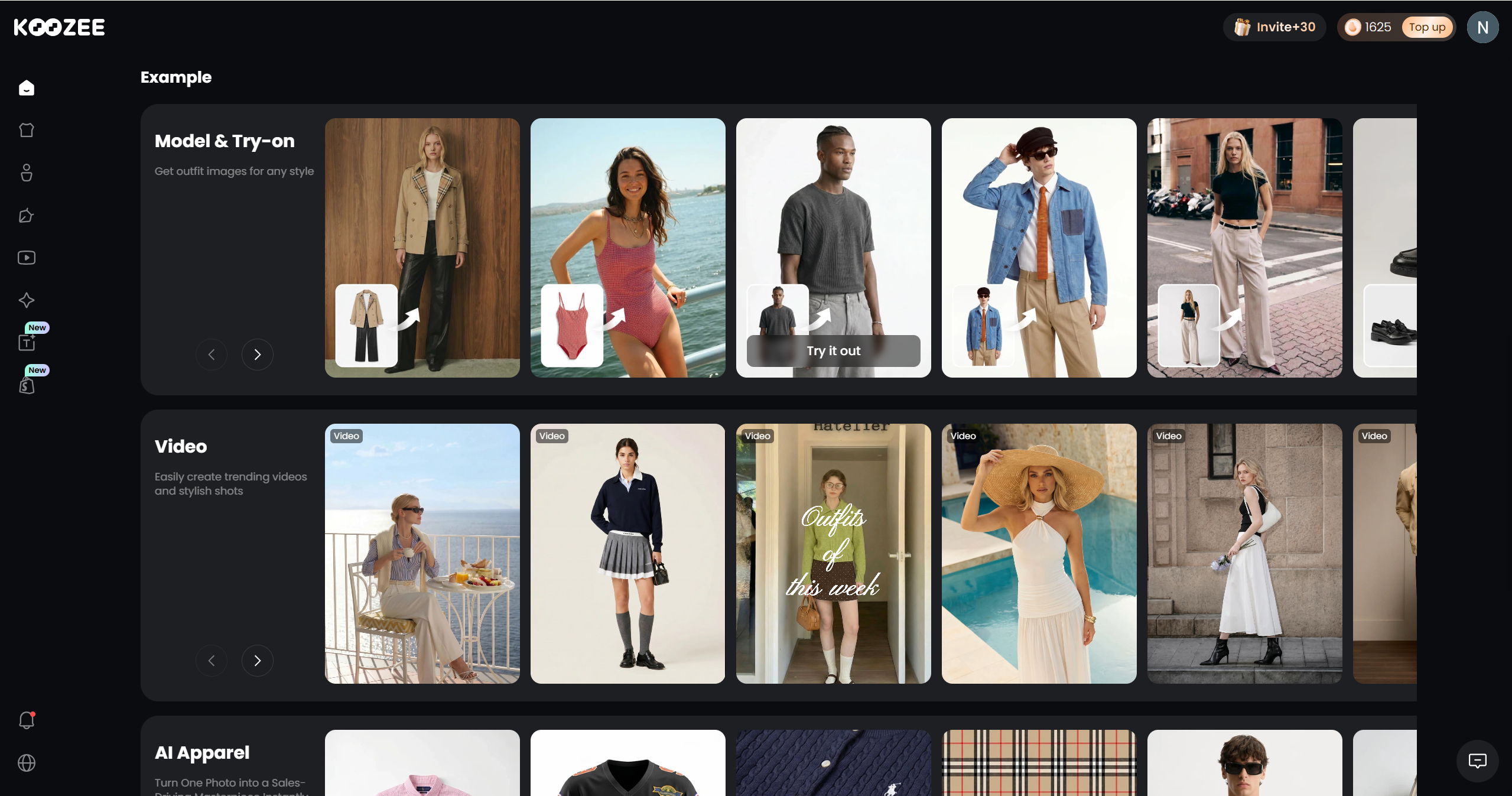
Unlike ChatGPT's general-purpose image engine, Koozee packages the power of advanced virtual try-on into a ready-to-use Shopify workspace:
Zero-Code Try-On: Upload a clothing image and Koozee generates pixel-accurate on-model visuals. No Python scripts, no API keys, no prompting required.
Lingerie & Swimwear Try-On: Koozee has a dedicated, e-commerce-safe workflow for intimate apparel and bodycon styles that general AI APIs routinely block.
Image to Video: Koozee turns your product photos into dynamic lookbooks and viral TikTok videos in the same workflow.
Shopify Integration: Connect your store, generate listing-ready visuals, preview results, and publish approved assets back to Shopify without the download-edit-upload cycle.
✅ For apparel sellers: If you've been trying to make ChatGPT work for product visuals and hitting its limitations, try Koozee first with 30 free credits and test it with one of your clothing products.
Frequently Asked Questions
Can ChatGPT change clothes in a picture?
Yes. You can use ChatGPT's inpainting (canvas edit) tool to change clothes in a picture. By uploading an image, selecting the clothing area with the brush tool, and writing a prompt for a new outfit, ChatGPT will regenerate that specific area.
How do I put different clothes on a picture?
For general edits, you can use ChatGPT's image editing mode to highlight existing clothing and prompt a replacement. For developers, OpenAI's gpt-image-2 API allows you to upload a model and a clothing item simultaneously. For e-commerce sellers, the most reliable method is using a dedicated virtual try-on platform like Koozee, which maps your specific physical garment onto an AI model without losing crucial fabric details or brand accuracy.
Does ChatGPT support virtual try-on?
Yes, but primarily for developers. OpenAI's newest gpt-image-2 model supports true multimodal virtual try-on via API by allowing developers to input a model photo alongside multiple clothing items simultaneously. However, this feature is not natively built into the standard ChatGPT web interface with a simple button.
How to use AI to model your clothes?
The easiest way is to take a simple flat-lay or ghost mannequin photo of your clothing product and upload it to an apparel-specific AI platform like Koozee. It allows you to generate professional e-commerce model photos without hiring models or booking a studio.
How do I keep the same model across multiple ChatGPT generations?
ChatGPT does not have a native "lock model" feature like dedicated tools. The most effective workaround is to save your model description as a text template and paste it identically into every prompt. Include: approximate age, skin tone, hair color and length, body type, and pose.
Is ChatGPT good enough for Shopify or Amazon product listing images?
For primary listing images that need to accurately represent your product, ChatGPT's general-purpose image engine is typically not sufficient. Color accuracy, fabric texture, and garment detail may vary.
What's the best AI tool for adding clothes to a model image for e-commerce?
For apparel e-commerce sellers, dedicated tools built around the clothing workflow produce better results than general-purpose AI image generators. Platforms like Koozee cover try-on visuals, product images, and videos in one workflow.
You May Be Interested

How to Photograph Clothing Without Models: 6 Methods

How to Change Model Face in Product Photos: 4 Methods for Apparel Sellers

How Much Does a Model Cost? The 2026 Guide to Photoshoot Budgets
