How to Turn a Clothing Photo Into an On-Model Reel
Have a clothing product photo but no time for another photoshoot? This guide shows you how to turn it into an on-model Reel with Koozee—from AI try-on and visual refinement to video generation and final quality checks.

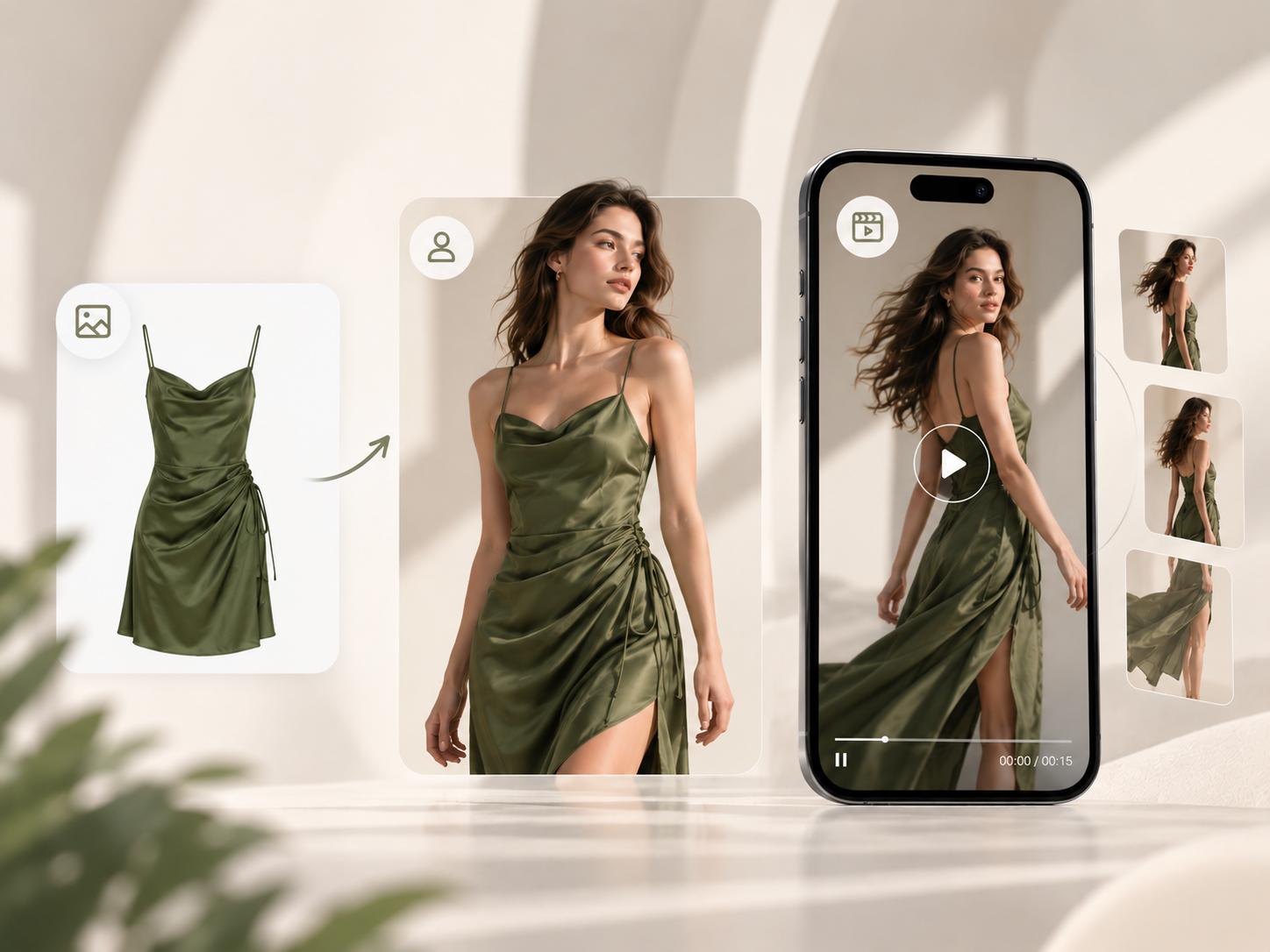
For apparel sellers, the challenge is no longer just creating good product images. It is producing enough visual content for product pages, ads, Instagram Reels, TikTok, and frequent SKU launches without repeating a full photoshoot every time. AI makes this workflow more scalable by turning existing clothing photos into reusable source assets for both on-model imagery and short-form video.
The real challenge is maintaining product fidelity while the garment moves. If the neckline, print, silhouette, straps, or hem changes during generation, even a polished video loses value as product content. In this guide, we'll walk through how to use Koozee to move from a clothing product photo to an on-model Reel—from preparing the source image and creating the try-on visual to refining the model and scene, choosing the right video workflow, and reviewing the finished result.
What You Need to Make an On-Model Product Reel
The main input is a clear clothing product photo. A flat lay, ghost mannequin image, clean catalog shot, or existing product image can all work, as long as the garment structure and important details are visible.
You should also know what the video needs to communicate. A flowing dress may need movement that shows its drape and length, while a blazer may benefit more from a controlled turn that keeps the shoulders, lapels, and silhouette visible. The product should determine the motion rather than forcing every garment into the same Reel template.
Before starting in Koozee, it also helps to decide the intended model, setting, framing, and final channel. A vertical social Reel, a product-page video, and a campaign-style lookbook may all begin with the same clothing image, but they do not necessarily need the same presentation.
How to Make On-Model Product Reels Without a Photoshoot in Koozee: Step by Step
Step 1: Prepare and Upload a Clear Clothing Product Photo
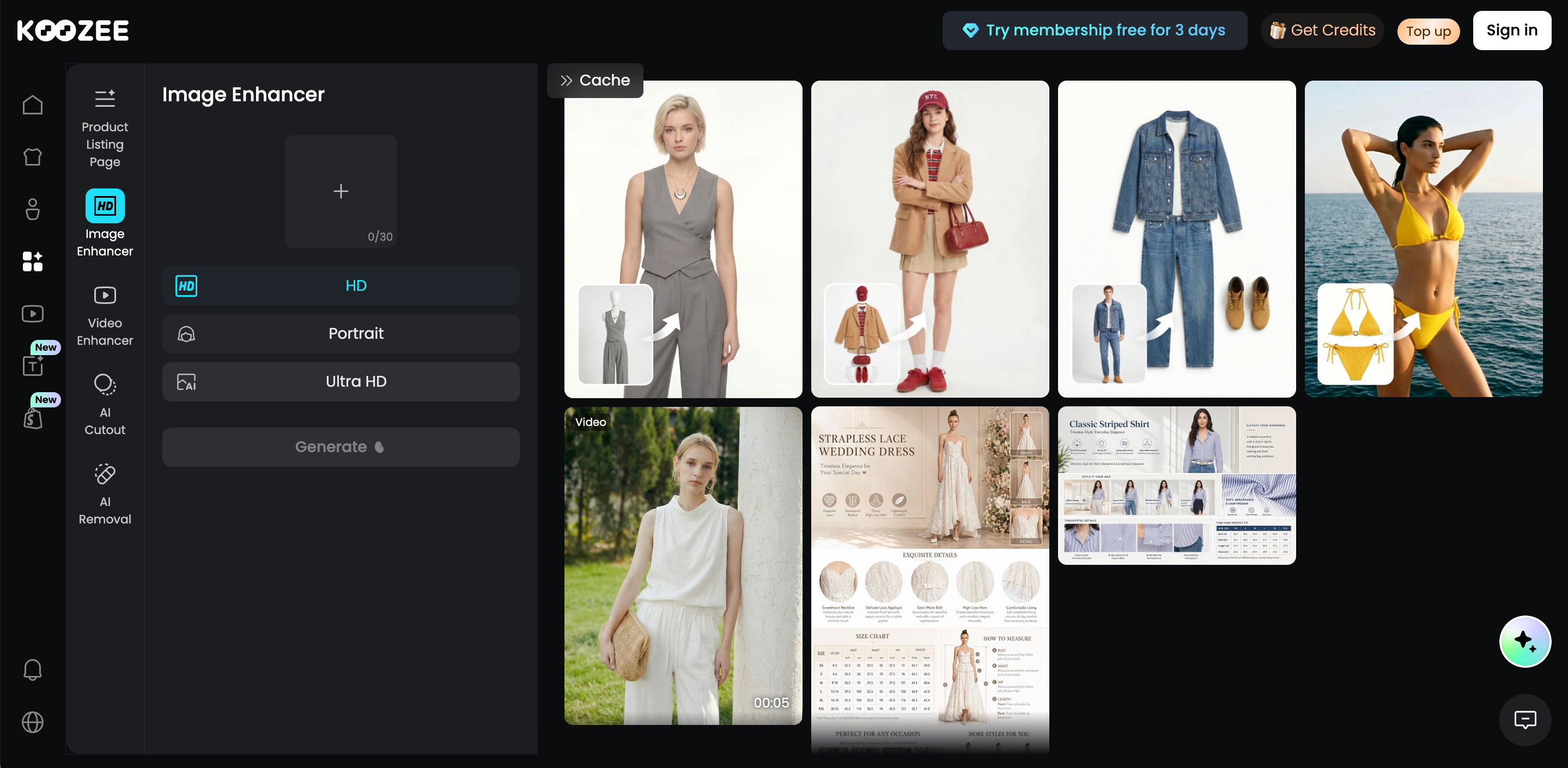
Start with the clothing image you want to turn into a Reel. Koozee works with product inputs such as flat lays, mannequin images, and existing fashion photos, but the garment should be easy to understand at a glance. Keep the full silhouette visible where possible, and make sure important details such as the neckline, sleeves, hem, buttons, prints, straps, or pockets are not obscured.
If the source image is slightly blurry or compressed, you can optionally prepare it with the Koozee AI Image Enhancer before moving into the try-on workflow. For product content, always compare any enhanced result with the original image to make sure important garment details remain accurate.
Avoid using images with heavy folds, extreme angles, large obstructions, or very low resolution. The clearer the source garment is, the less information the AI has to infer later.
Step 2: Create the On-Model Image With Koozee AI Try-On
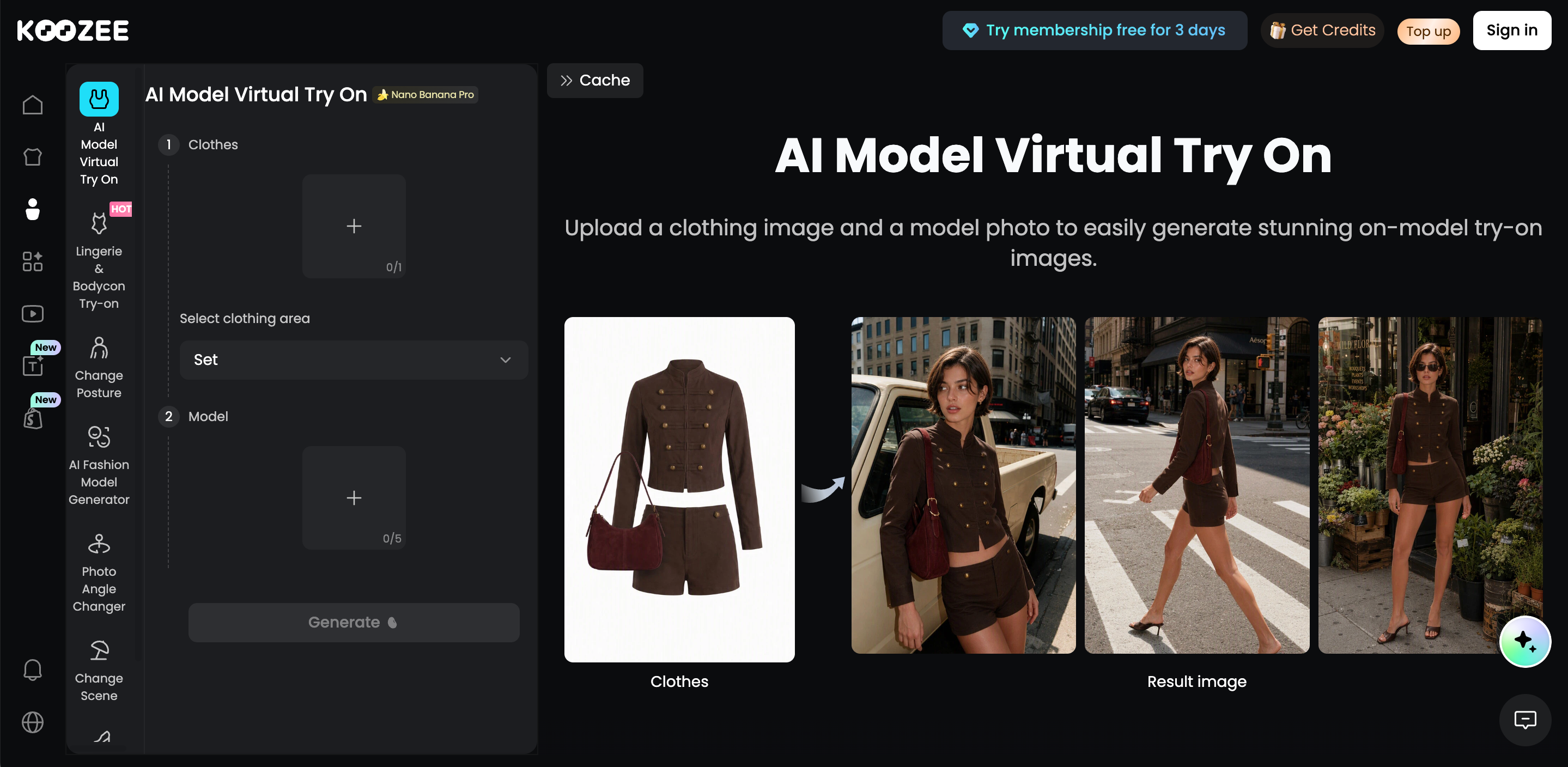
Next, open Koozee AI Try-On and upload your clothing image together with a suitable model reference. You can use an existing model asset or create an AI fashion model first, depending on the visual direction you want.
Generate the try-on image, then check the clothing before moving forward. Look at the neckline, sleeve length, silhouette, hem, print placement, and other recognizable details and compare them with the source product. Koozee's AI Try-On is designed to turn flat lays and other clothing product images into on-model fashion visuals.
Do not rush directly into video generation if the still image is not right. The on-model image becomes the visual foundation of the Reel, so correcting it at this stage is usually easier than trying to compensate for inaccuracies after animation.
Step 3: Refine the Model, Pose, Scene, and Framing in Koozee
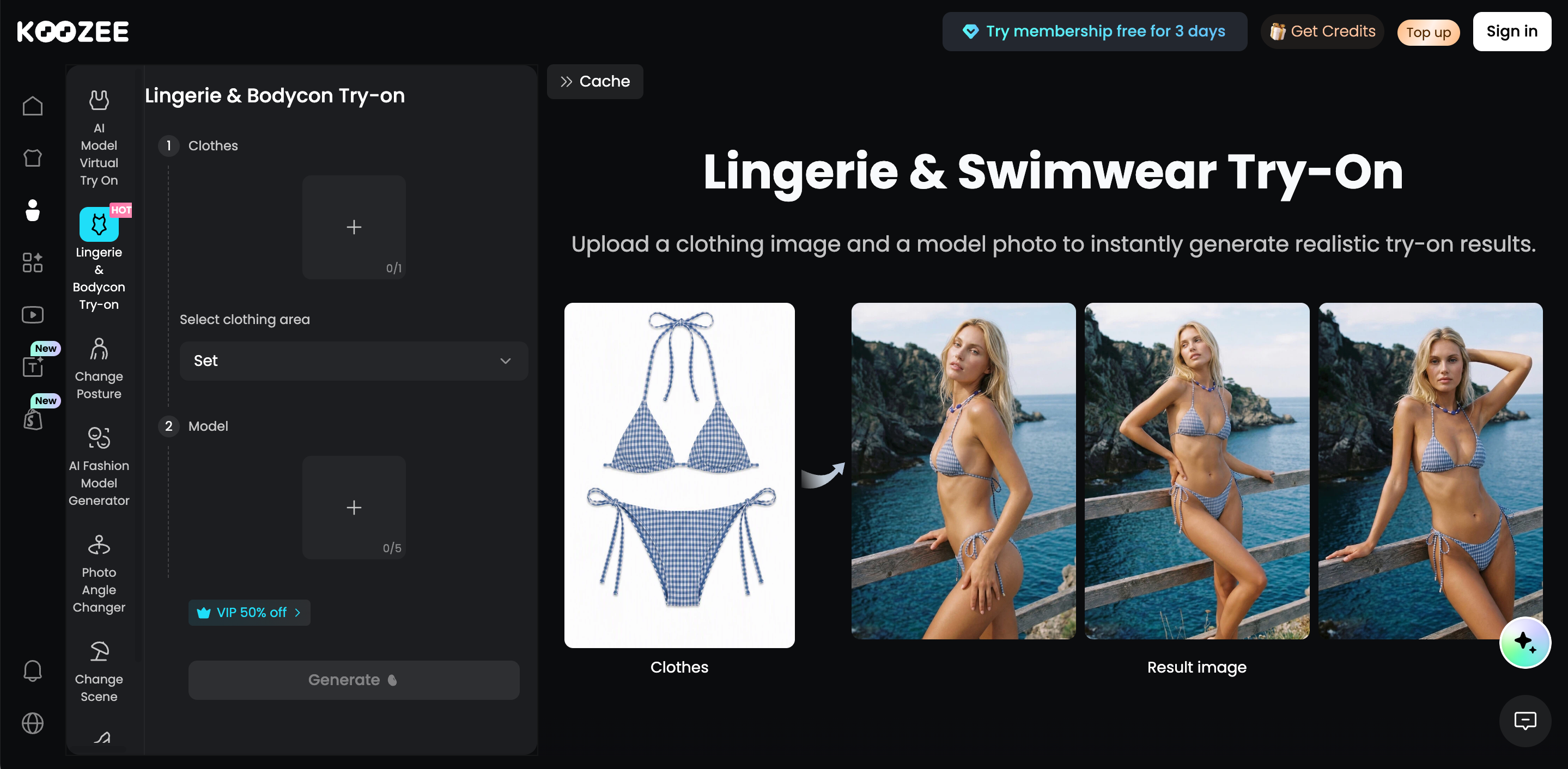
Once the try-on image looks right, refine the presentation before turning it into video.
If you want a different model look, use the Koozee AI Fashion Model Generator. For a more video-friendly starting pose, the Koozee AI Pose Changer can create pose variations from the same fashion image. If the Reel needs a lifestyle or campaign setting instead of a studio background, use the Koozee AI Scene Generator to create a scene based on a reference image.
For video generation, relatively natural poses usually work better than extreme body angles or poses where the hands cover large areas of the garment. Framing should also follow the product: a dress may need a full-body view, while a jacket or top can often use a closer composition. If the finished Reel is for Instagram or TikTok, prepare the visual with a vertical composition in mind.
Step 4: Choose How You Want Koozee to Turn the Image Into a Reel
Once the on-model visual is ready, choose the video workflow that best matches the content you want to create.
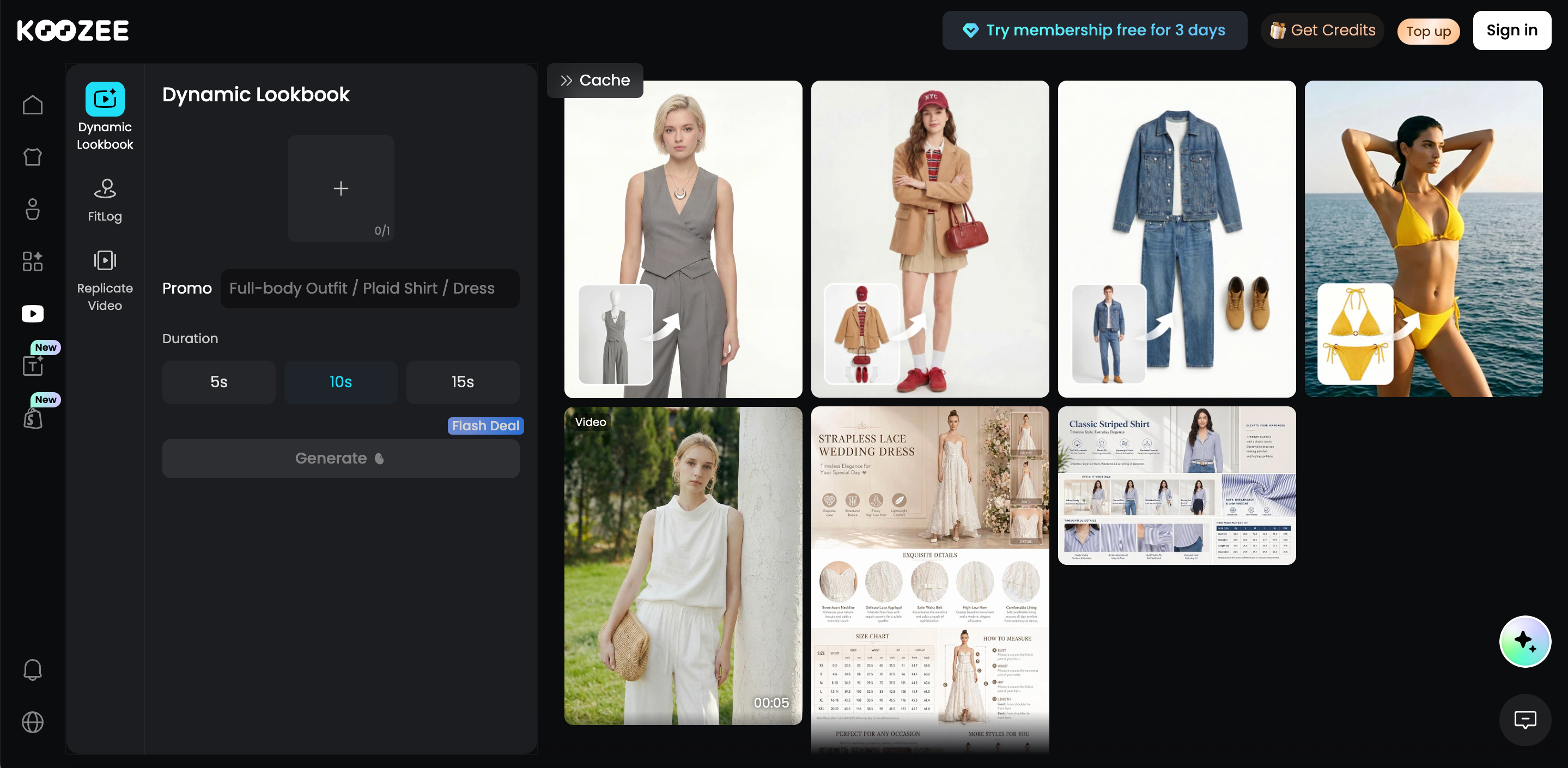
Animate the on-model image directly. Open the Koozee AI Fashion Video Generator to turn your clothing or AI try-on image into formats such as Dynamic Lookbook, Fitlog-style fit checks, and short Outfits clips.
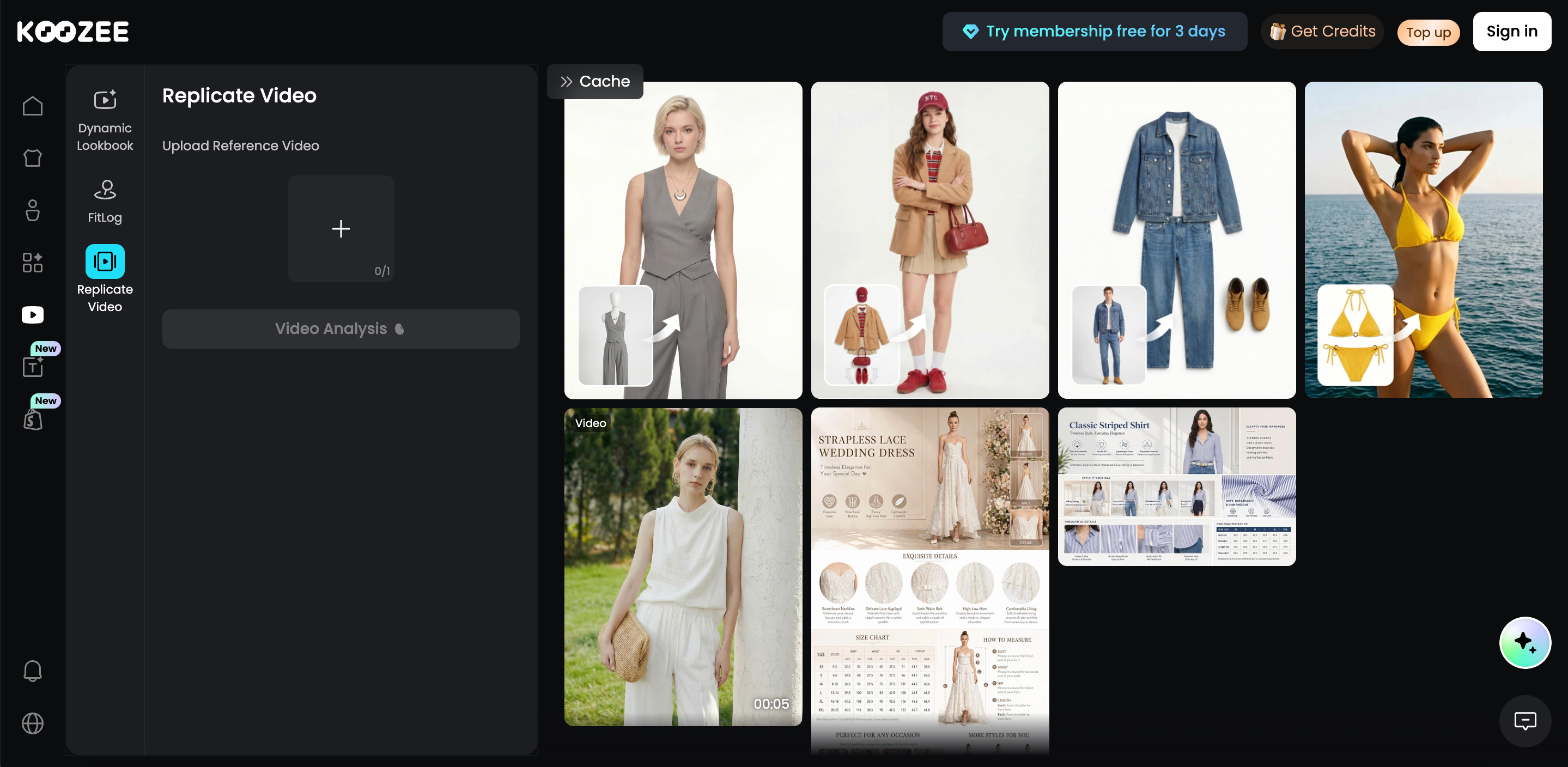
Recreate a Reel format you already like. Use the Koozee AI Video Cloner. Upload a reference video, then add the product, clothing, model, or detail assets requested by Koozee to recreate a similar pacing and video structure with your own product content.
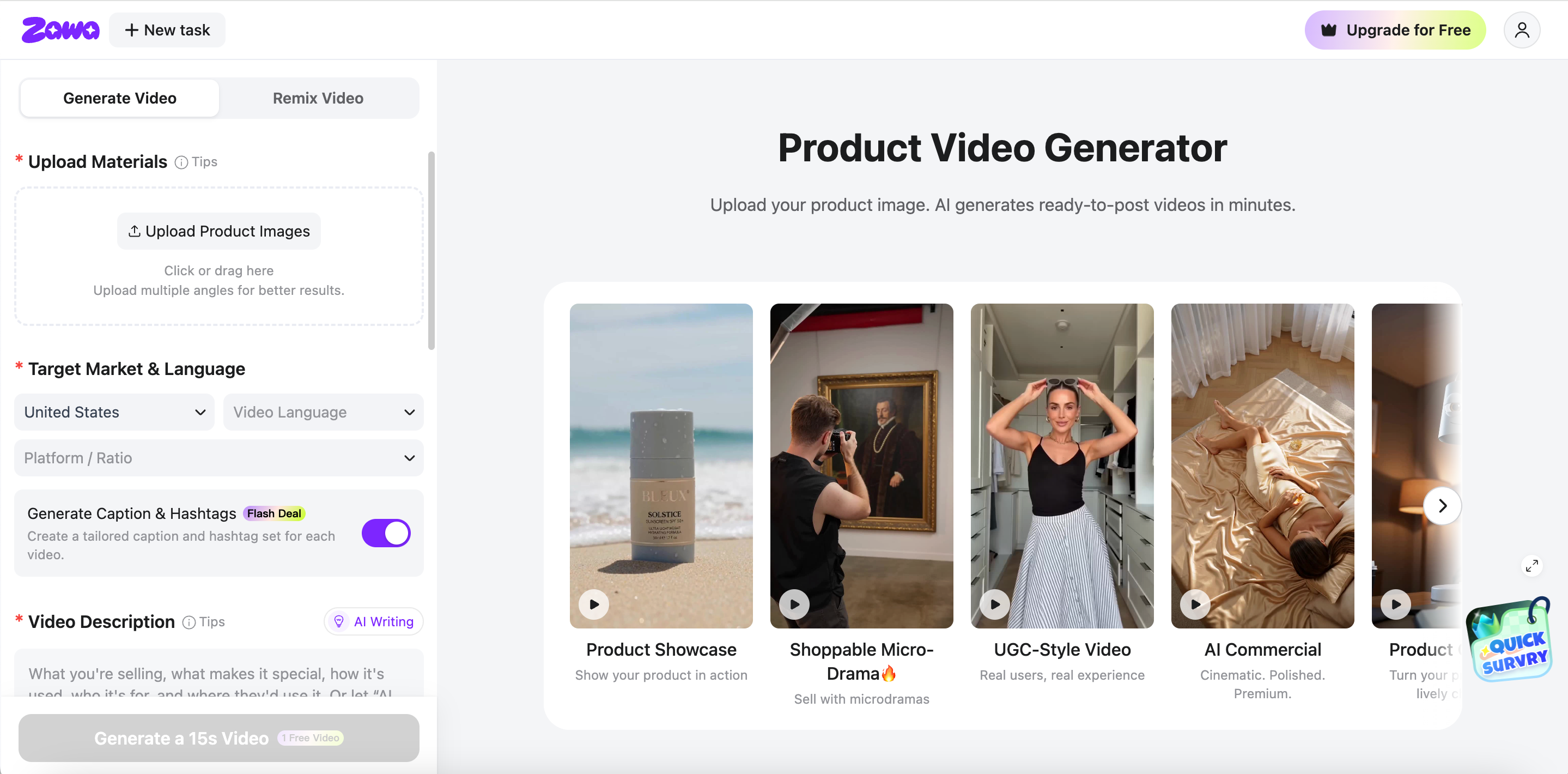
Create a more social-first Reel. If you want formats closer to native Instagram or TikTok content, use the Zawa AI Reel Generator for options such as UGC, Product Demo, Commercial, Tutorial, Unboxing, Before & After, and Problem-Solution Reels.
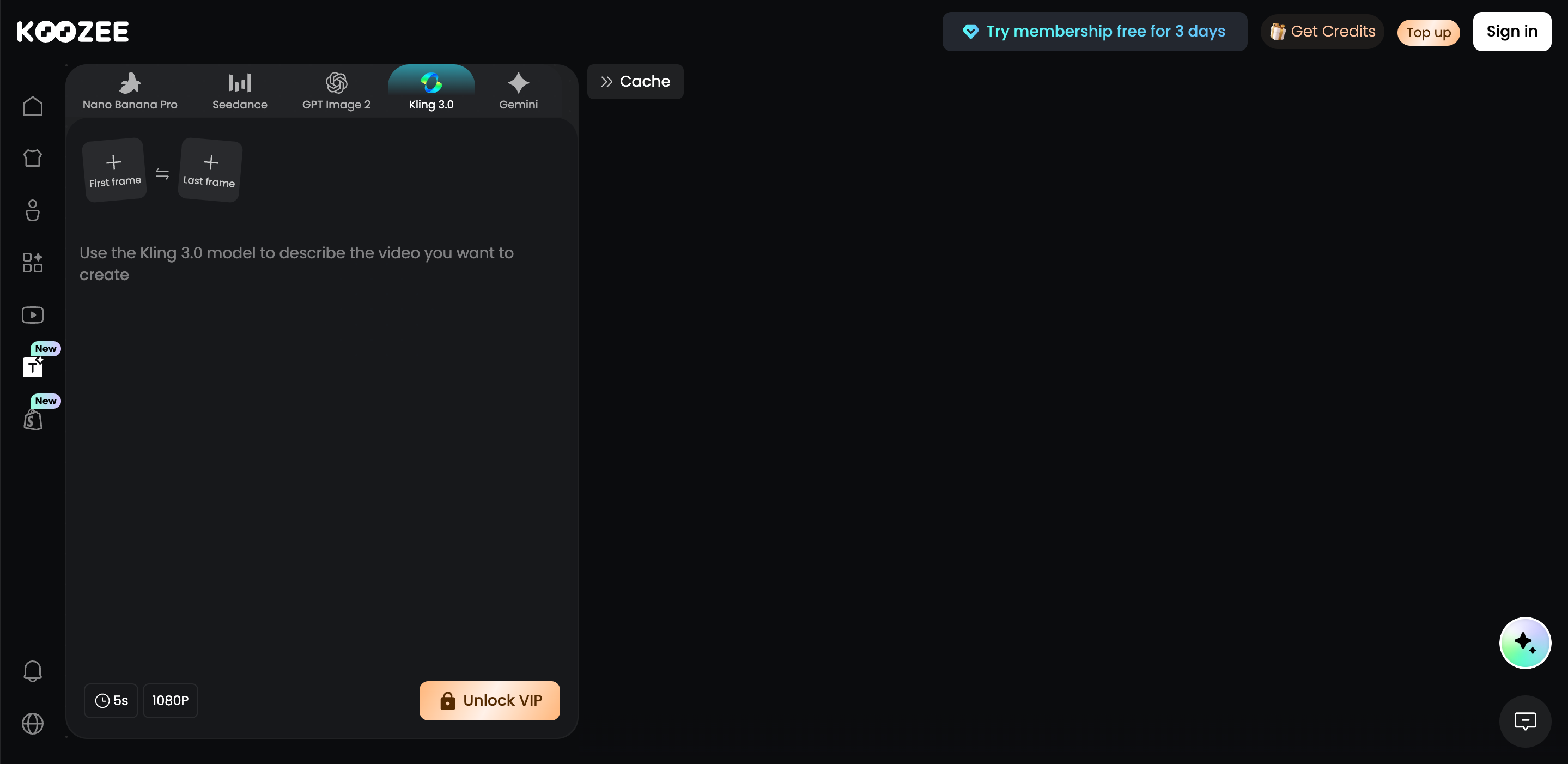
Create a custom video concept with prompts. Use the Koozee AI Product Video Generator when you want more control over the shot. You can use first and last frames together with a prompt to guide elements such as camera movement, lighting, composition, and mood.
The best route depends on what the Reel needs to do. A product-focused lookbook may only need simple, controlled movement, while a social creative may benefit from a stronger content format or reference structure.
Step 5: Generate, Review, and Polish the Reel
Generate the Reel using the workflow you selected, then compare the result with both the original clothing photo and the on-model image.
Pay particular attention when the model turns, walks, or moves their arms. Check whether prints, logos, buttons, sleeves, straps, hems, pockets, and other product-defining details remain consistent. Motion should also feel physically believable rather than exaggerated or disconnected from the garment.
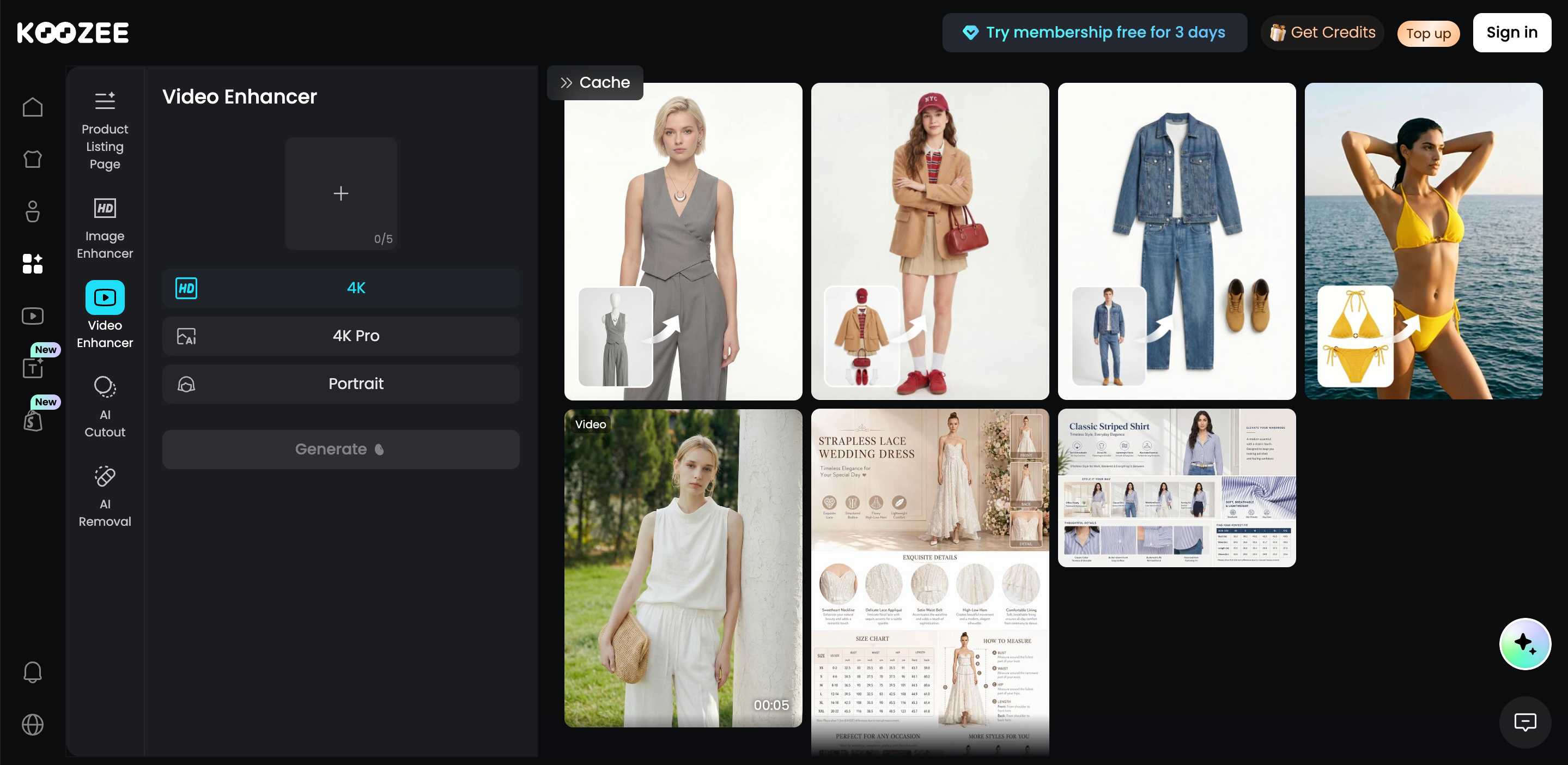
If the product itself has changed, return to the source image or simplify the motion and regenerate. If the Reel is accurate but the final footage looks soft or has lost clarity after generation or editing, you can optionally use the Koozee AI Video Enhancer to improve video clarity and presentation. Enhancement should be used to polish a correct result, not to fix an incorrectly generated garment.
AI can shorten the production process, but the final Reel should still be reviewed before publishing for garment accuracy, fit, motion, pacing, captions, and overall presentation.
Common Problems When Making On-Model Product Reels Without a Photoshoot
Clothing details change during motion: Prints, buttons, seams, logos, or necklines may shift between frames.
The model looks good, but the garment does not: Product accuracy should come before a visually impressive model.
Parts of the garment disappear or become distorted: This often happens around hands, sleeves, straps, skirts, and layered clothing.
The motion looks unnatural or too exaggerated: Simpler walking, turning, or posing is often more believable for product content.
The Reel looks too much like an AI animation: Avoid unnecessary camera movement or overly dramatic body motion when a natural product showcase would work better.
FAQs
Can I Make an On-Model Reel From a Flat-Lay Clothing Photo?
Yes. Upload the flat-lay garment to Koozee AI Try-On first, create an on-model image, and then use that image as the starting point for video generation.
Do I Need a Model Photo to Create an On-Model Product Reel?
You do not need to arrange a new model photoshoot. You can use an existing model reference or create an AI fashion model before generating the try-on visual.
Can I Turn an AI Try-On Image Into a Product Reel?
Yes. Koozee AI Fashion Video Generator accepts AI try-on images as an input for fashion video generation.
How Do I Keep Clothing Details Consistent in an AI Reel?
Start with a clear product image and accurate try-on result, keep the initial motion relatively simple, and compare several frames with the source garment before publishing.
Should I Review an AI Product Reel Before Publishing It?
Yes. Check the garment, fit, motion, pacing, captions, and other product details before using the video on a product page, ad, or social channel.