KI-Objektentferner für sauberere Produktfotos
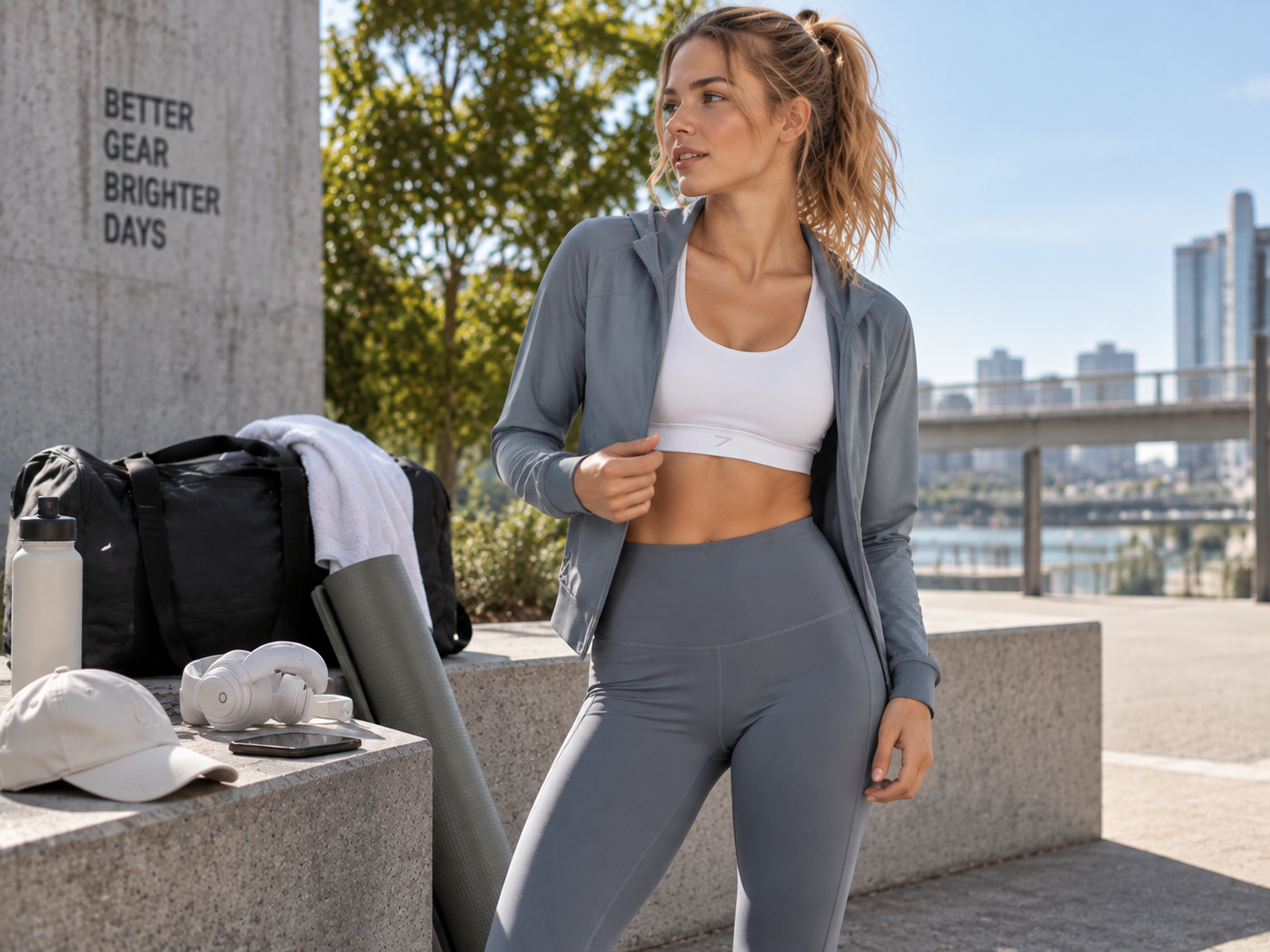
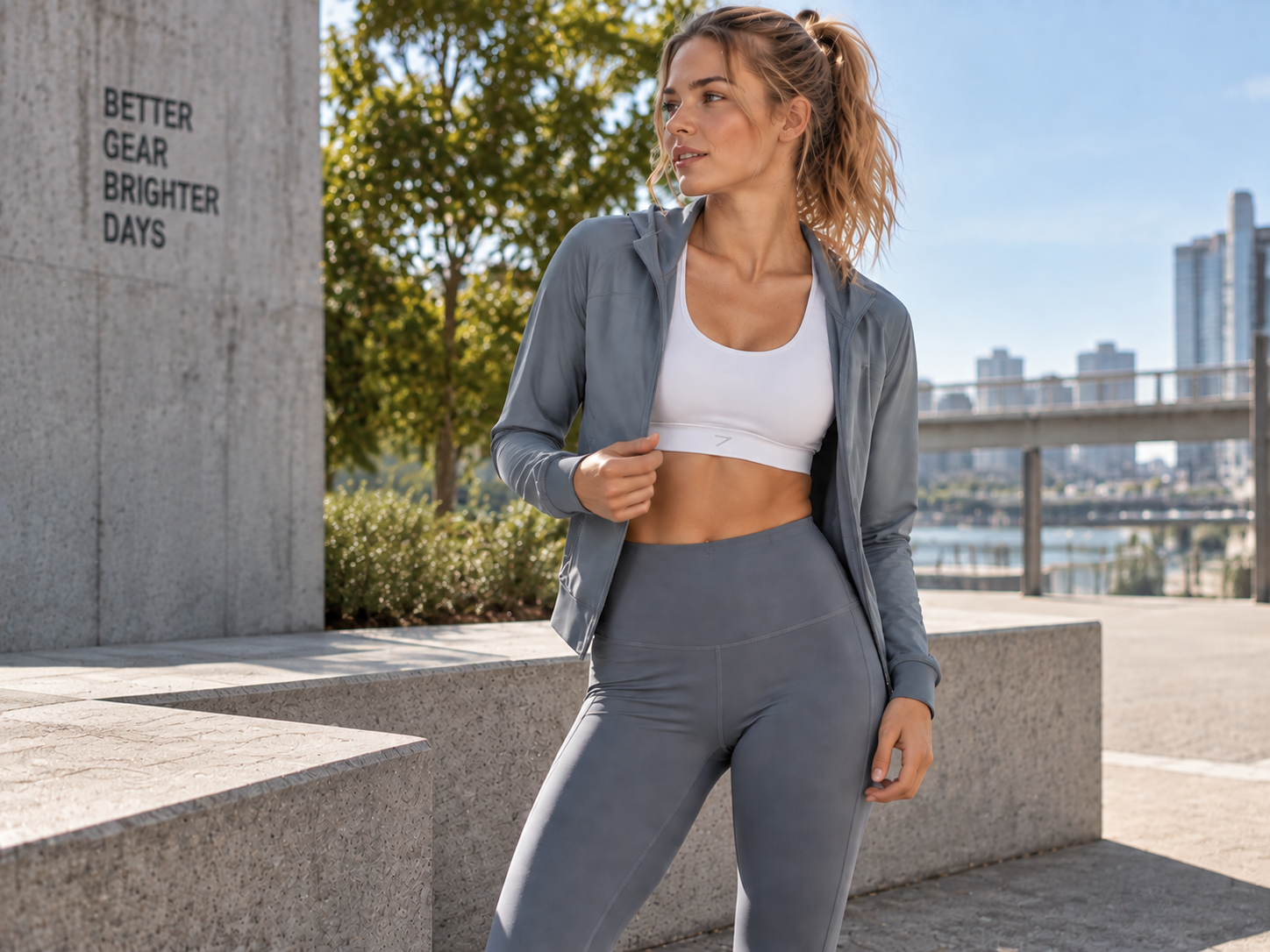
Ein gutes Produktfoto nicht wegen eines störenden Requisits neu aufnehmen


Die Ablenkung entfernen, ohne das Produkt neu zu fotografieren
Das Shooting ist abgeschlossen, doch ein unerwünschtes Requisit oder etwas Unordnung am Set ist im Bild gelandet. Statt ein ansonsten nutzbares Produktfoto neu aufzunehmen, entfernen Sie die Ablenkung, prüfen Sie Produktkanten und Hintergrund und bringen Sie das Bild weiter auf Ihre Produktseite oder zum Launch.
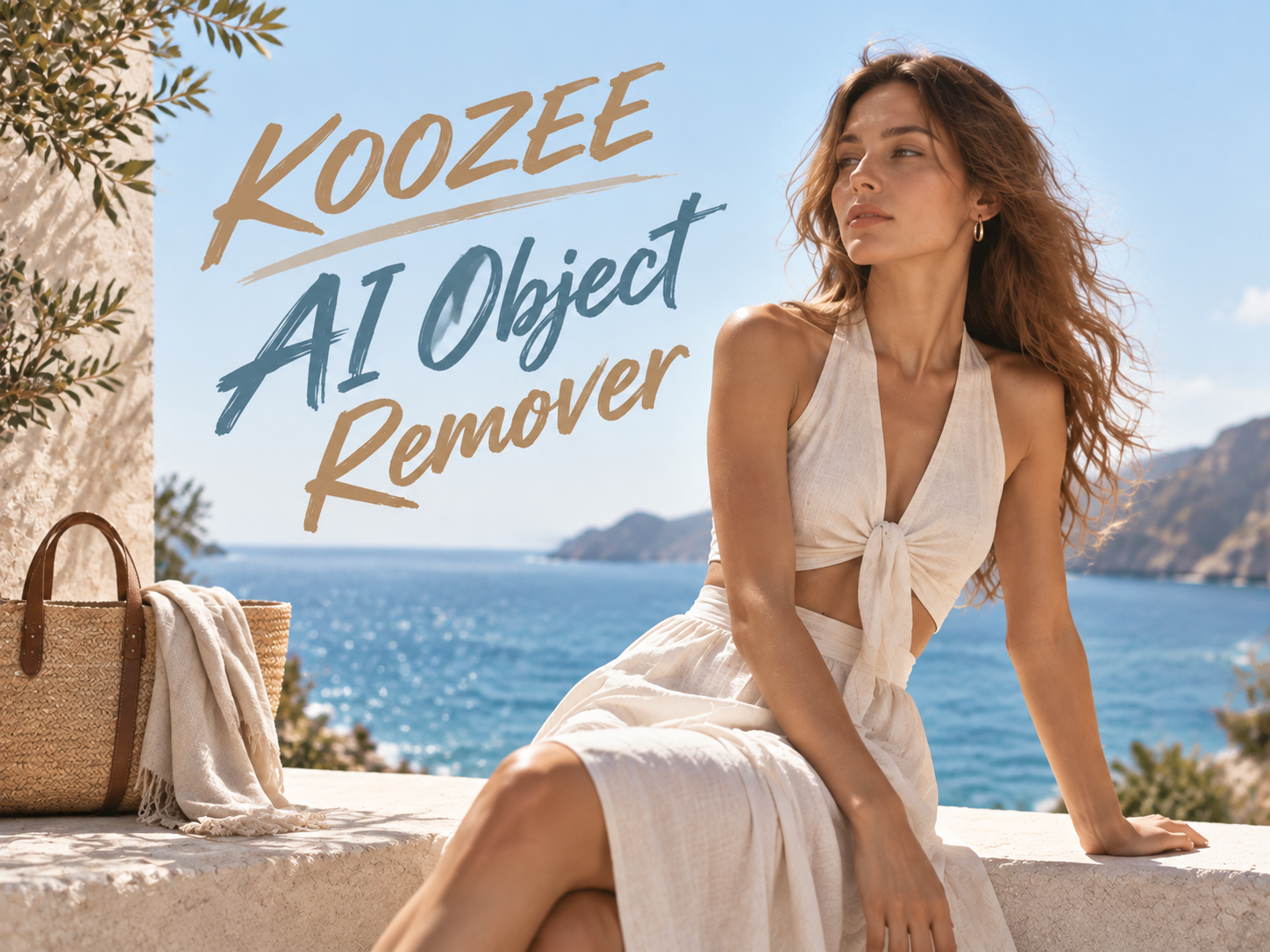
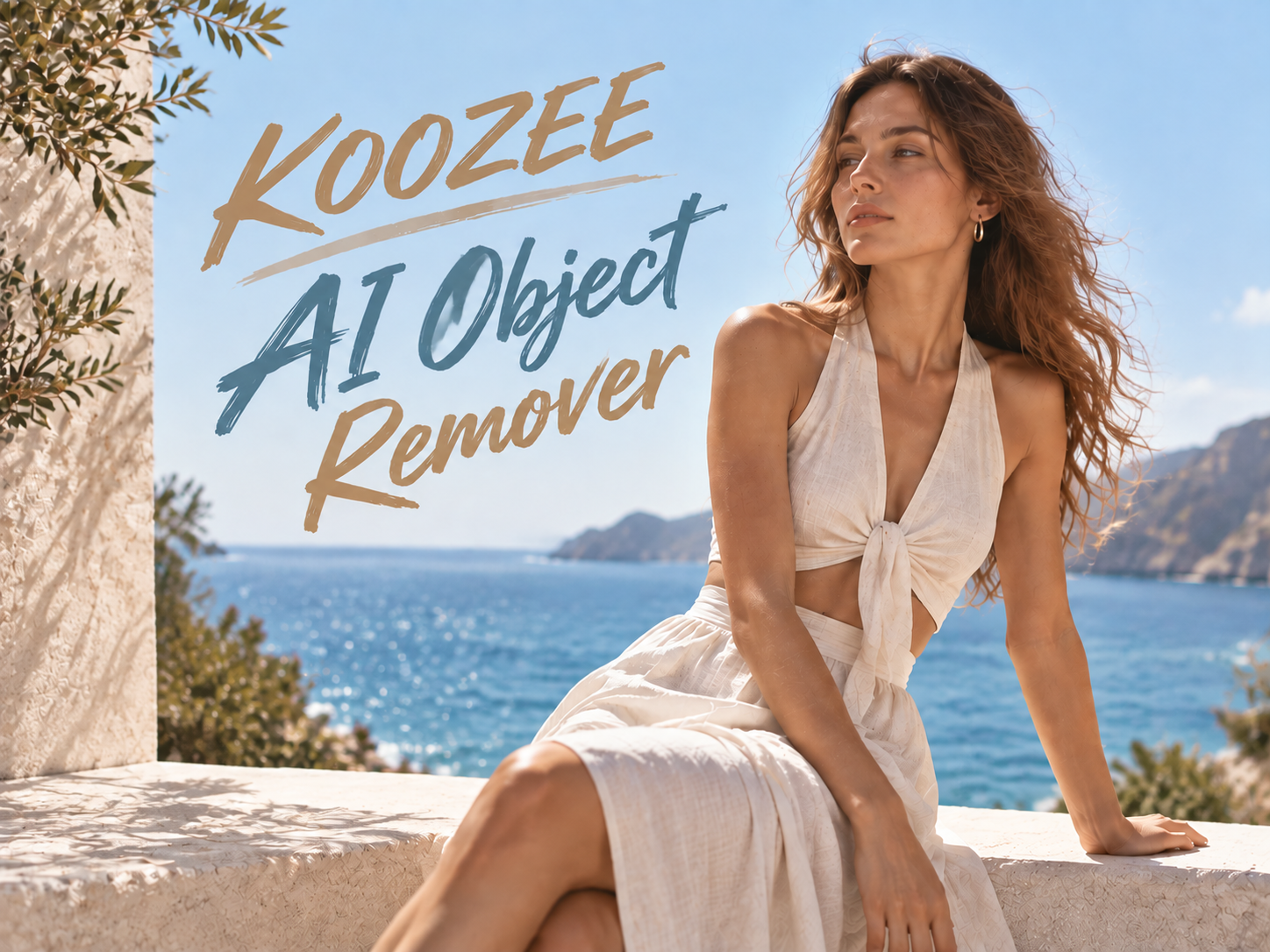
Wählen Sie den einfachsten Weg, um zu entfernen, was Sie nicht brauchen
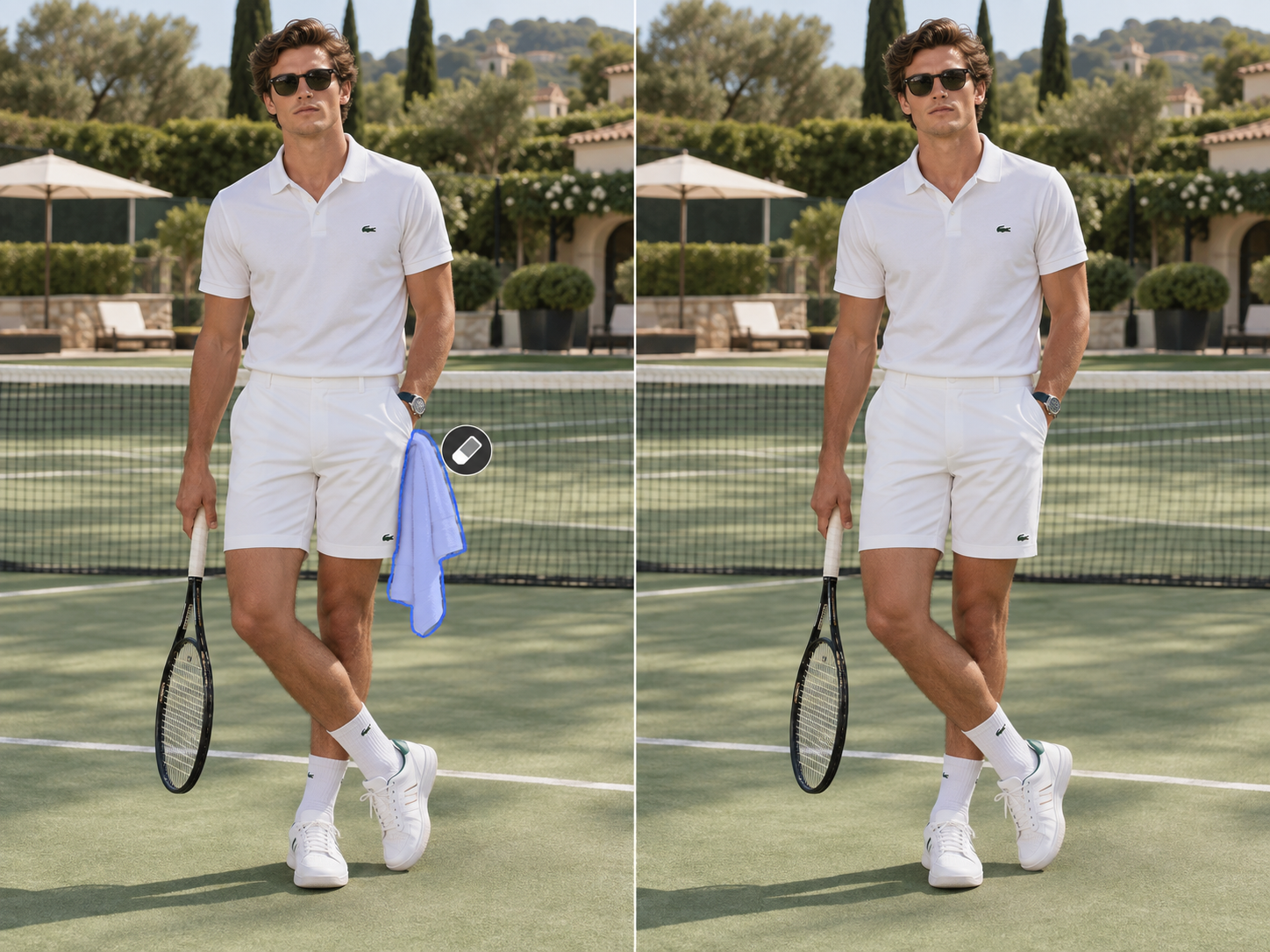
Auswahl verfeinern
Wenn sich das Objekt nah am Produkt befindet, eine schwierige Kante hat oder nicht wie gewünscht ausgewählt wurde, verfeinern Sie den Bereich manuell. Nutzen Sie Erase und Brush Size, um die Maske anzupassen und selbst zu bestimmen, was entfernt werden soll und was bleiben muss.
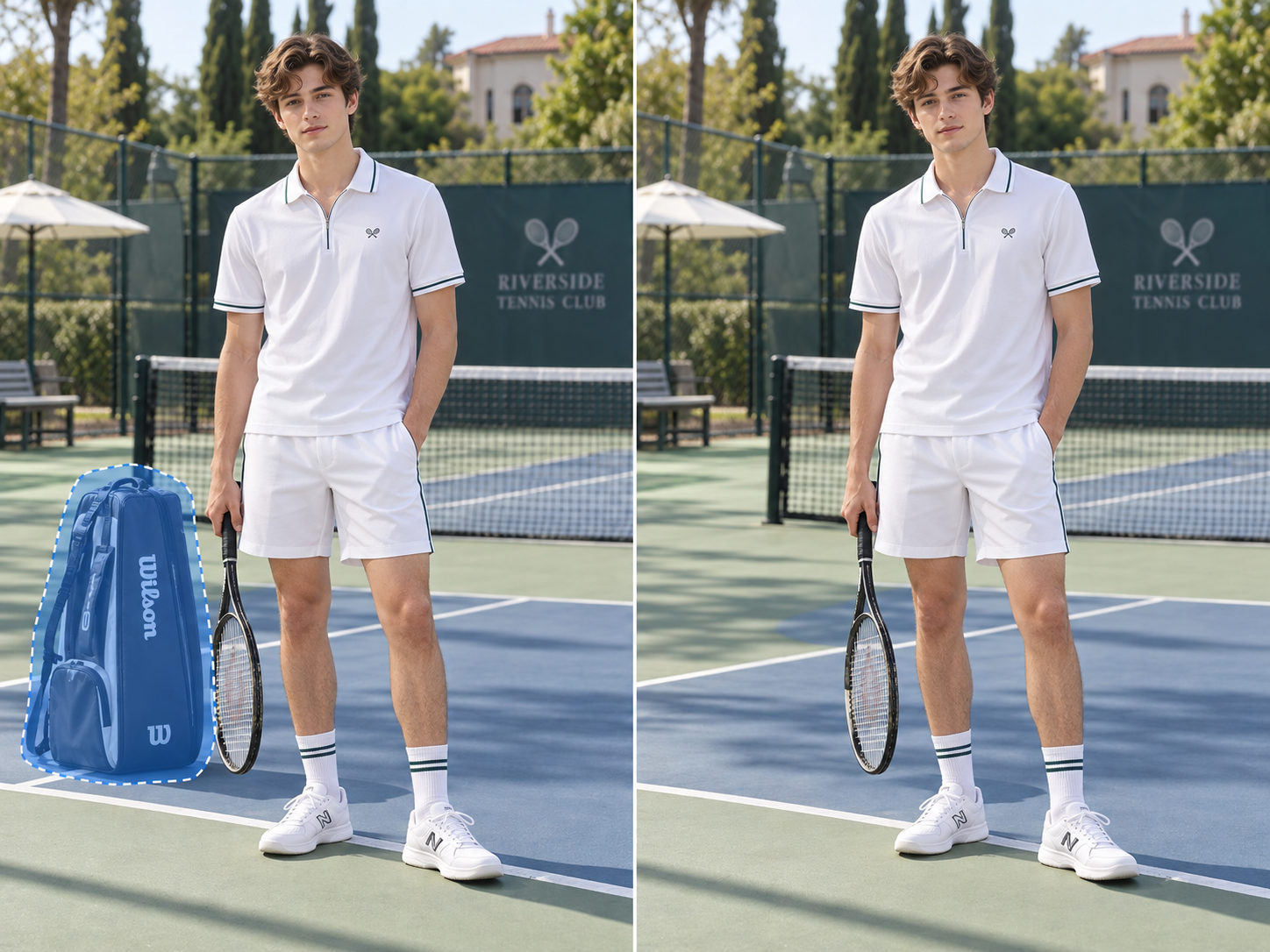
Das Objekt schneller auswählen
Wenn das Objekt klare Konturen hat, markieren Sie es mit der intelligenten Auswahl schneller und prüfen Sie vor der Generierung die Kanten. Das reduziert den manuellen Pinselaufwand, sodass Sie sich auf die Bereiche konzentrieren können, die tatsächlich verfeinert werden müssen.
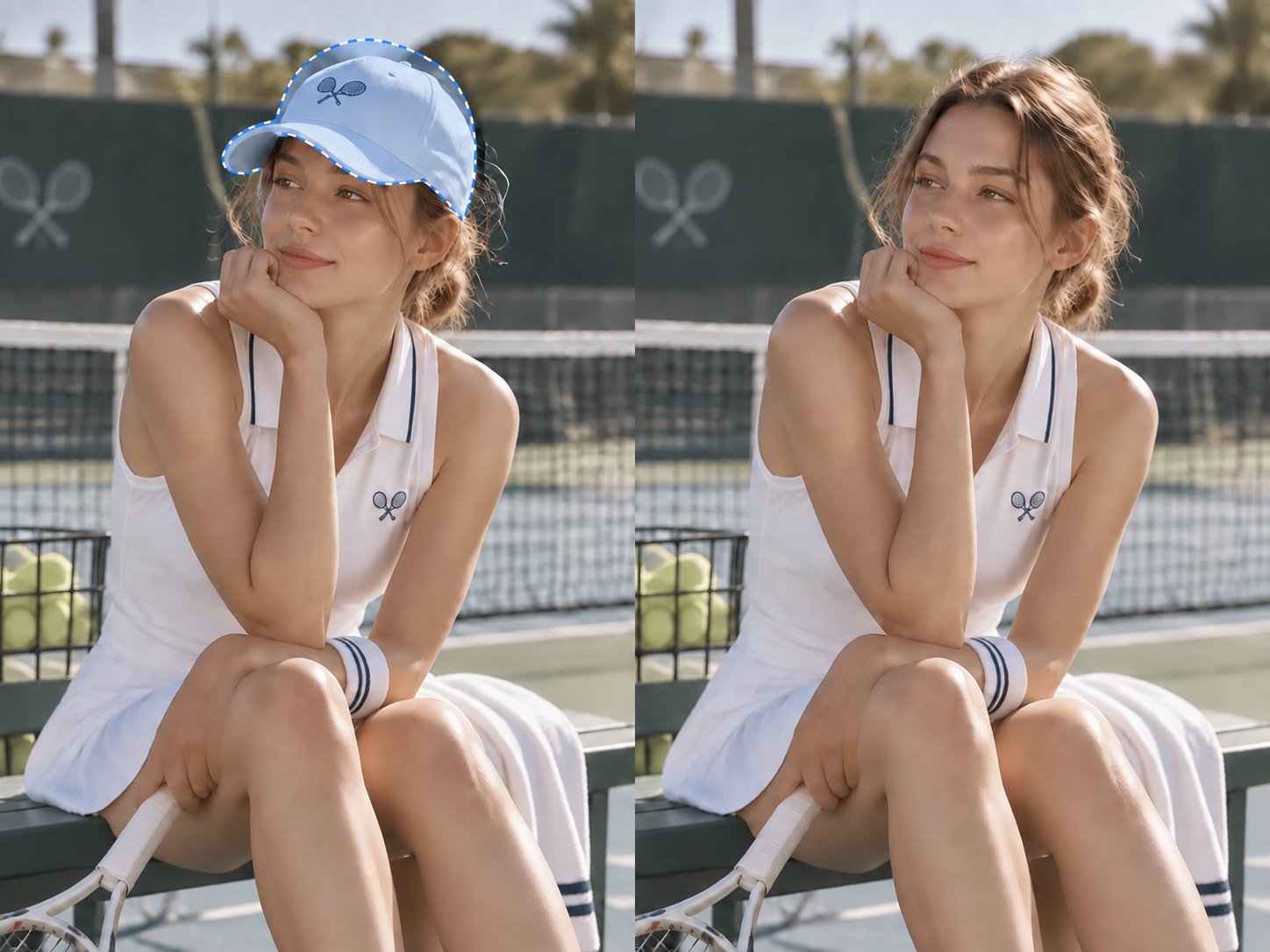
Bilddetails bewahren
Nach dem Entfernen unerwünschter Objekte analysiert die KI die umliegenden Bildinhalte, füllt die fehlenden Bereiche und bewahrt ursprüngliche Texturen, Licht und Details. Der bearbeitete Bereich fügt sich natürlich in den Rest des Bildes ein. So behalten Produktfotos, Social-Media-Assets und Marketingvisuals ein klares, realistisches Erscheinungsbild.
Die Ablenkung entfernen, nicht die Produktdetails
Wenn ein unerwünschtes Requisit das einzige Problem ist, brauchen Sie kein komplettes Ebenen- und Masken-Setup, um es zu entfernen. Laden Sie das Bild hoch, wählen Sie das Objekt aus, generieren und prüfen Sie das Ergebnis – damit sich die Arbeit auf den Bereich konzentriert, der tatsächlich korrigiert werden muss.
Unruhige Hintergründe und enge Kanten eignen sich nicht immer für eine Bearbeitung ohne Eingreifen. Mit intelligenter Auswahl und manueller Verfeinerung im KI-Objektentferner von Koozee können Sie den Zielbereich eingrenzen, löschen oder neu markieren, statt nach einer ungenauen Auswahl von vorn zu beginnen.
Sobald Sie mit dem Ergebnis zufrieden sind, verwenden Sie das bereinigte Bild auf Produktseiten, in Katalogen, Anzeigen, auf Plakaten und in Social-Media-Beiträgen wieder, statt das Motiv von Grund auf neu zu erstellen.
Ein Foto hochladen. Unerwünschtes Objekt in 3 Schritten entfernen.
Foto zum Bereinigen hochladen
Beginnen Sie mit einem klaren Bild, auf dem das Produkt sichtbar ist und das zu entfernende Objekt erkannt werden kann. Entscheiden Sie, welche Produktdetails erhalten bleiben müssen. Starke Überdeckungen, reflektierende Oberflächen, Bilder mit niedriger Auflösung oder Objekte, die das Produkt berühren, können eine genauere Prüfung erfordern.
Objekt auswählen
Markieren Sie das Ziel zunächst mit der intelligenten Auswahl. Wenn Sie präzisere Kontrolle benötigen, bearbeiten Sie den Bereich manuell mit dem Pinsel, um die Auswahl zu erweitern oder zu reduzieren. Verfeinern Sie die Kanten anschließend mit Erase und Brush Size.
Generieren und Details prüfen
Klicken Sie auf „Generieren“ und prüfen Sie das Ergebnis. Kontrollieren Sie Kanten, Texturen, Schatten und Produktdetails in der Nähe des entfernten Bereichs. Wenn etwas nicht stimmt, passen Sie die Auswahl an oder wechseln Sie die Auswahlmethode und generieren Sie erneut.
Häufig gestellte Fragen
Was ist ein KI-Objektentferner?
Wie entferne ich ein unerwünschtes Objekt aus einem Foto?
Laden Sie Ihr Foto hoch und markieren Sie das zu entfernende Objekt mit der intelligenten Auswahl. Für präzisere Kontrolle passen Sie den Bereich mit manuellem Pinsel, Erase und Brush Size an. Generieren Sie das Ergebnis und prüfen Sie Hintergrund und nahegelegene Produktdetails.
Kann der KI-Objektentferner von Koozee jedes Objekt aus einem Foto entfernen?
Die Ergebnisse können je nach Objekt und Szene variieren. Kleine, klar abgegrenzte Objekte mit sichtbarem Hintergrund lassen sich in der Regel leichter bereinigen. Objekte mit komplexen Kanten, starken Überdeckungen, Schatten oder unruhigen Hintergründen benötigen möglicherweise eine präzisere manuelle Auswahl und eine zusätzliche Prüfung nach der Generierung.
Wie erziele ich nach dem Entfernen eines Objekts ein natürlicheres Ergebnis?
Wählen Sie das vollständige Objekt möglichst präzise aus und achten Sie auf nahegelegene Kanten, Schatten oder Reflexionen, die die Szene beeinflussen können. Zoomen Sie nach der Generierung hinein, um Texturen und Produktdetails zu prüfen. Wenn Sie Spuren, unnatürliche Kanten oder eine zu große Auswahl sehen, verfeinern Sie die Maske und versuchen Sie es erneut.
Brauche ich Photoshop, und welche Bildformate oder Auflösungen werden unterstützt?
Für den grundlegenden Ablauf der Objektentfernung benötigen Sie weder Photoshop noch Kenntnisse über Ebenen oder Masken.
Foto behalten. Ablenkung entfernen.
Verwerfen Sie ein ansonsten nutzbares Produktfoto nicht wegen eines störenden Requisits. Laden Sie es hoch, wählen Sie mit dem KI-Objektentferner von Koozee das zu entfernende Objekt aus, prüfen Sie das Ergebnis und nutzen Sie das Bild weiter auf Produktseiten, in Katalogen, Anzeigen, auf Plakaten und in Social-Media-Beiträgen.