Generate Realistic AI Jewelry Try-On Images Instantly
Simply upload a jewelry product photo and a model image. Koozee's AI instantly identifies the wearing area and seamlessly blends the pieces to generate highly realistic, on-model jewelry images. Skip the manual cutouts and tedious Photoshop edits. Quickly create stunning visuals for your product pages, ad campaigns, and social media.
Clothes
Select clothing area
Model
No sign up required, totally free
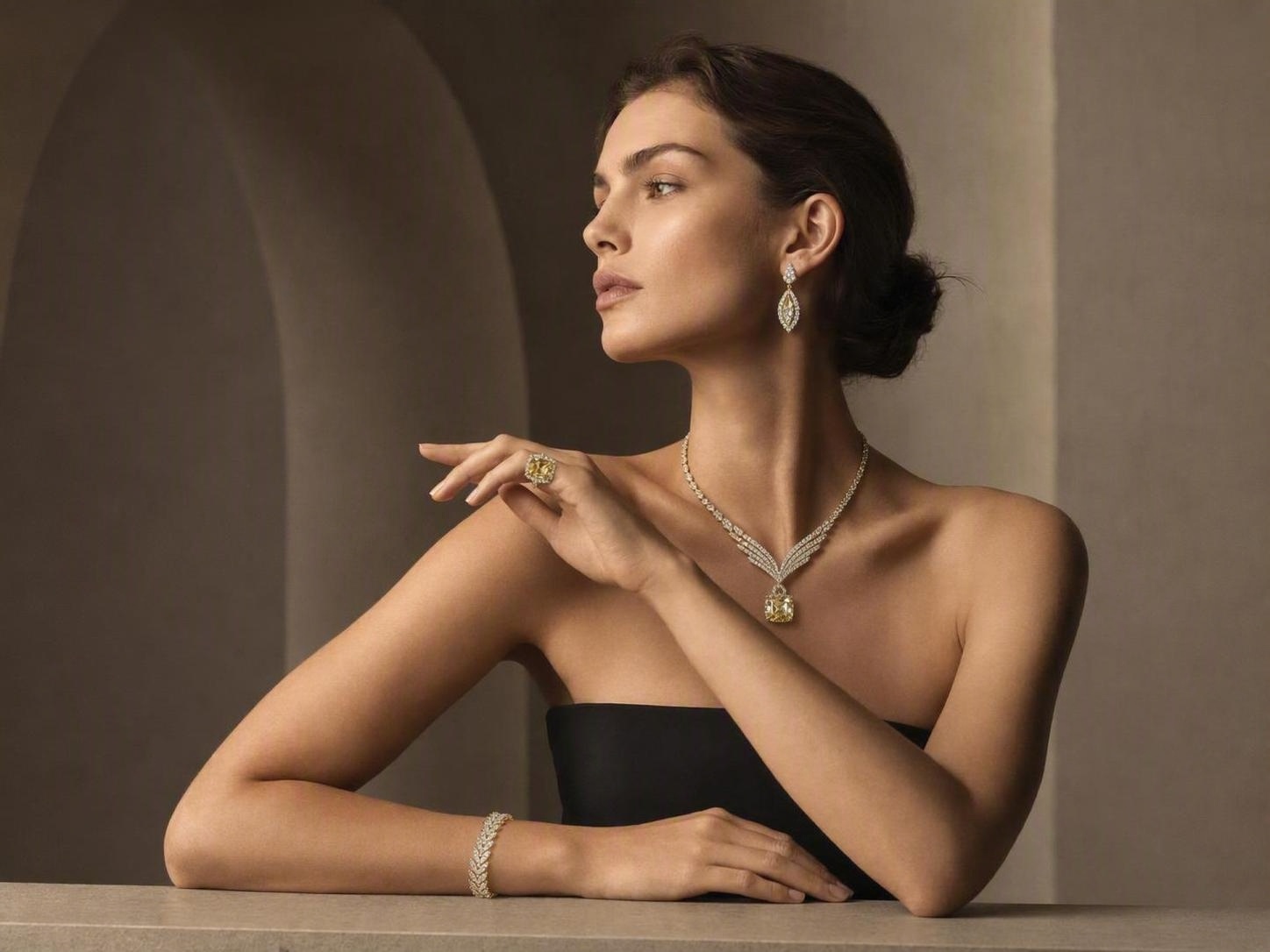
Made for Teams Needing Jewelry Try-On Visuals Fast
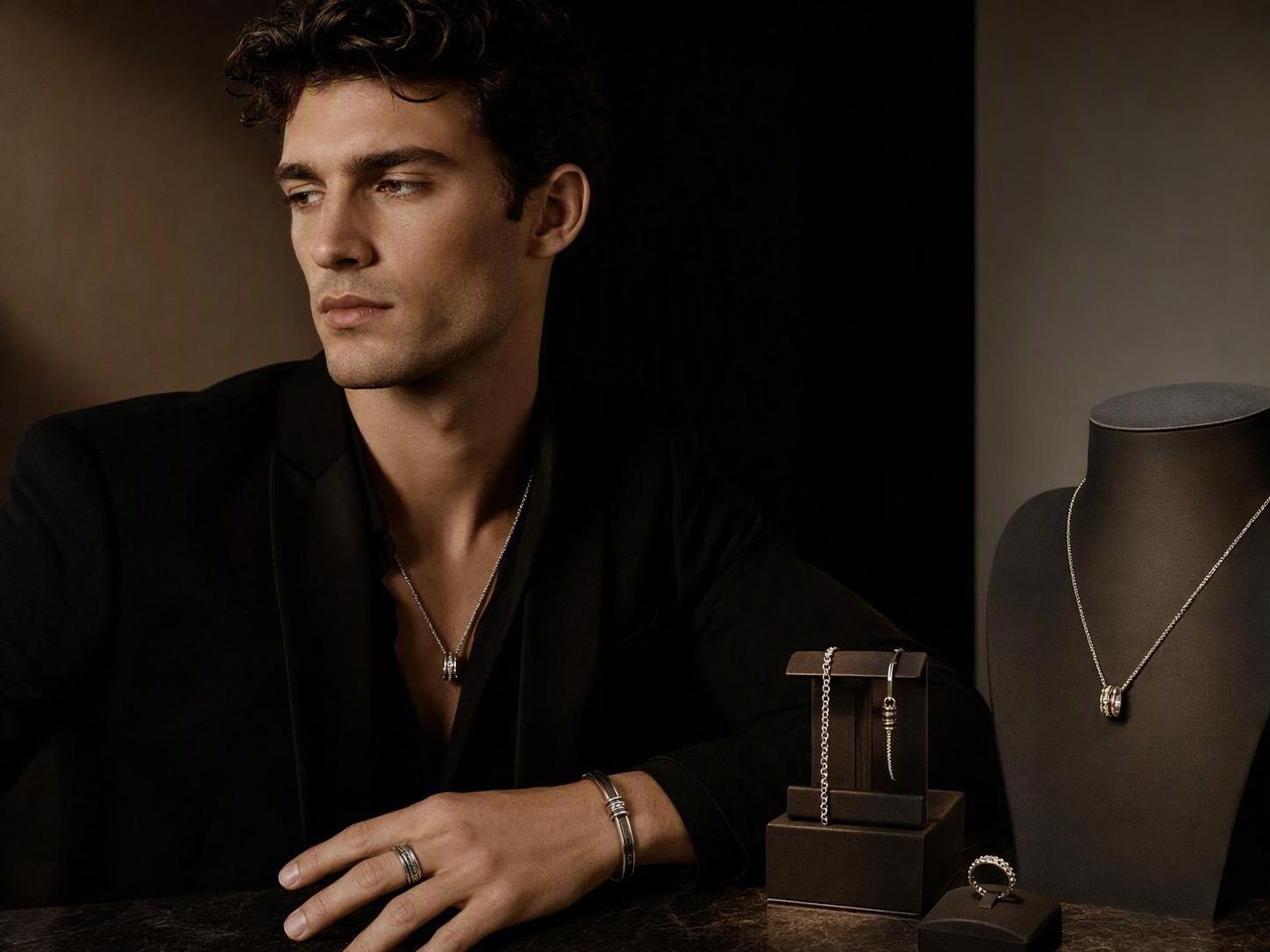
Accelerate Product Launches with On-Model Visuals
Generate on-model jewelry visuals from existing product images and reduce the need to arrange a basic shoot and manual compositing for every SKU. Use the results as candidate main images, detail-page visuals, and launch teasers so listing and promotion workflows move faster.
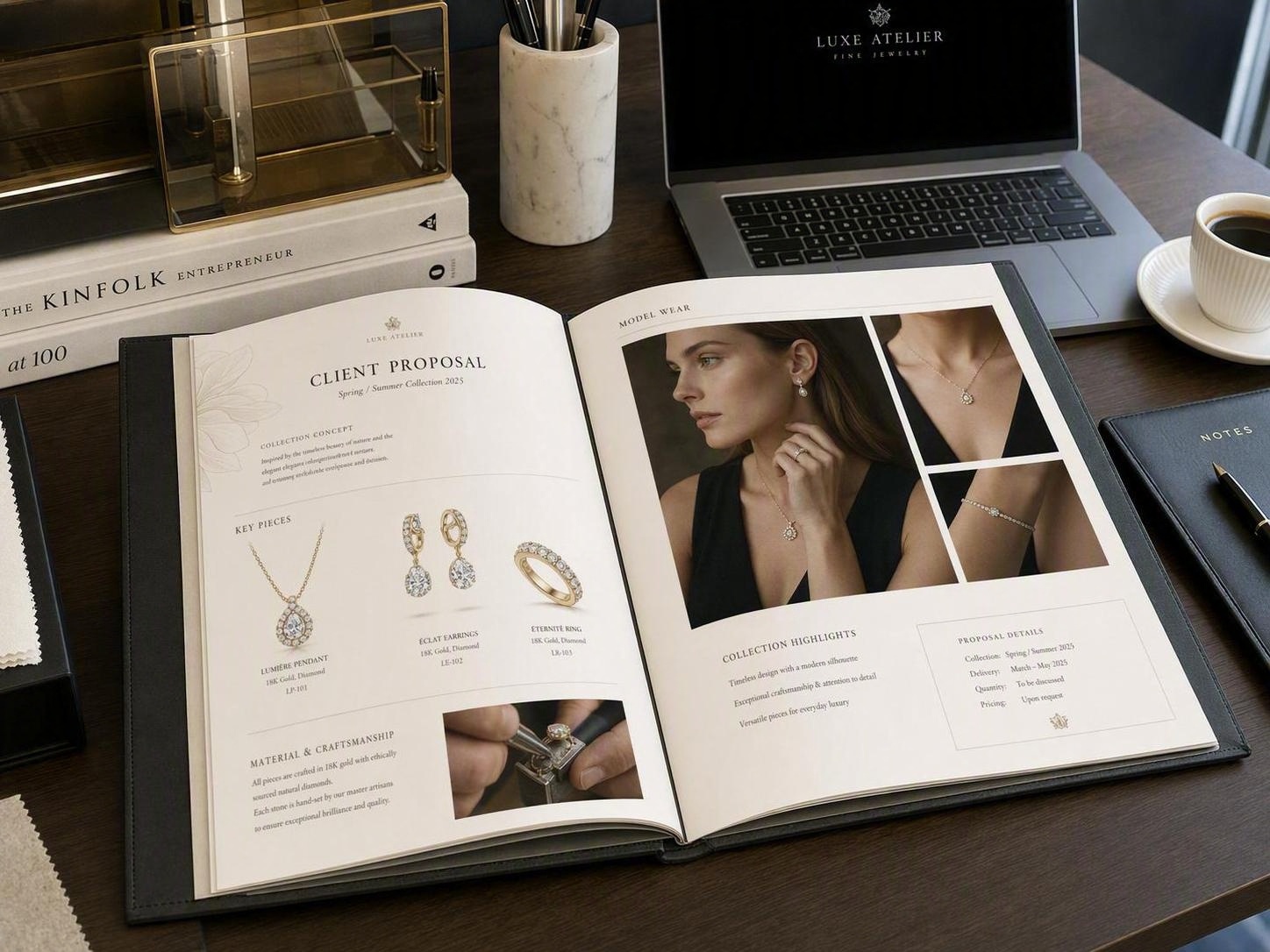
Turn One Jewelry Item into a Full E-Commerce Content Flow
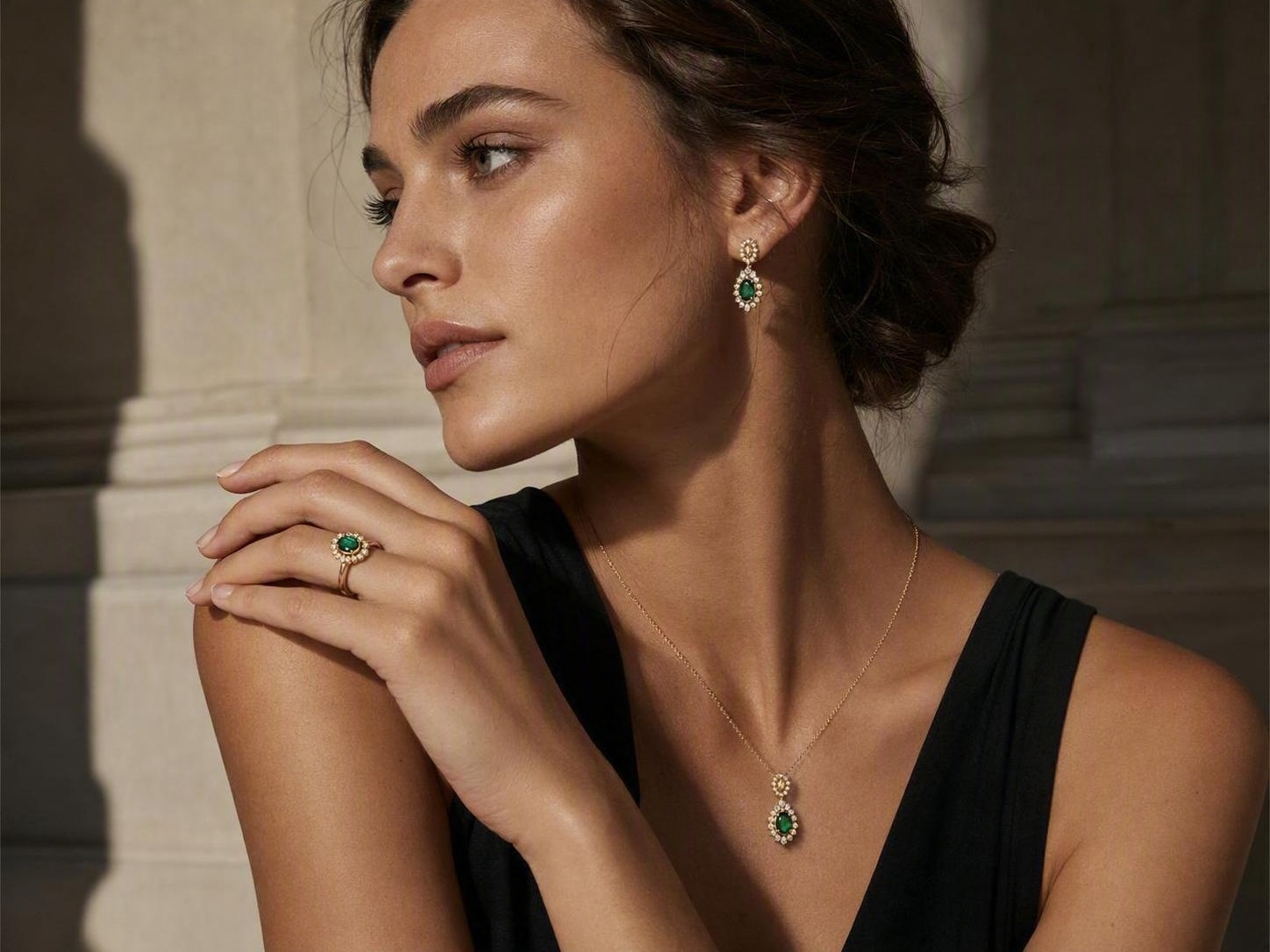
Generate Natural-Looking Try-On Results Fast
Say goodbye to floating jewelry and fake 'pasted-on' effects. Our advanced AI analyzes the photo to ensure perfect placement, natural lighting, and seamless blending, delivering highly realistic on-model results in seconds.
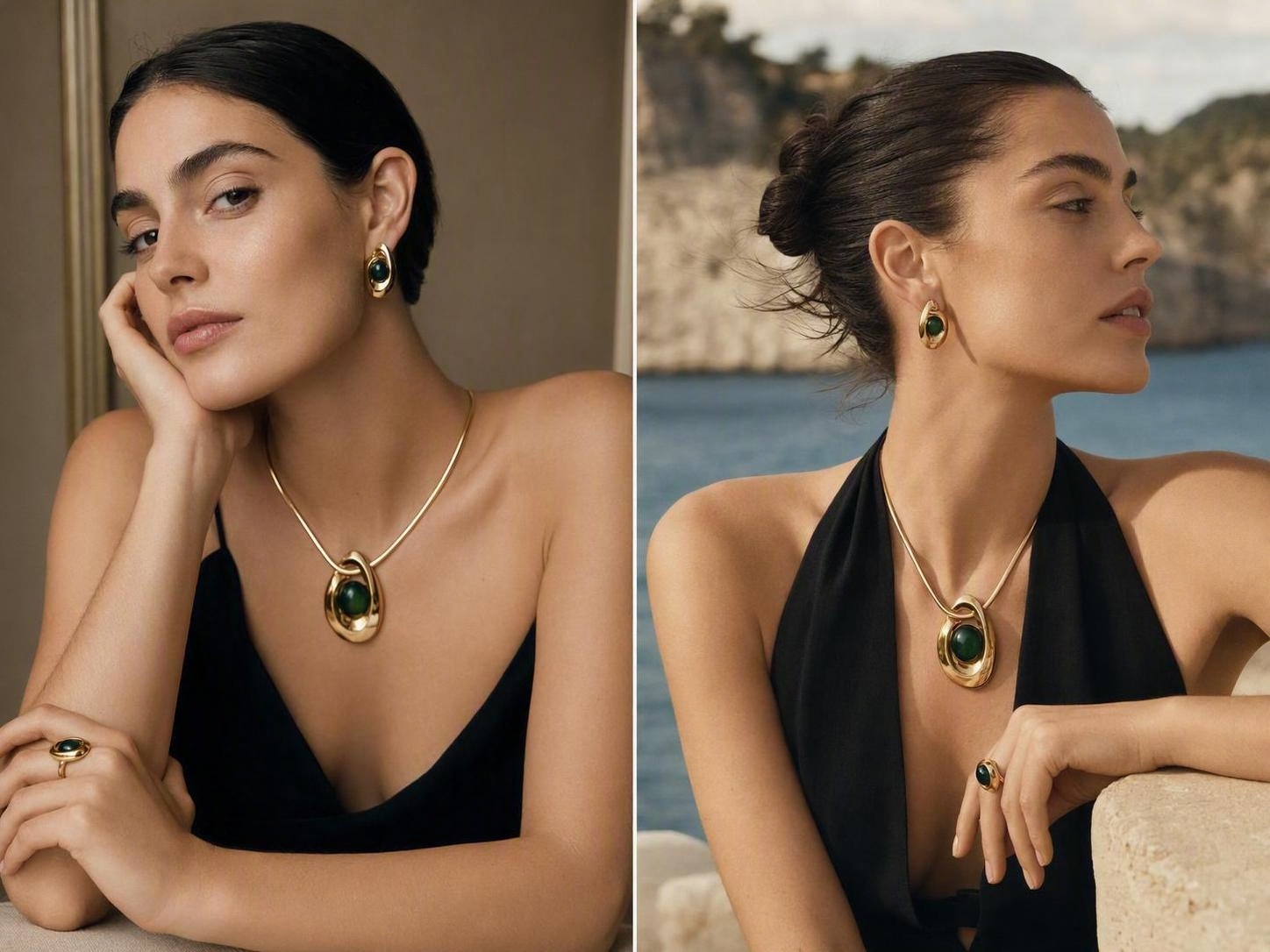
Switch Models and Scenes with Ease
Continue from an existing try-on result and change the model or scene to present the same jewelry item across different people, moods, and visual directions. Adapt faster to markets, audiences, and campaign themes while testing creative directions with lower production costs.
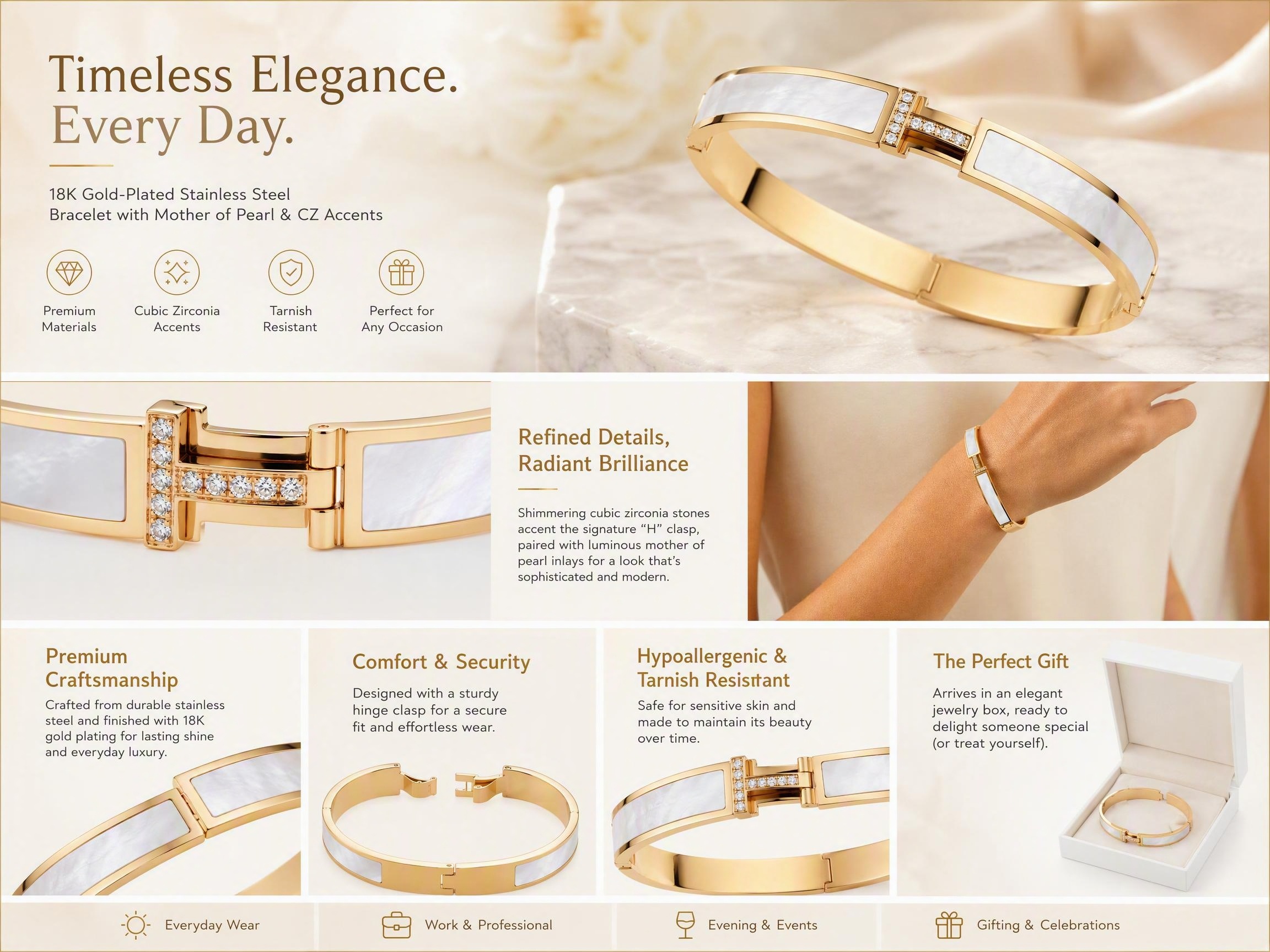
Scale Your E-Commerce Visuals Instantly
Use the generated on-model image as a starting point for product detail pages, launch posters, ad creatives, social posts, brand graphics, and other e-commerce marketing content. Extend one try-on asset into multiple sizes, layouts, and themes to improve reuse across channels.
Why Is Koozee a Better Fit for Jewelry E-Commerce?

Koozee AI jewelry try-on tool balances speed with a more natural visual result, helping brands create try-on images closer to e-commerce presentation needs. Reduce obvious pasted-on effects and repeated rework so products can move more smoothly into review, listing, and promotion.

When seasons, promotions, and target markets change, teams can explore different models, scenes, and creative directions around the same item. Keep pace with campaign calendars and test visual directions before investing in a full production shoot.

Koozee AI jewelry try-on tool helps try-on results continue into candidate main images, detail pages, launch posters, ads, social posts, and campaign content. Teams do not need to restart production for every channel, allowing one product asset to support more channels and a longer marketing lifecycle.
Create a Jewelry Try-On Image in 3 Simple Steps
Upload a Jewelry Product Image
Choose a single jewelry image with a clear subject, complete edges, and minimal obstruction. Complex backgrounds, highly reflective metals, and transparent gemstones may affect the result, so use a well-lit image with a complete product outline when possible.
Upload a Model Photo
Make sure the target wearing area is clearly visible, such as the ear, neck, wrist, or hand. Side profiles, hair covering the ears, complex hand gestures, or tight crops may reduce placement stability.
Generate and Review the Result
Let the tool complete the initial placement and visual blending. Review the jewelry shape, visual scale, wearing position, occlusion, and material appearance. If the result is not suitable, use a different input image or generate again.
FAQ
What is an AI virtual jewelry try-on image?
What images do I need to use What images do I need to use Koozee AI jewelry try-on tool?
You need one jewelry product image and one model image with the target wearing area clearly visible. Use images with a complete subject, clear lighting, and minimal obstruction. Supported formats, file sizes, and resolution limits should follow the current product page.
Does Koozee AI jewelry try-on tool support every ring, earring, necklace, and bracelet?
No blanket claim should be made for every jewelry type, pose, or occlusion scenario. The final landing page should display only jewelry categories, wearing areas, and input examples that have been tested and confirmed.
Can the result determine real size, ring size, or fit?
No. The output is a static visual reference only. It does not provide real-world measurements, ring-size recommendations, chain-length guidance, or fit guarantees.
Can product details change in the generated result?
The tool generates the try-on image from the uploaded product photo, but chain structure, gemstone position, reflections, shadows, and visual proportions may vary depending on the input image, material, and model pose. Review the result before publishing. Do not claim 100% reproduction or zero distortion.
Already Have a Jewelry Image? Turn It into an On-Model Visual
No need to wait for the next shoot or learn complex Photoshop techniques just to create one wearing image. Upload your jewelry product photo, choose a suitable model image, and let Koozee AI jewelry try-on tool handle the initial placement and blending. Start with your first try-on image and see how your product could look across a detail page, launch campaign, or social post.
The Efficiency and Presentation Gains Jewelry Teams Care About
Real User Feedback on Fast Generation of Natural and Accurate Jewelry Try-On Images
“We no longer need a separate basic compositing process for every SKU.”
New products used to launch with white-background images only, and adding an on-model image meant waiting for a shoot or retouching schedule. Now we can start with the product image and a model photo, prepare detail pages in a more organized workflow, and quickly review how different pieces look when worn.
“On-model visuals make assortment discussions much clearer.”
Many styles are available only as standalone product images, so clients struggle to imagine how earrings, necklaces, or bracelets look when worn. Adding a wearing-reference image makes the product style easier to explain and strengthens catalogs and sales presentations.
“Even without Photoshop skills, we can prepare jewelry content faster.”
We used to spend time cutting out products, adjusting angles, and checking occlusion manually. Now AI can handle the initial placement and blending, so we can spend more time on campaign ideas, copy, and publishing cadence.