AI Clothes Color Changer: Shoot Once, Sell in More Colors
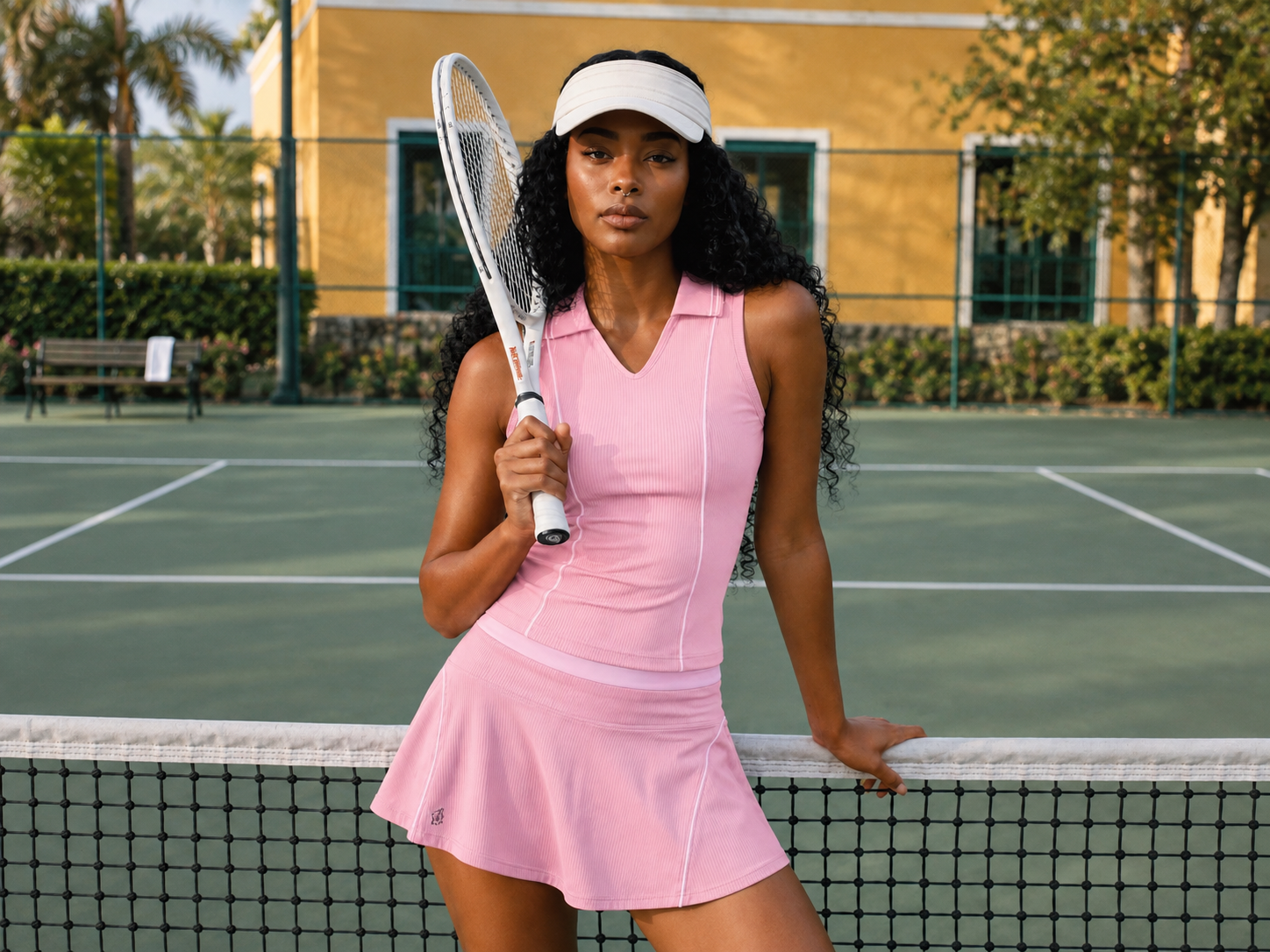
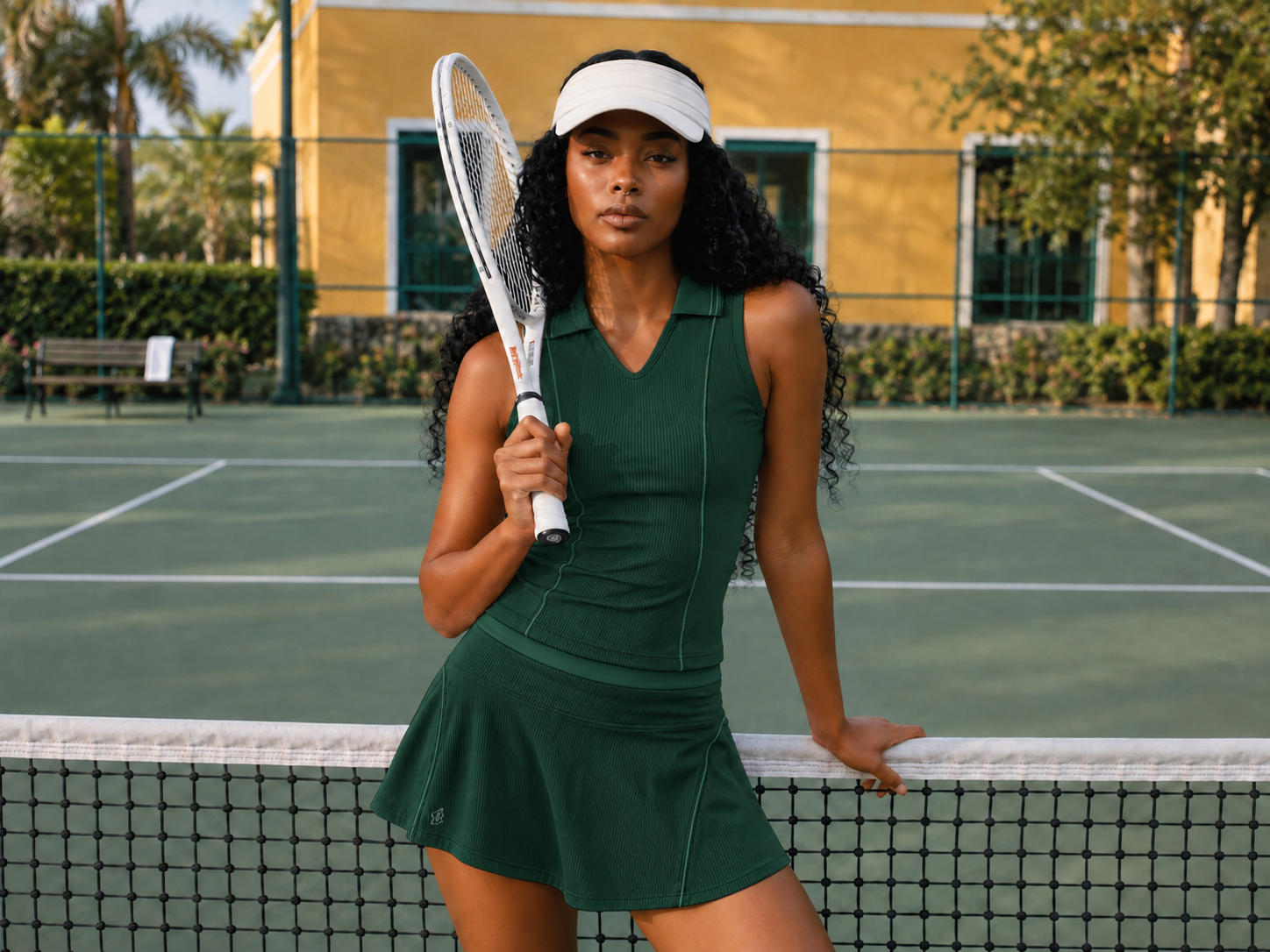
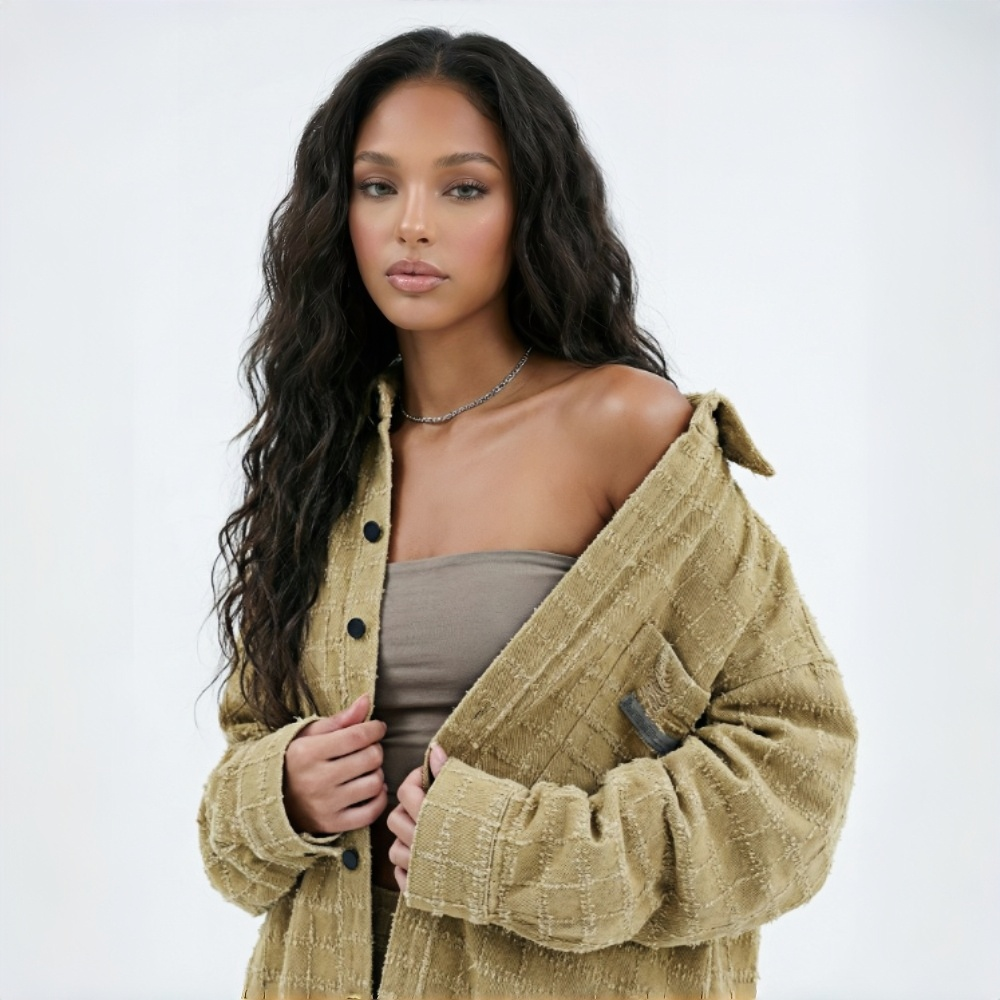
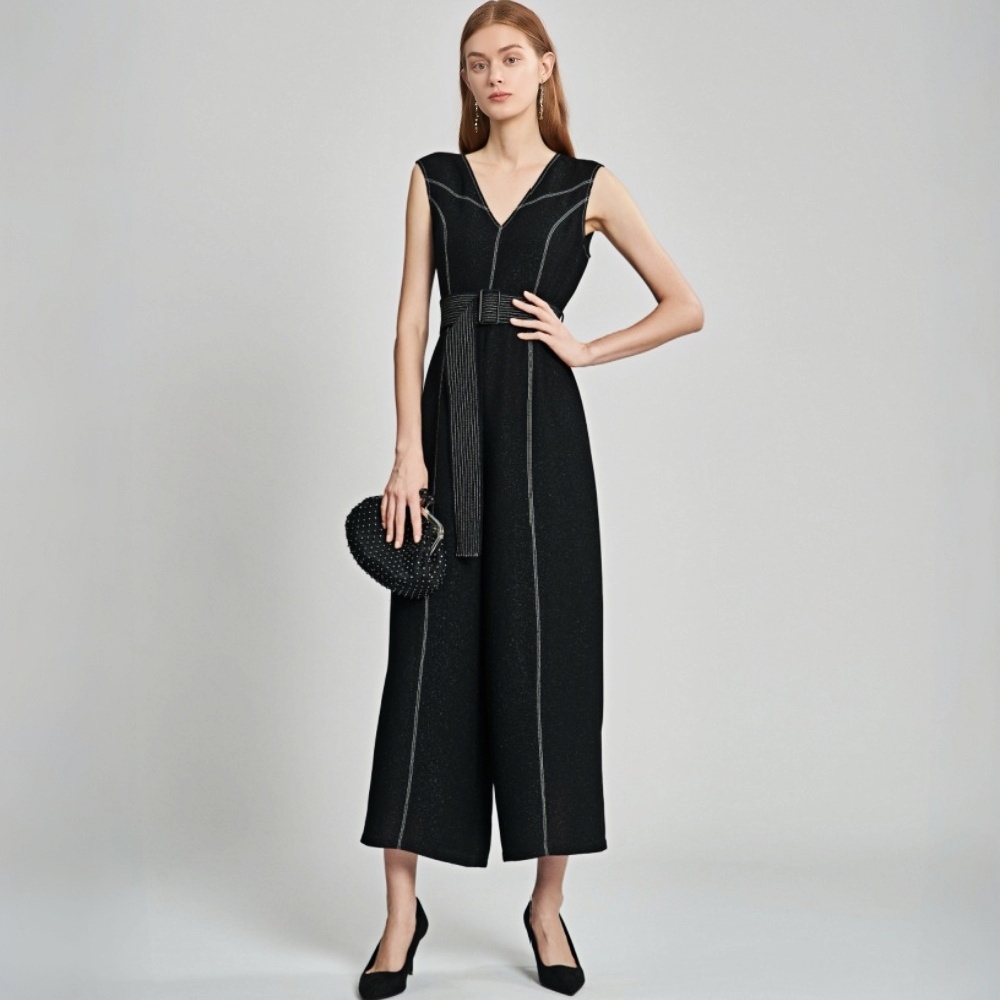
No image? Try one of these:
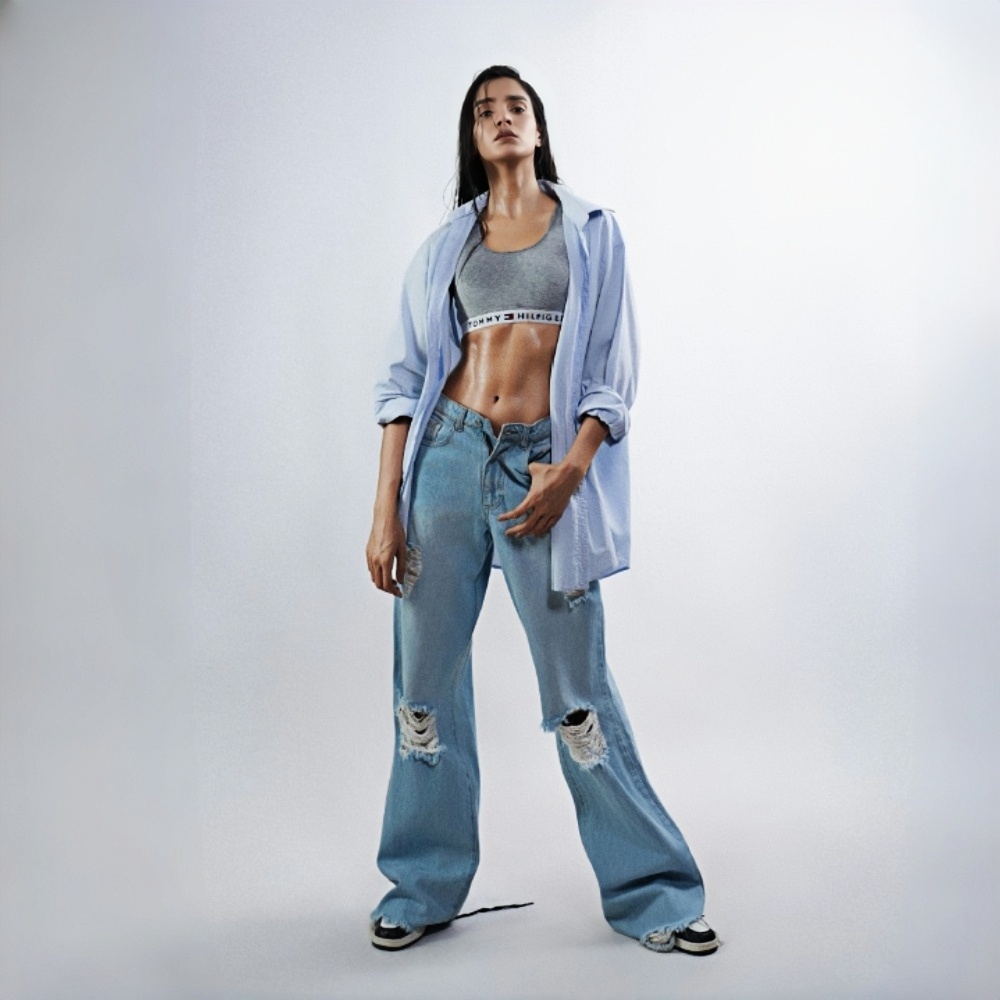
More Colors to Show, Fewer Samples to Wait For
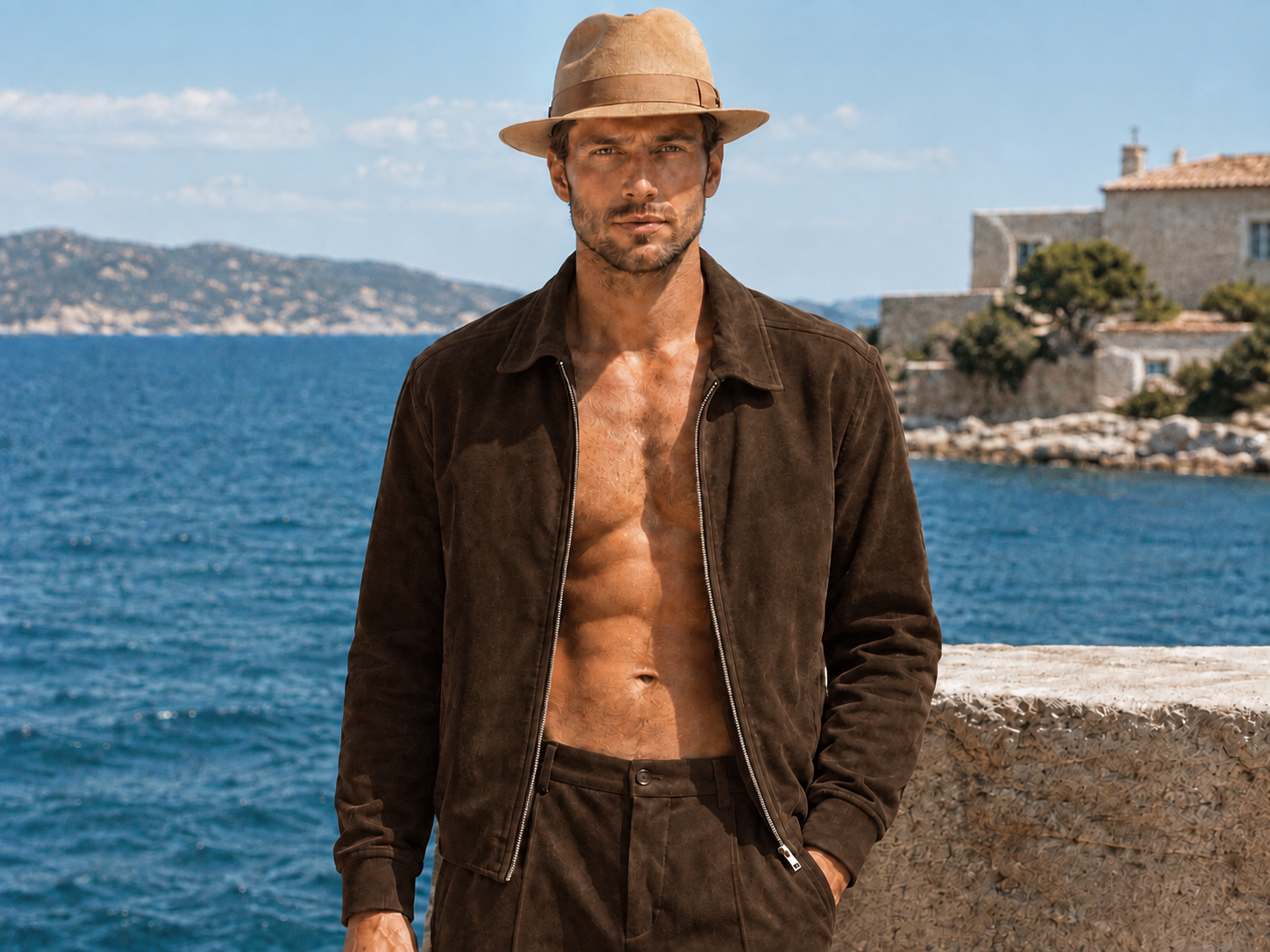
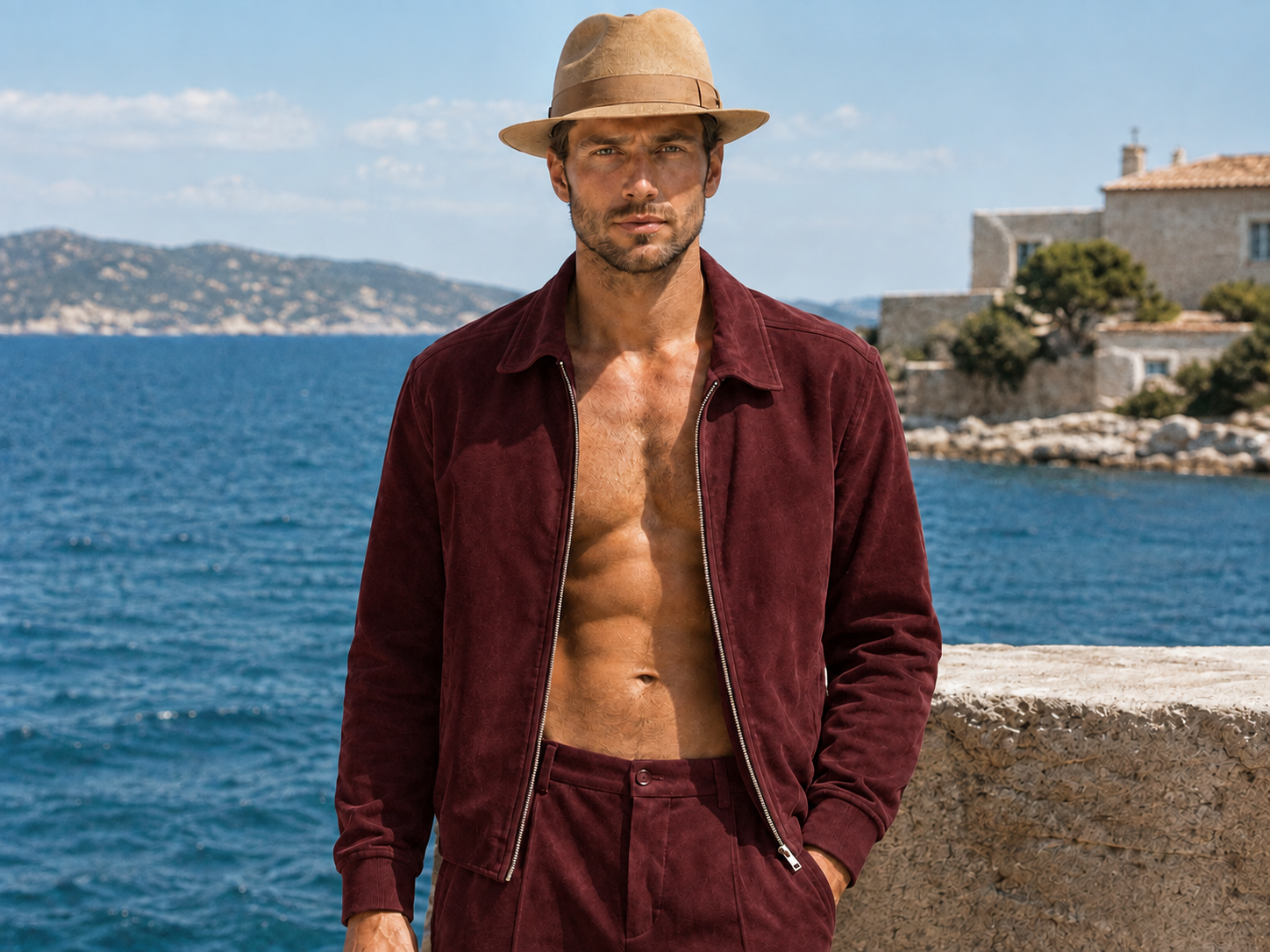
Launch New Colors Without Waiting on a Shoot
When one style comes in five or six colors, each shade means another sample, another shoot, and another round of retouching, so your product page keeps waiting on photos. Koozee's clothes color changer can create new color versions from the product photo you already have, so shoppers can see more of your color range sooner. Your marketing team can also switch the same photo to seasonal or campaign colors for ads, posters, and social posts, and see which shade shoppers respond to before you launch.
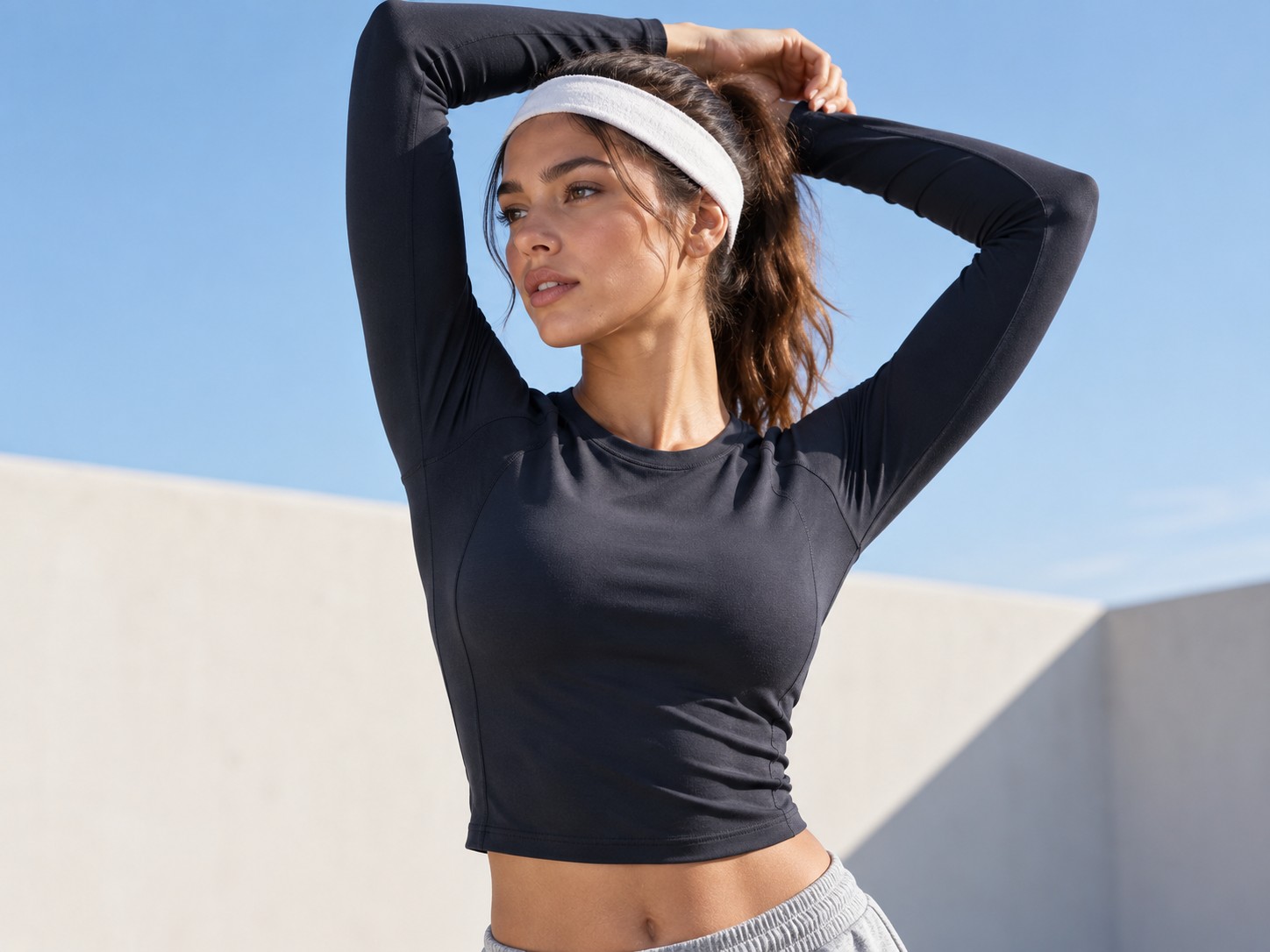
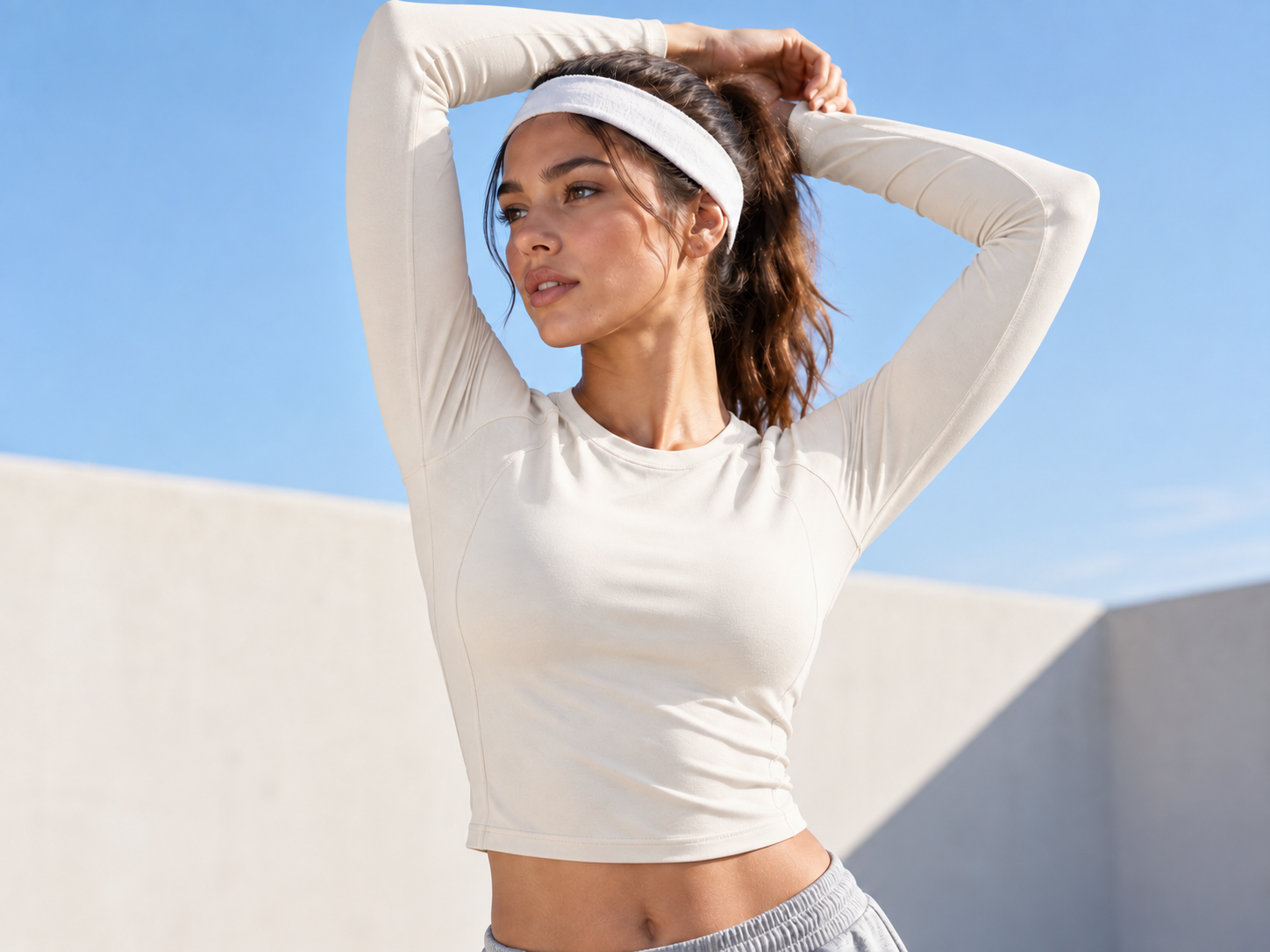
From Color Reference to Colorway, Then Keep Creating
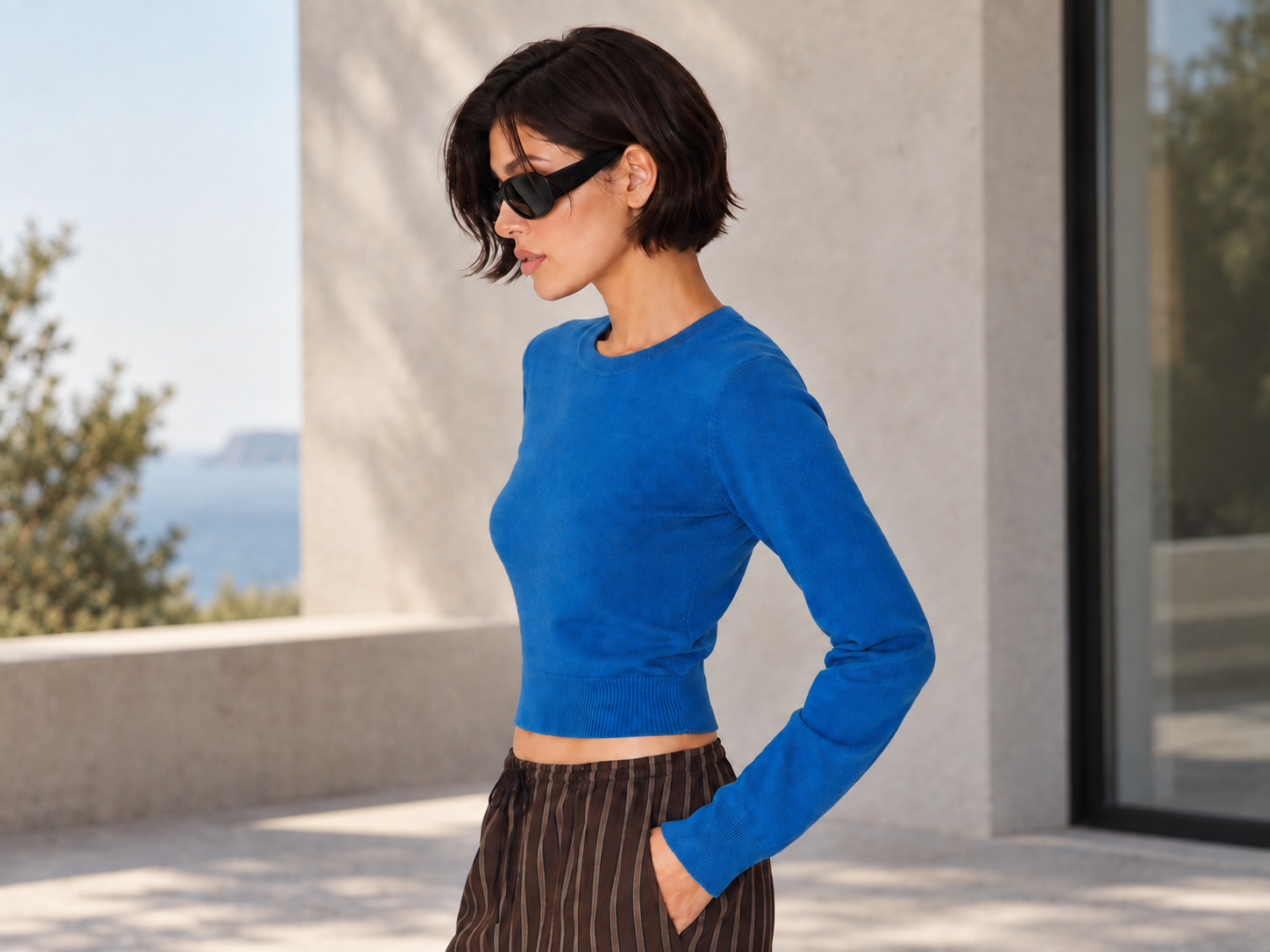
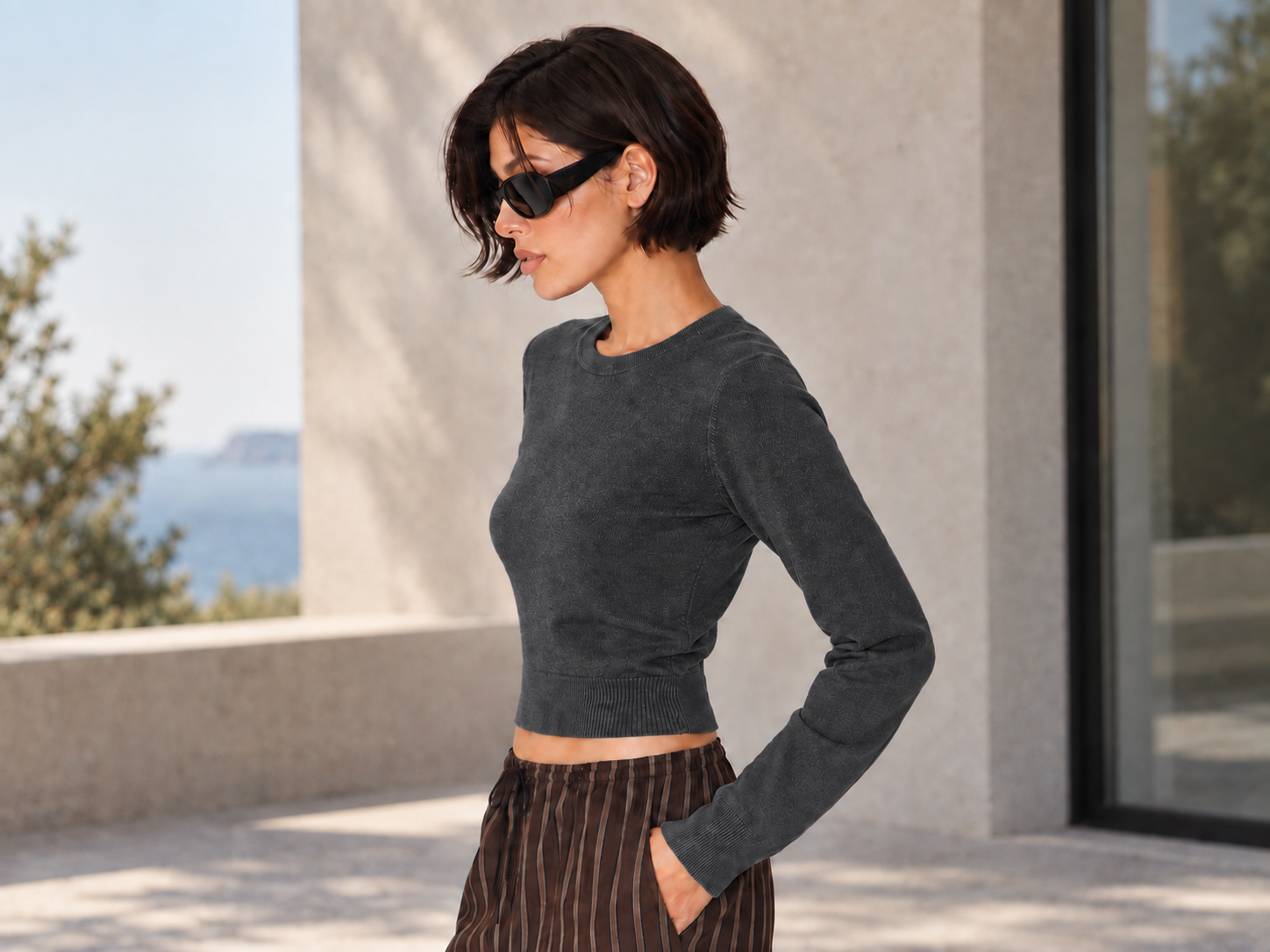
Pick a Color Reference, Skip the Photoshop Work
Manual recoloring means drawing selections, dragging hue sliders, and cleaning up white halos around the edges. Koozee's clothes color changer can read the color from your reference image and apply it to your garment. A default prompt is already filled in, so for a full-garment recolor you just hit generate.
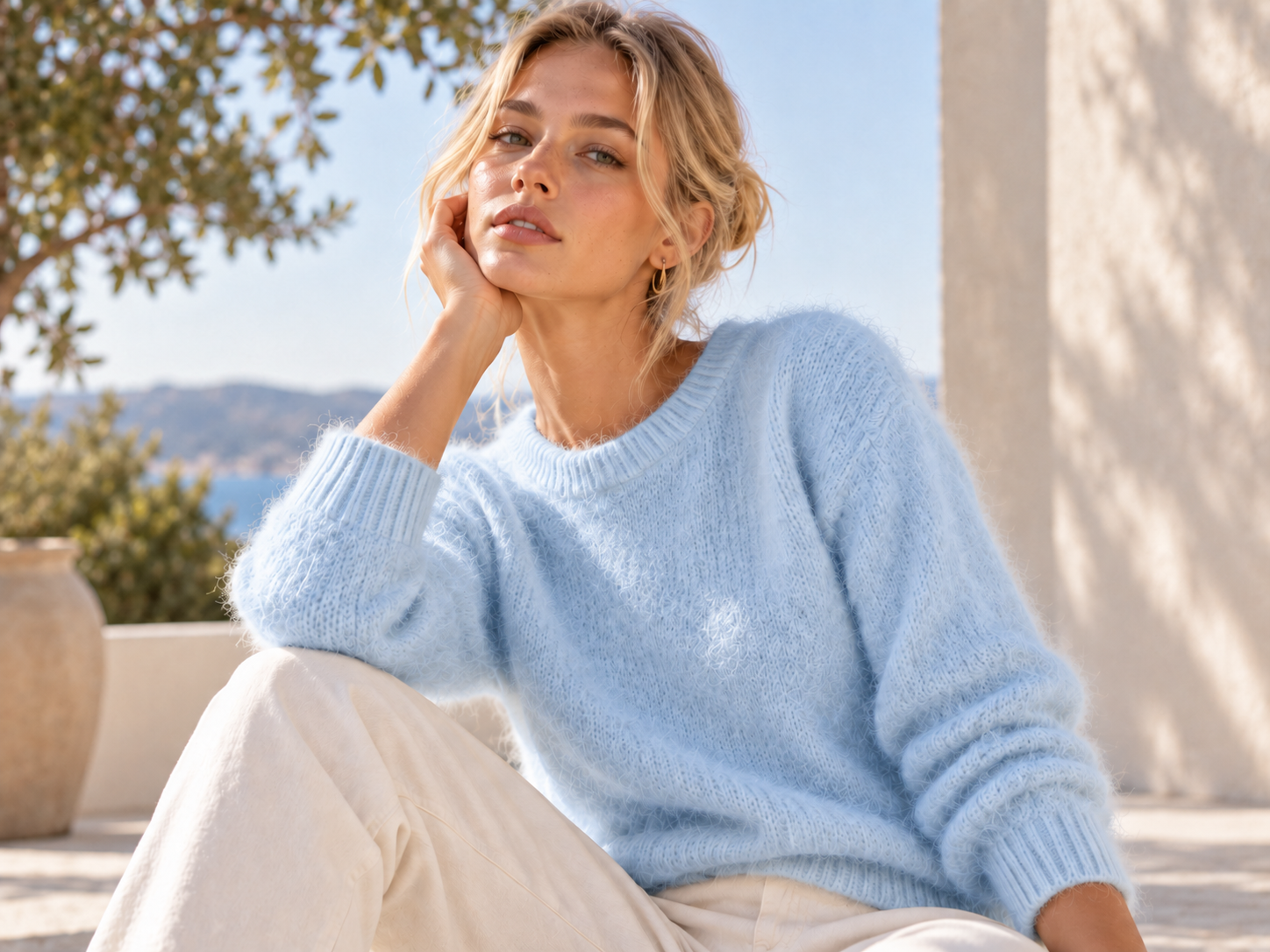
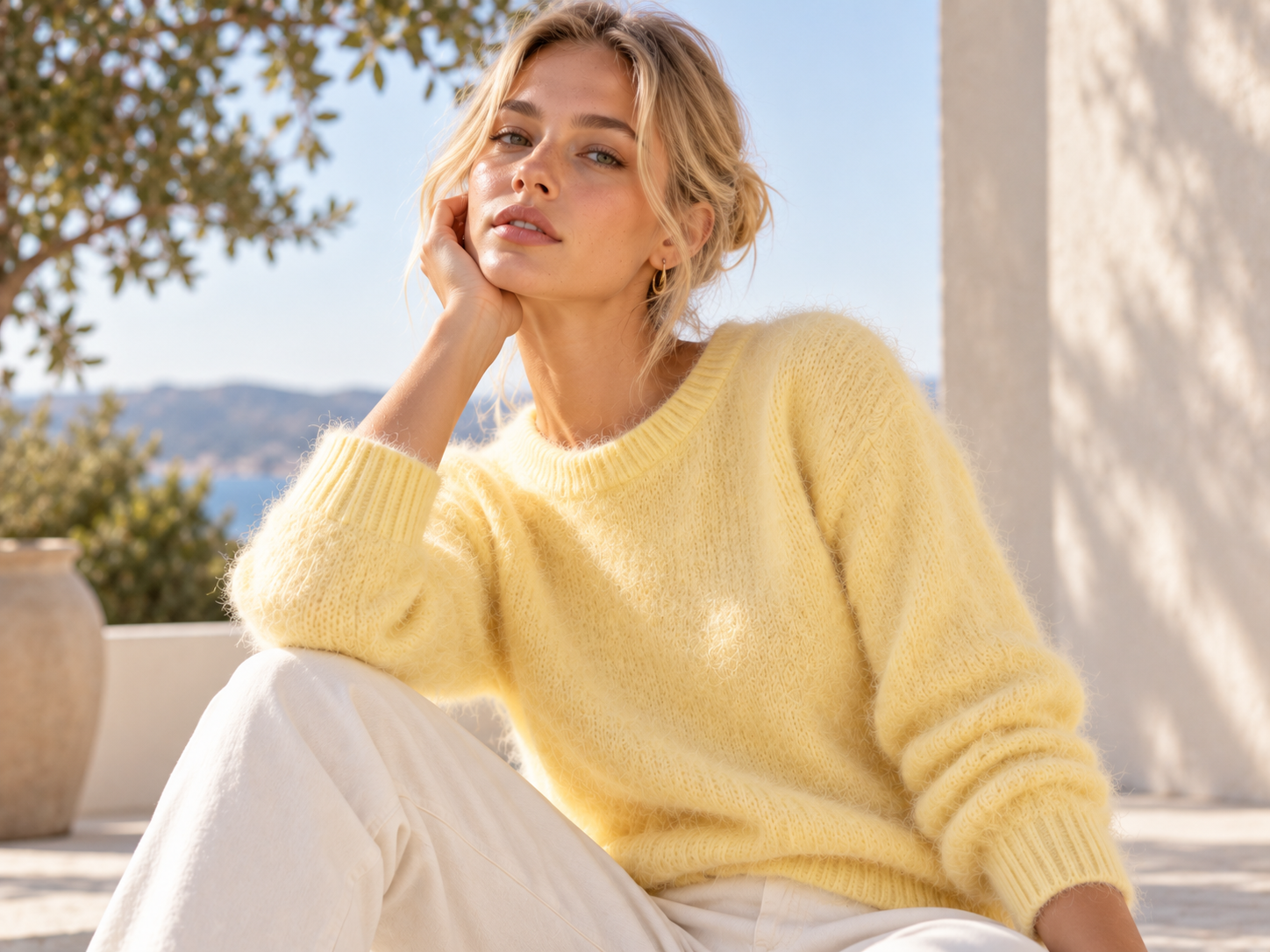
New Color, Same Garment
Flat color overlays make clothes look painted on: textures go flat, folds disappear, and shoppers can tell something is off. Koozee's clothes color changer is designed to change only the garment color while keeping the fabric texture, folds, model, pose, and background from your original photo.
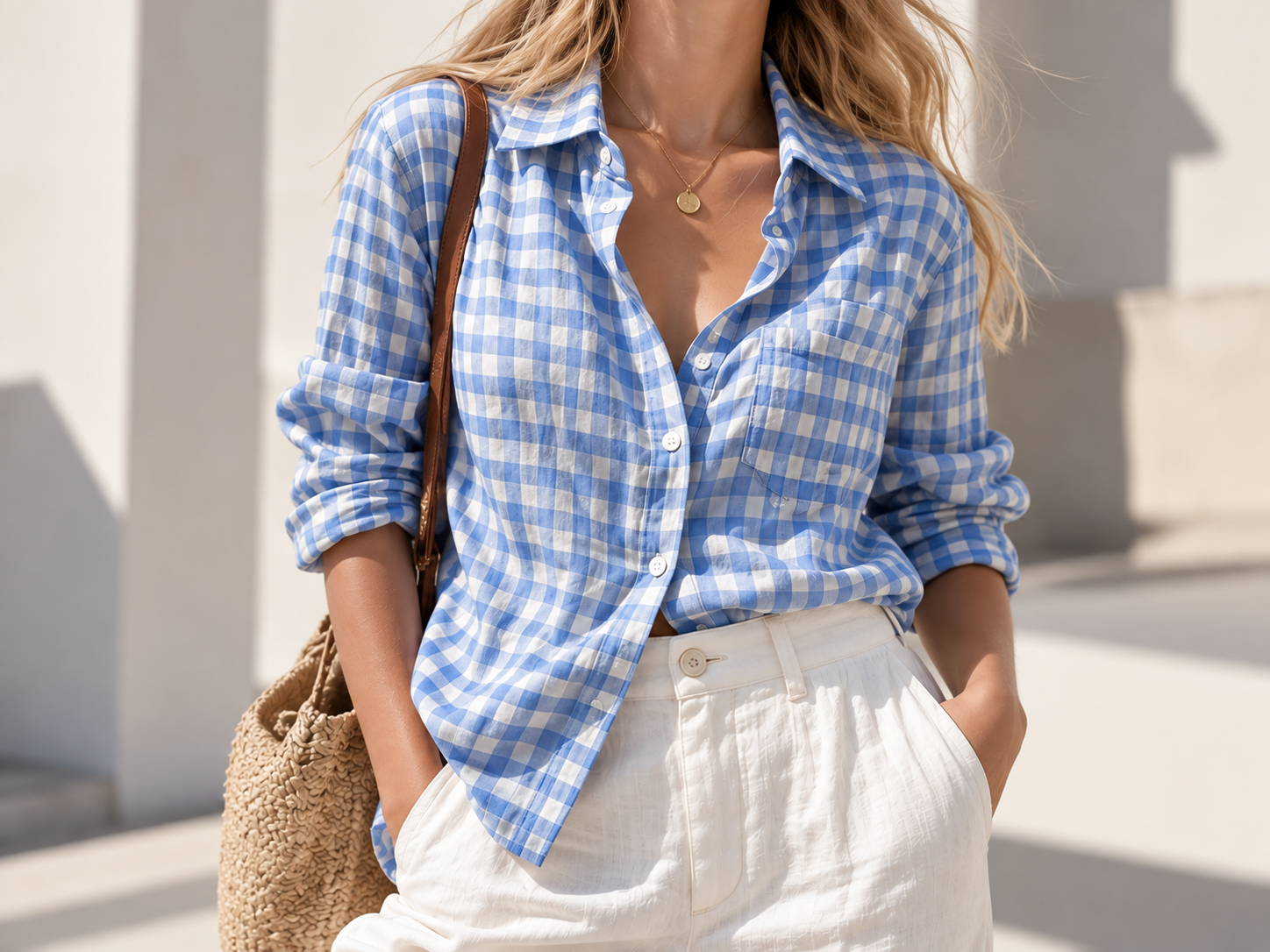
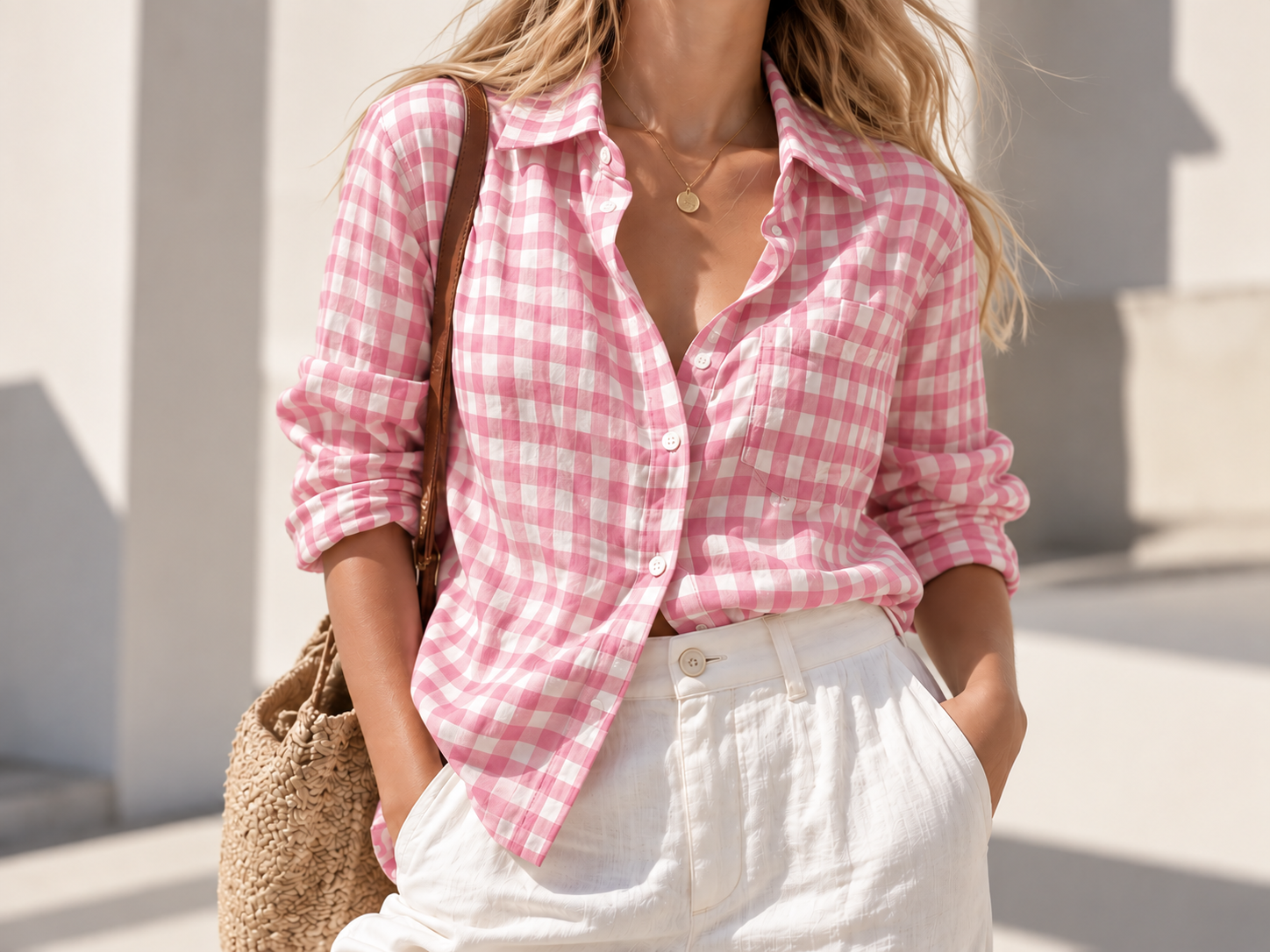
Recolor Selected Area
Go beyond full-garment recoloring with precise local color changes. Upload your garment and a color reference, then describe the area you want to recolor in the Prompt. Keep the original fit, texture, and other colors intact while easily adjusting checks, color-block panels, cuffs, collars, and more.
Why Apparel Sellers Recolor With Koozee Instead of Reshooting

No selections, layers, or masks to learn, and no prompt to write from scratch every time. Koozee's clothes color changer can recolor a garment with just one clothing photo and one color reference. The default prompt works out of the box, so your ops, sales, or content team can create color variants without waiting on a designer.

Generic color tools often lay a flat tint over the garment, and shoppers notice when they zoom in. Koozee's clothes color changer is built for clothing photos, so knit textures, folds, and lighting stay in place and your color variants look photographed, not painted.

Most color tools stop at a single exported image. In Koozee, your recolored photo can go on to become on-model shots, product detail pages, posters, and short videos, so you can prep everything for a launch in one place.
How to Change Clothes Color in 3 Steps
Upload Your Clothing Photo
Use a clear photo with the whole garment in view and even lighting. Flat lays and on-model shots both work. Solid-color garments usually give the most reliable results.
Add a Color Reference
Upload any image that shows the color you want, like another garment or a buyer's color sample. Clear colors with no filters work best.
Generate and Review
Use the default prompt to recolor the whole garment, or describe a specific area and color to change just one part. Check the color against the real product before publishing. If it is not right, try another reference, adjust the prompt, or generate again.
AI Clothes Color Changer FAQ
What is an AI clothes color changer?
How do I change clothes color with a reference image in Koozee?
You can open Koozee's clothes color changer from two places: the workspace or the workflow. Upload the clothing photo you want to recolor (Image 1), then a reference image with your target color (Image 2). Review the prompt and click generate. The clearer the color and lighting in your reference, the closer the result will be to it.
Do I need to write a prompt or know Photoshop?
Not for a full-garment recolor. A default prompt is provided, so you can upload two images and generate right away, with no masks, selections, or layers. If you want finer control, such as changing only the collar, cuffs, or a contrast panel, describe the area and color in the prompt.
Will the new color exactly match the real fabric?
Not always. The result depends on the lighting in your original photo, how the reference was shot, and screen display, so there may be some difference from the dyed fabric. Recolored images work well for product displays, buyer previews, and testing new colors. Before listing, compare the color with the real product and consider adding a note that colors may vary slightly.
Can I recolor only part of a garment, or change its print or fabric?
Yes, you can recolor one area by naming it in the prompt. Check the result to make sure only that area changed. Koozee's clothes color changer changes garment color only, not the print, fabric, or style. To swap a print, use Koozee's Change Pattern. To change the model or background, use the model and scene tools.
Got a Clothing Photo? Create Your Next Colorway
Skip the new sample, the extra shoot, and the afternoon in Photoshop. Upload a clothing photo and a color reference, create your first recolor, and see how the new shade looks on your product page, ads, and social posts. New users get free credits, so you can try it before you commit.