Công cụ xóa hình mờ AI cho ảnh sản phẩm — Dọn sạch nhanh, ra mắt sớm
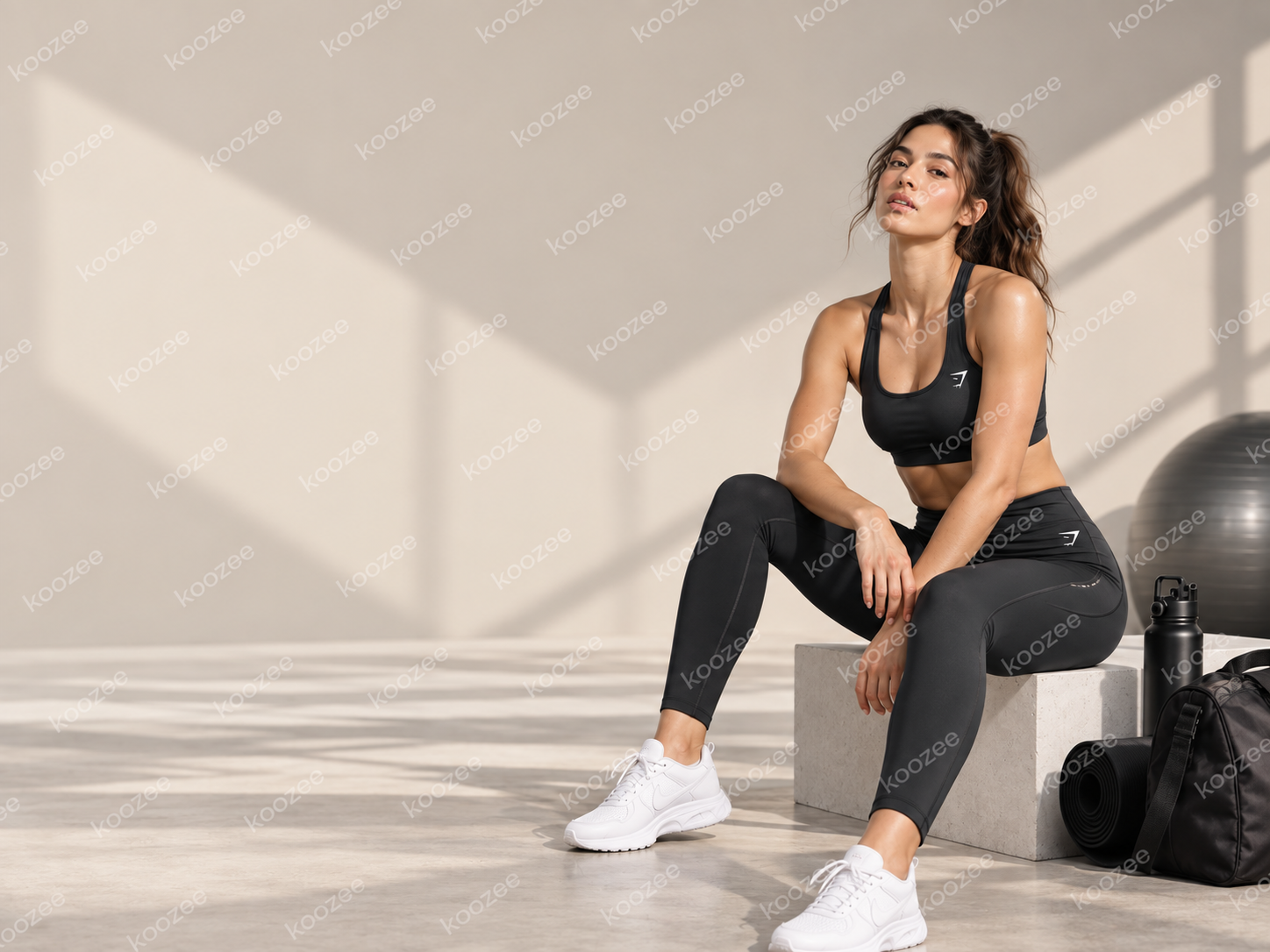

Đừng để hình mờ cũ làm chậm lần ra mắt tiếp theo
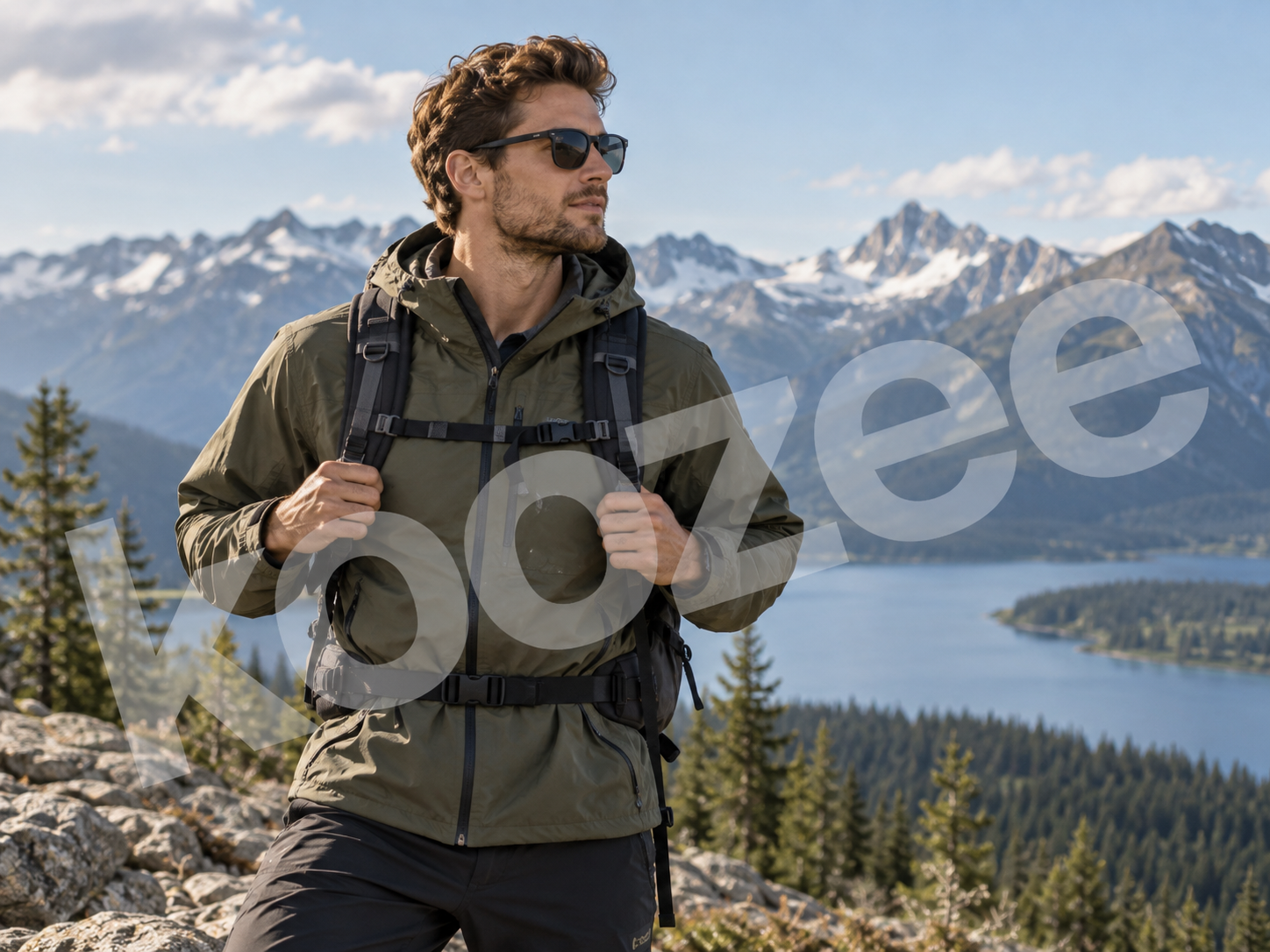

Tái sử dụng ảnh sản phẩm cũ
Dấu hiệu thương hiệu hoặc hình mờ lỗi thời trên ảnh sản phẩm của bạn hoặc ảnh được phép sử dụng không nên buộc bạn phải chụp lại. Hãy làm sạch vùng có dấu, rồi tái sử dụng ảnh cho trang sản phẩm, tài nguyên ra mắt hoặc đợt sản xuất hình ảnh tiếp theo.
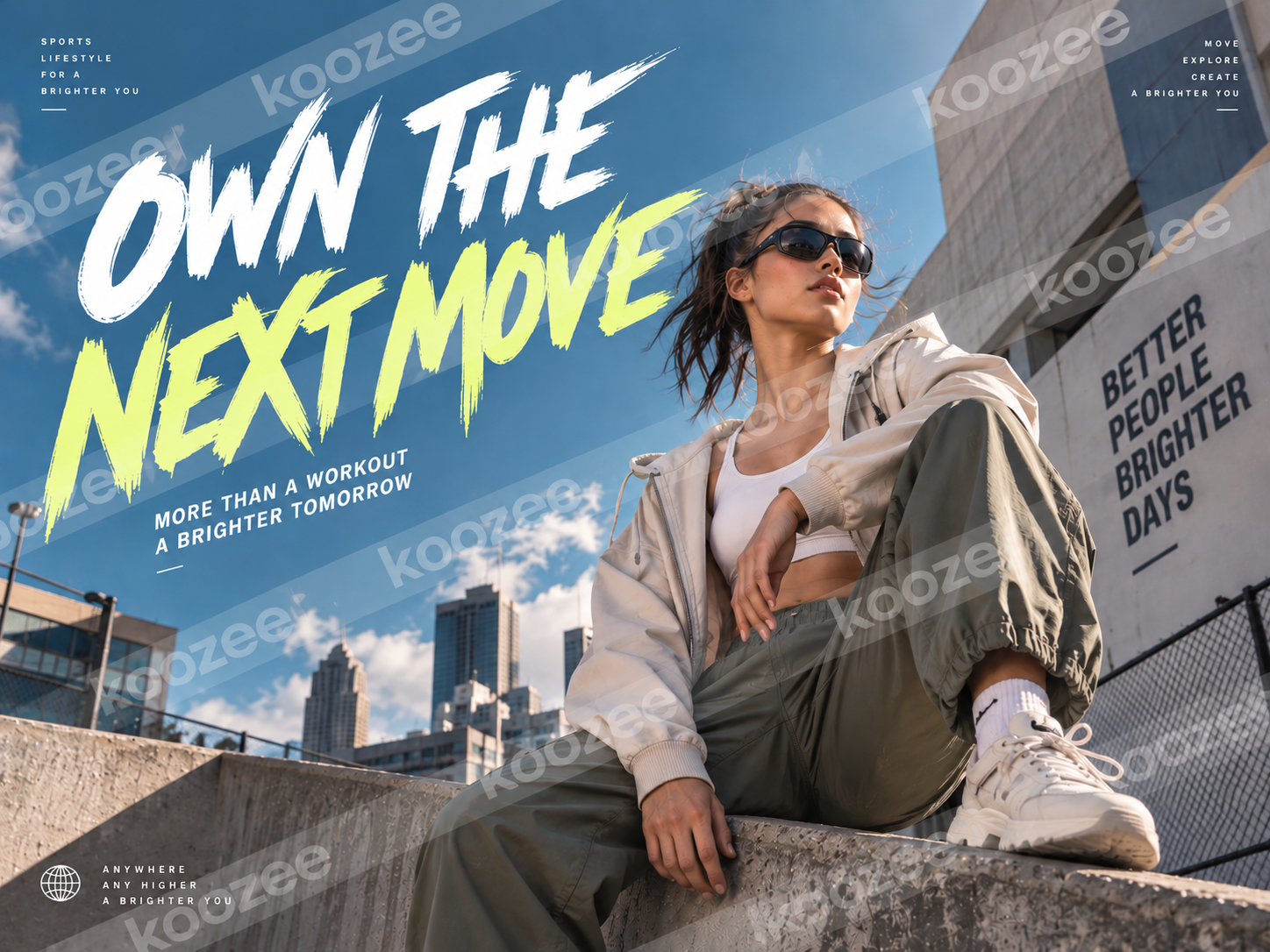
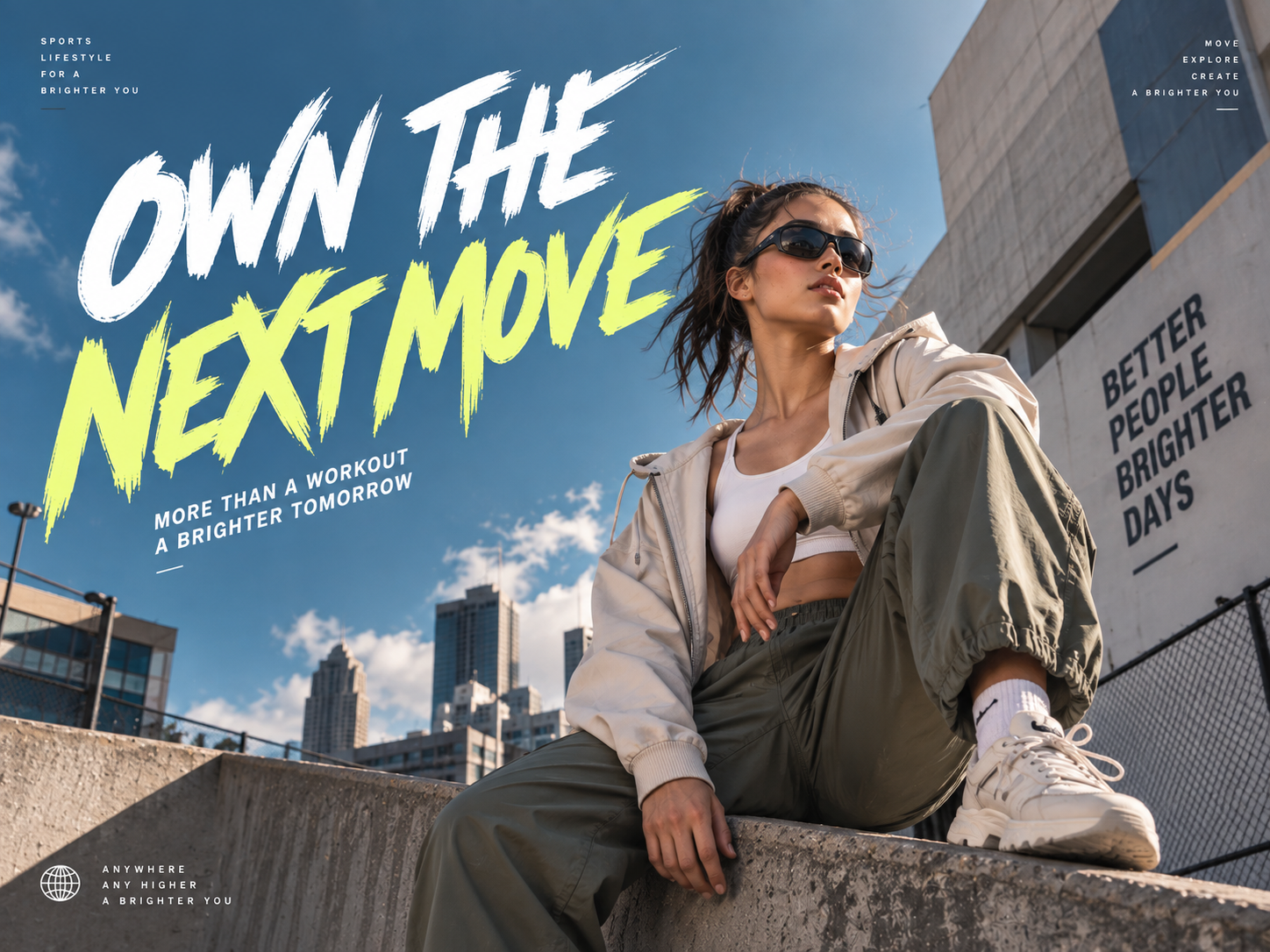
Xóa hình mờ với khả năng kiểm soát linh hoạt: Chọn vùng hoặc dùng cọ
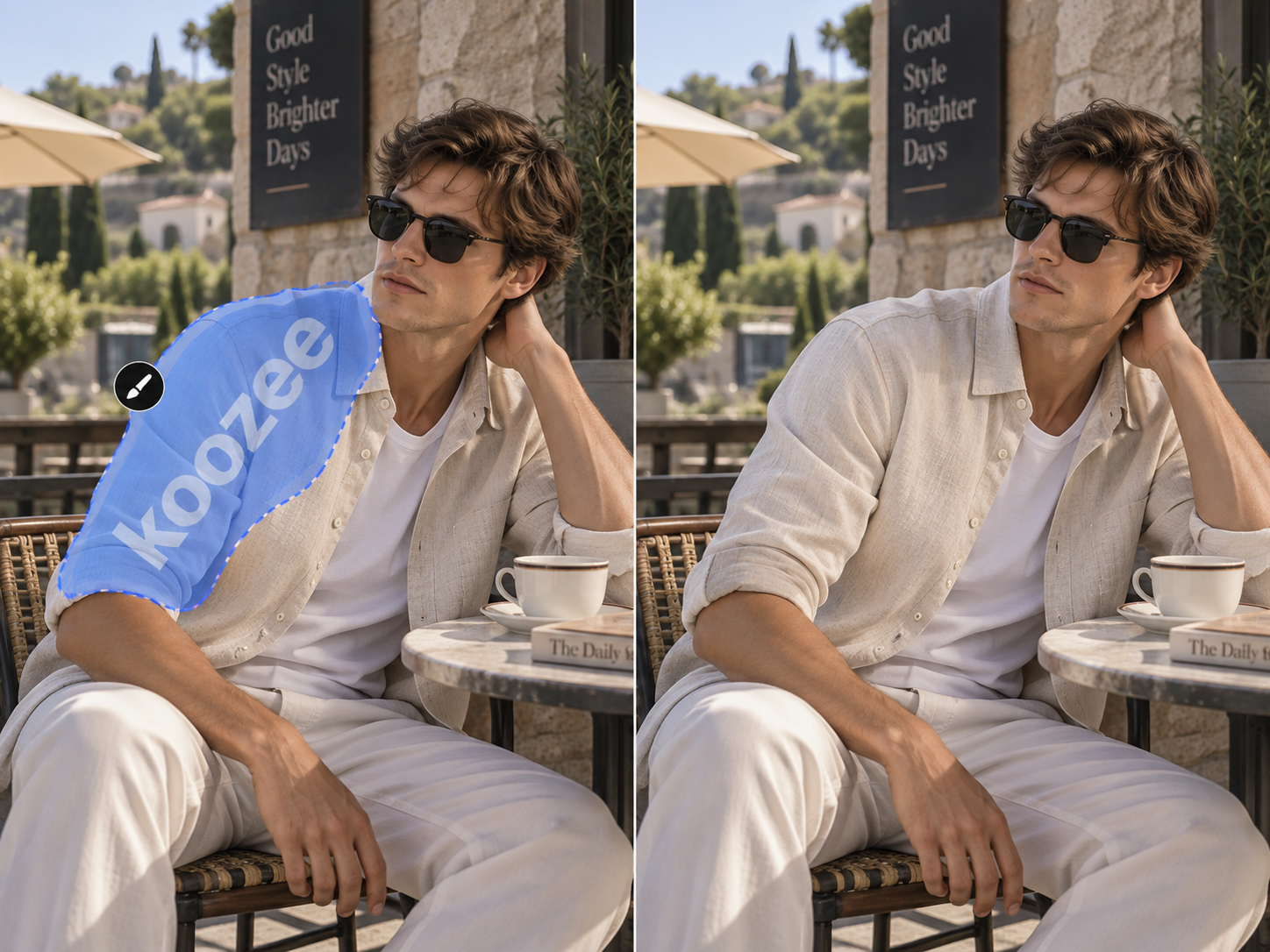
Dùng cọ trên hình mờ khó xử lý
Các hình dạng không đều, mép sản phẩm và nền nhiều chi tiết thường cần kiểm soát kỹ hơn. Hãy dùng cọ thủ công để đánh dấu vùng chính xác hơn, giúp công cụ xóa hình mờ nhận được chỉ dẫn rõ ràng hơn khi chọn vùng rộng là chưa đủ.
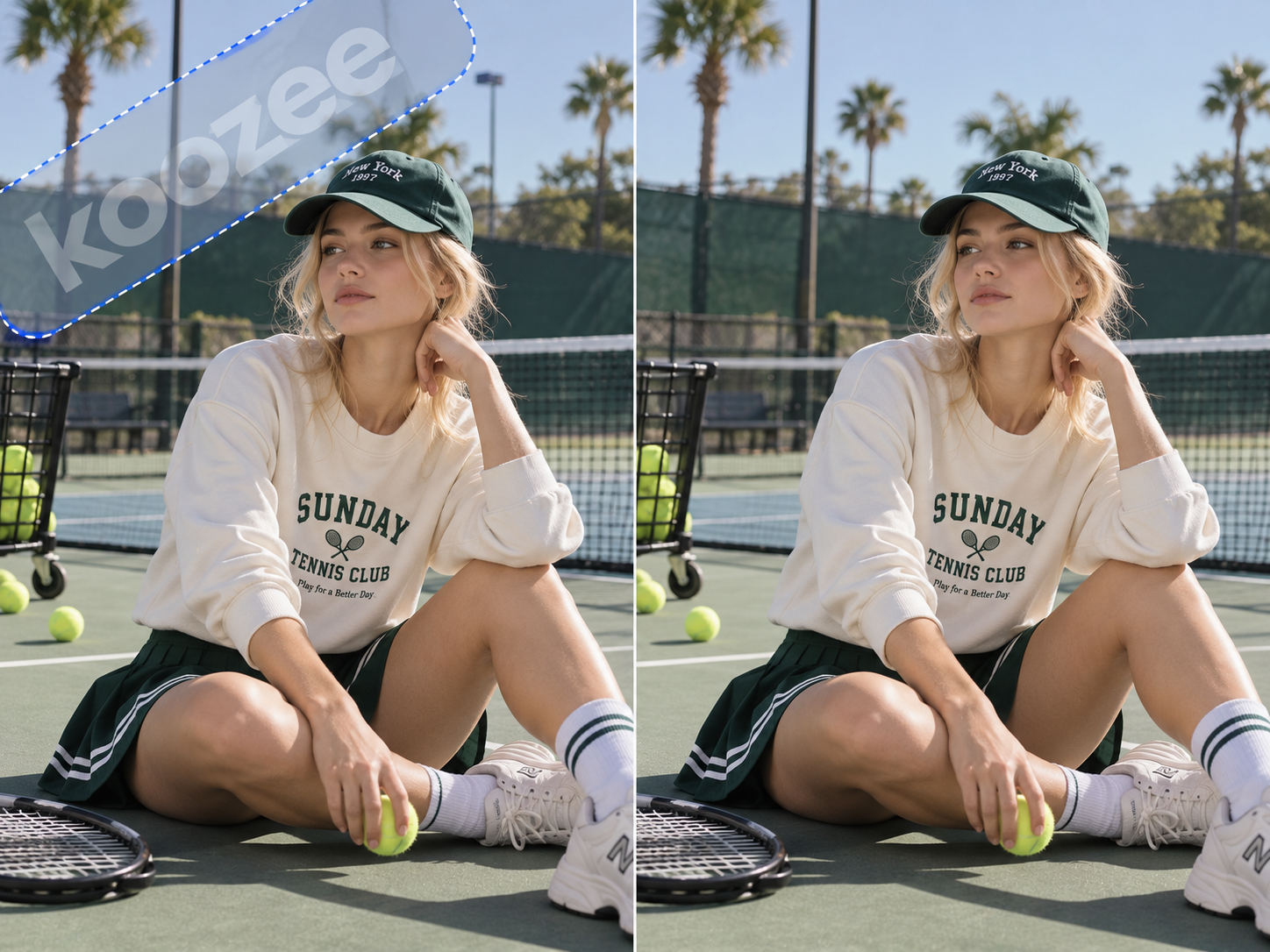
Chọn thông minh
Khi dễ xác định vị trí hình mờ, bạn không cần dùng cọ từng phần. Hãy dùng Chọn thông minh để nhanh chóng đánh dấu vùng muốn xóa, giúp AI Watermark Remover của Koozee tập trung vào hình mờ đã chọn thay vì coi toàn bộ ảnh là vùng chỉnh sửa. Tính năng này phù hợp với logo, chữ ở góc và lớp phủ cục bộ — giúp giảm việc làm sạch thủ công và cho bạn khả năng kiểm soát chỉnh sửa rõ ràng hơn.
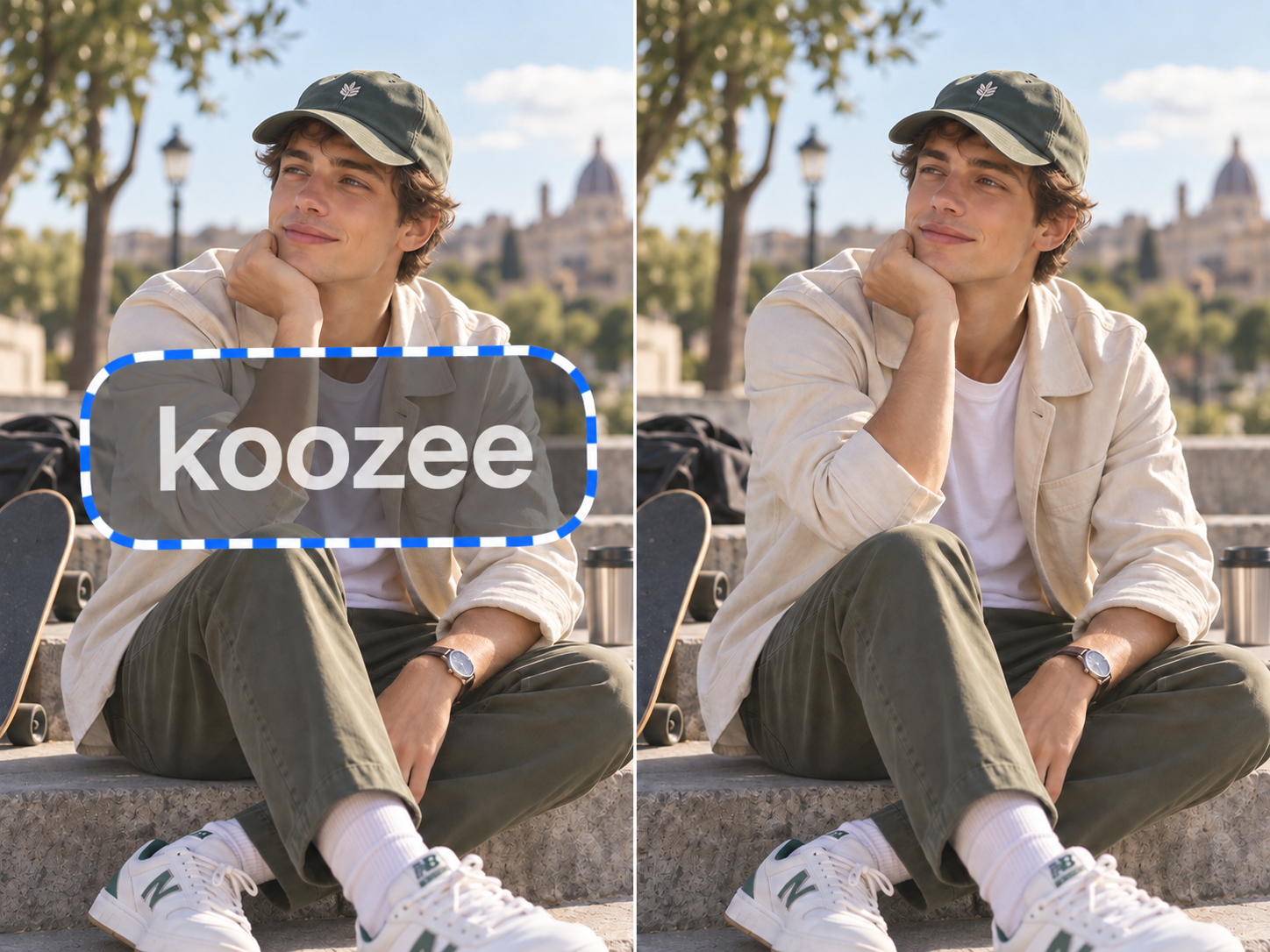
Giữ nguyên chi tiết ảnh
Khi xóa hình mờ, AI phân tích nội dung xung quanh để duy trì kết cấu, đường viền và chi tiết hình ảnh gốc. Vùng đã chỉnh sửa hòa trộn tự nhiên với phần còn lại của ảnh, giúp ảnh sản phẩm, tài nguyên tiếp thị và hình ảnh mạng xã hội luôn rõ nét, chuyên nghiệp.
Nhanh khi đơn giản. Kiểm soát tốt hơn khi phức tạp.
Chọn vùng phù hợp với các đối tượng rõ ràng, trong khi cọ thủ công hỗ trợ xử lý các mép không đều hoặc vùng cần kiểm soát chi tiết hơn.
Công cụ xóa hình mờ trên ảnh được thiết kế để giữ kết cấu xung quanh, mép sản phẩm và độ rõ nét của ảnh trong khi làm sạch vùng đã đánh dấu. Kết quả có thể khác nhau tùy theo kích thước hình mờ, chi tiết nền và mức độ che phủ, vì vậy bạn vẫn nên kiểm tra các chi tiết sản phẩm quan trọng trước khi đăng.
Xóa hình mờ không nhất thiết là bước cuối cùng. Hãy chuyển ảnh đã làm sạch sang Image Enhancer, AI Cutout, công cụ thử đồ hoặc công cụ video của Koozee để tiếp tục xây dựng trang sản phẩm, quảng cáo, áp phích và nội dung mạng xã hội.
Tải ảnh lên. Xóa hình mờ trong 3 bước.
Tải lên ảnh bạn có quyền chỉnh sửa
Chọn ảnh sản phẩm hoặc tệp khác mà bạn sở hữu hoặc được phép chỉnh sửa. Khi có thể, hãy bắt đầu với ảnh nguồn rõ nét, chất lượng cao.
Chọn cách đánh dấu hình mờ
Chọn vùng quanh hình mờ hoặc dùng cọ trên phần bạn muốn chỉnh sửa. Bạn đánh dấu mục tiêu càng rõ thì càng dễ kiểm tra vùng đã chỉnh sửa sau đó.
Tạo và kiểm tra
Tạo bản làm sạch, rồi kiểm tra vùng đã chỉnh sửa trước khi tải xuống hoặc tiếp tục. Hãy kiểm tra kết cấu sản phẩm, mép ảnh, chữ và các chi tiết bị che phủ. Nếu kết quả cần tinh chỉnh, hãy điều chỉnh cách đánh dấu và thử lại.
Câu hỏi thường gặp
Công cụ xóa hình mờ AI là gì?
Làm cách nào để xóa hình mờ khỏi ảnh bằng Koozee?
Chọn một trong hai cách xác định mục tiêu: chọn vùng có hình mờ hoặc dùng cọ trực tiếp trên hình mờ. Chọn vùng phù hợp với các đối tượng rõ ràng, còn dùng cọ cho bạn quyền kiểm soát trực tiếp hơn về vị trí.
Xóa hình mờ có làm ảnh của tôi bị mờ không?
Công cụ được thiết kế để giữ kết cấu và độ rõ nét xung quanh khi làm sạch vùng đã đánh dấu. Kết quả có thể khác nhau tùy theo kích thước hình mờ, độ phức tạp của nền và mức độ ảnh gốc bị che phủ. Nội dung do AI lấp đầy không nên được xem là các pixel gốc thực tế bị hình mờ che khuất.
Tôi có thể xóa hình mờ mà không cần Photoshop không?
Có. Bạn không cần dùng lớp, mặt nạ, Clone Stamp hoặc các kỹ năng Photoshop nâng cao khác. Hãy tải ảnh lên và định hướng chỉnh sửa bằng câu lệnh, chọn vùng hoặc cọ thủ công.
Tôi có thể xóa hình mờ khỏi mọi ảnh tìm thấy trên mạng không?
Chỉ chỉnh sửa ảnh bạn sở hữu, được phép sử dụng hoặc được pháp luật cho phép chỉnh sửa. Việc xóa hình mờ không làm thay đổi quyền sở hữu bản quyền đối với tài sản gốc.
Xóa hình mờ. Giữ tiến độ ra mắt.
Tải lên ảnh bạn sở hữu hoặc được phép chỉnh sửa, chọn phương pháp xóa phù hợp với công việc, rồi quay lại phần việc giúp bán sản phẩm — trang sản phẩm, quảng cáo, áp phích hoặc bài đăng mạng xã hội.