Remove Text from Images—Without Rebuilding the Design

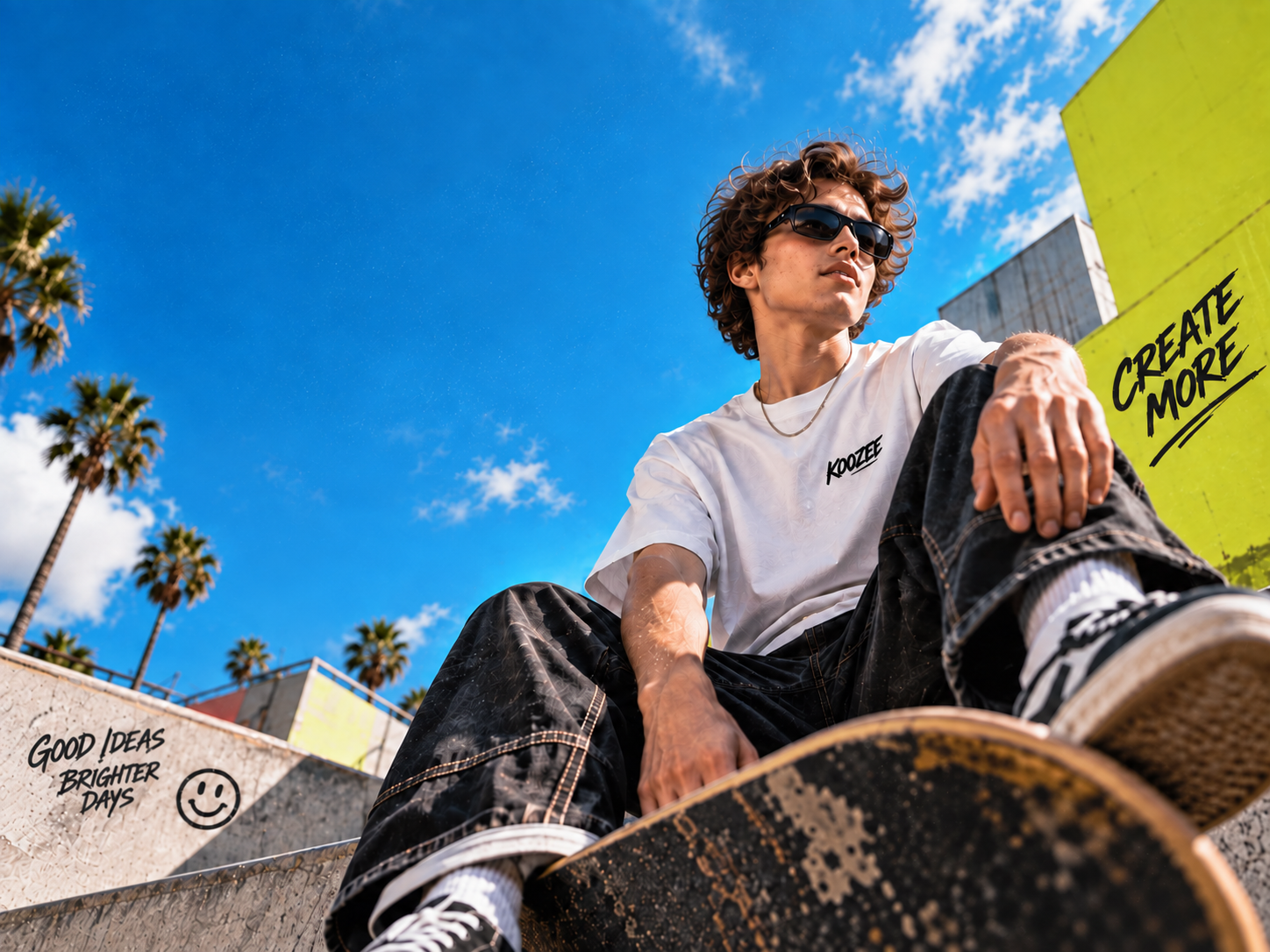
Reuse Good Product Images Instead of Rebuilding Them


Reuse Product Images After the Promotion Ends
A promotion can end while the product image is still worth using. Remove outdated discounts, prices, or campaign copy with Koozee AI Text Remover, keep the product visual you already have, and move on to the next product-page update, ad refresh, or campaign design without rebuilding the image from scratch.
More Control Over What Gets Removed

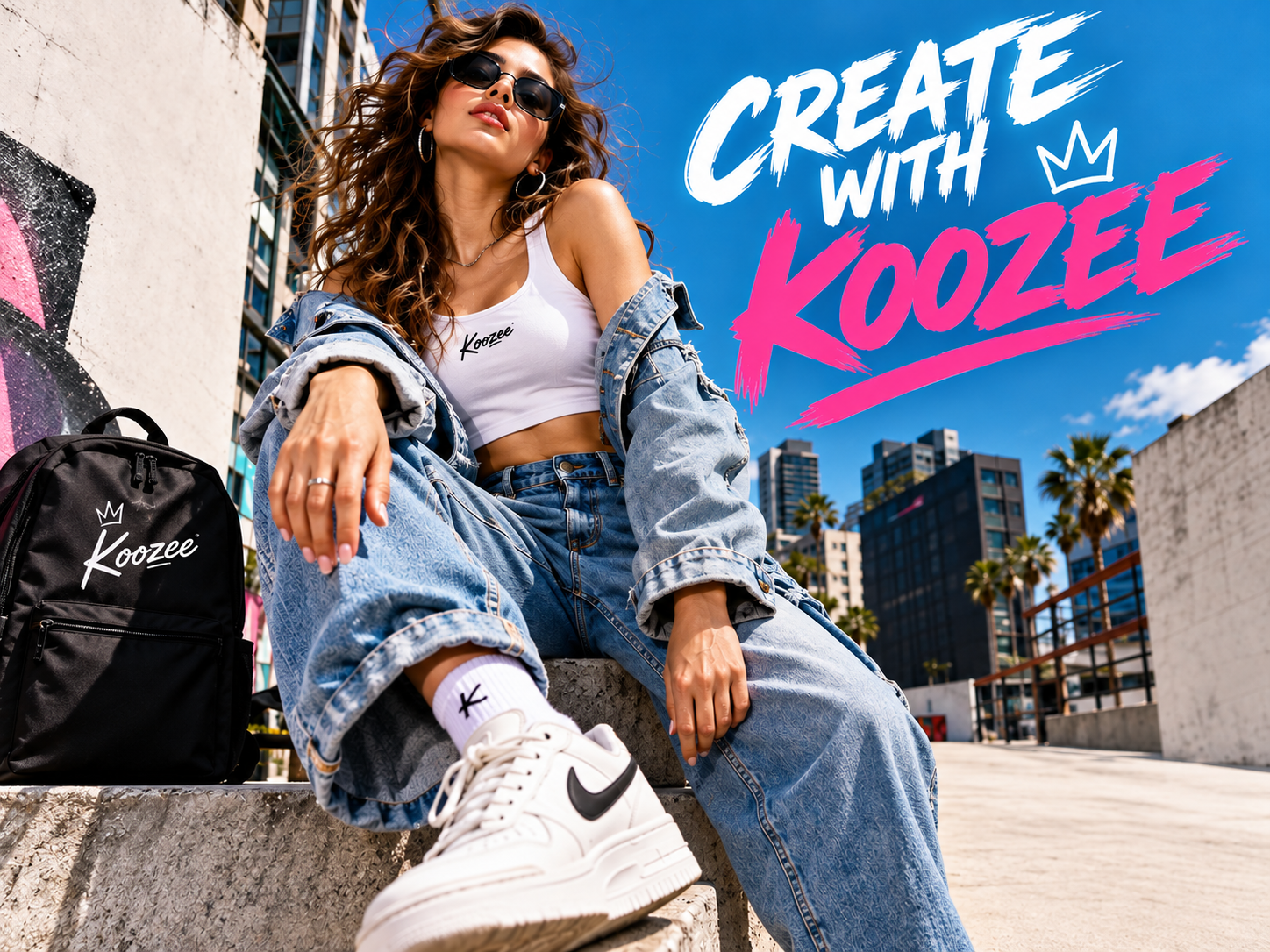
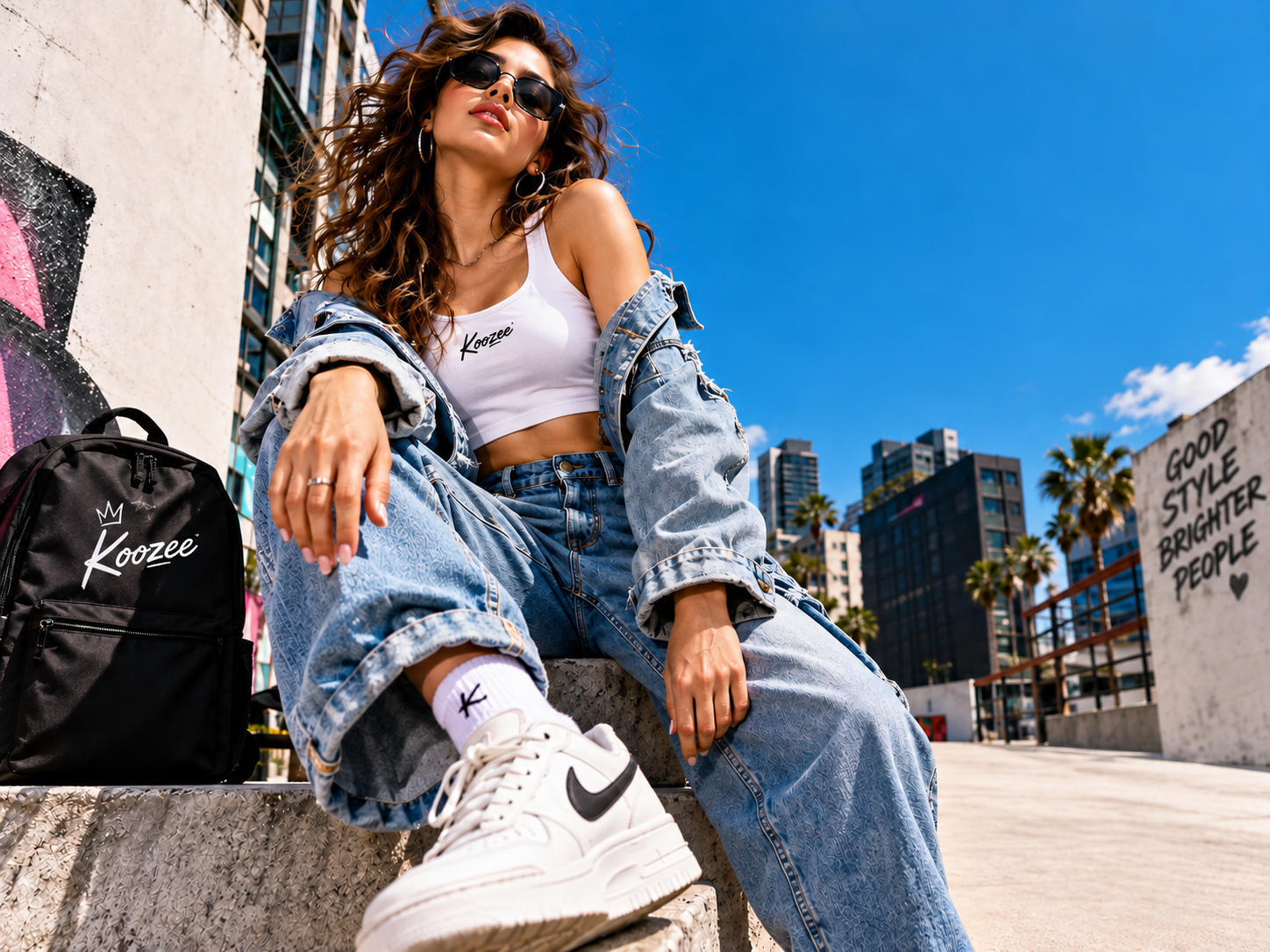
Smart Selection to Remove
An image may contain a headline, label, price, and supporting copy—but you may only want to remove one of them. Smart Selection lets you define the area to work on before removal, giving you more control when editing product images, posters, or layouts with multiple text elements.
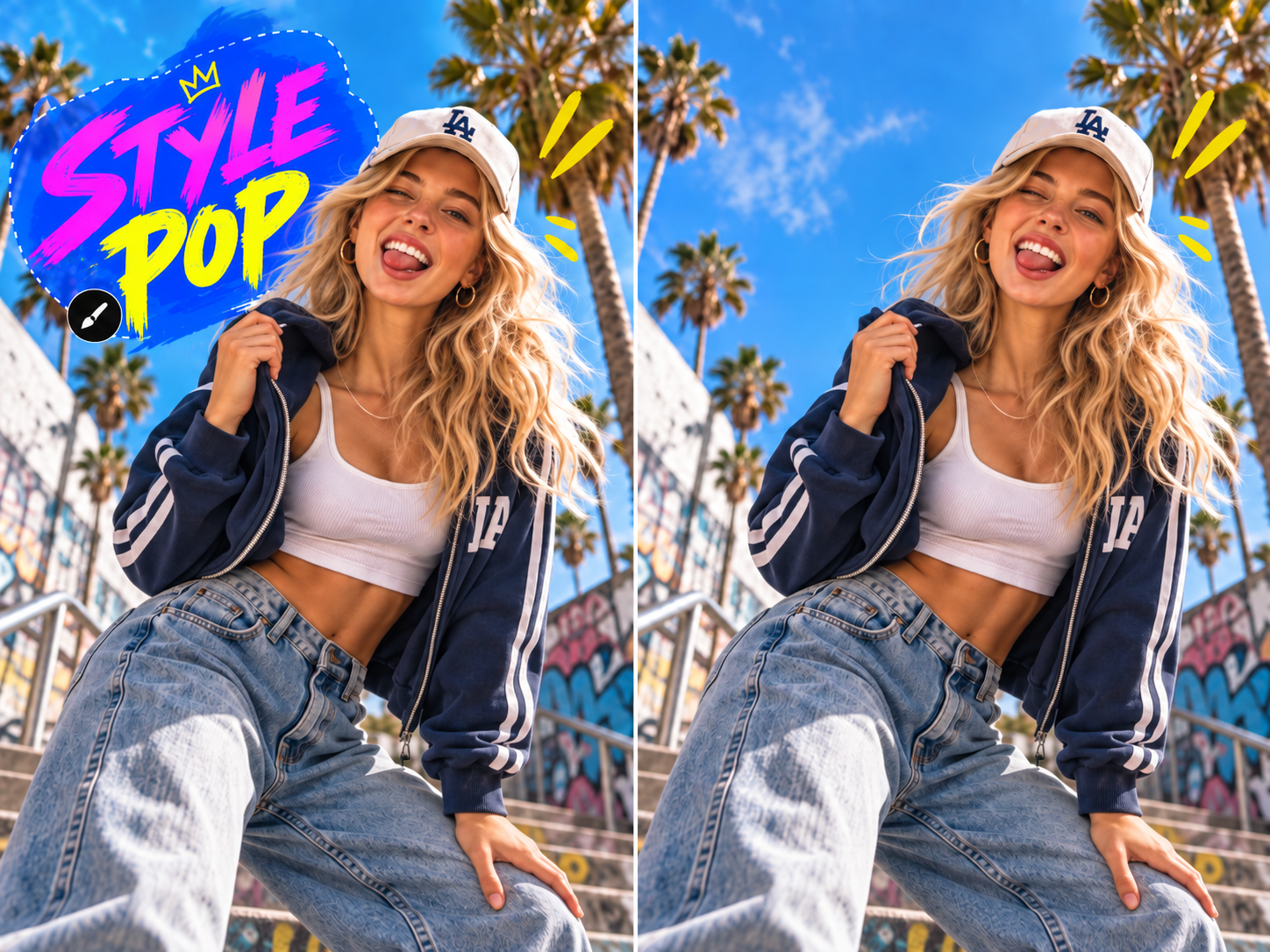
Brush the Area You Want to Remove
When text sits close to a product edge, texture, or another important detail, you may want more hands-on control. Use the Brush to paint over the text area you want to remove, which is useful for small regions or tighter boundaries while helping limit changes outside the target area.
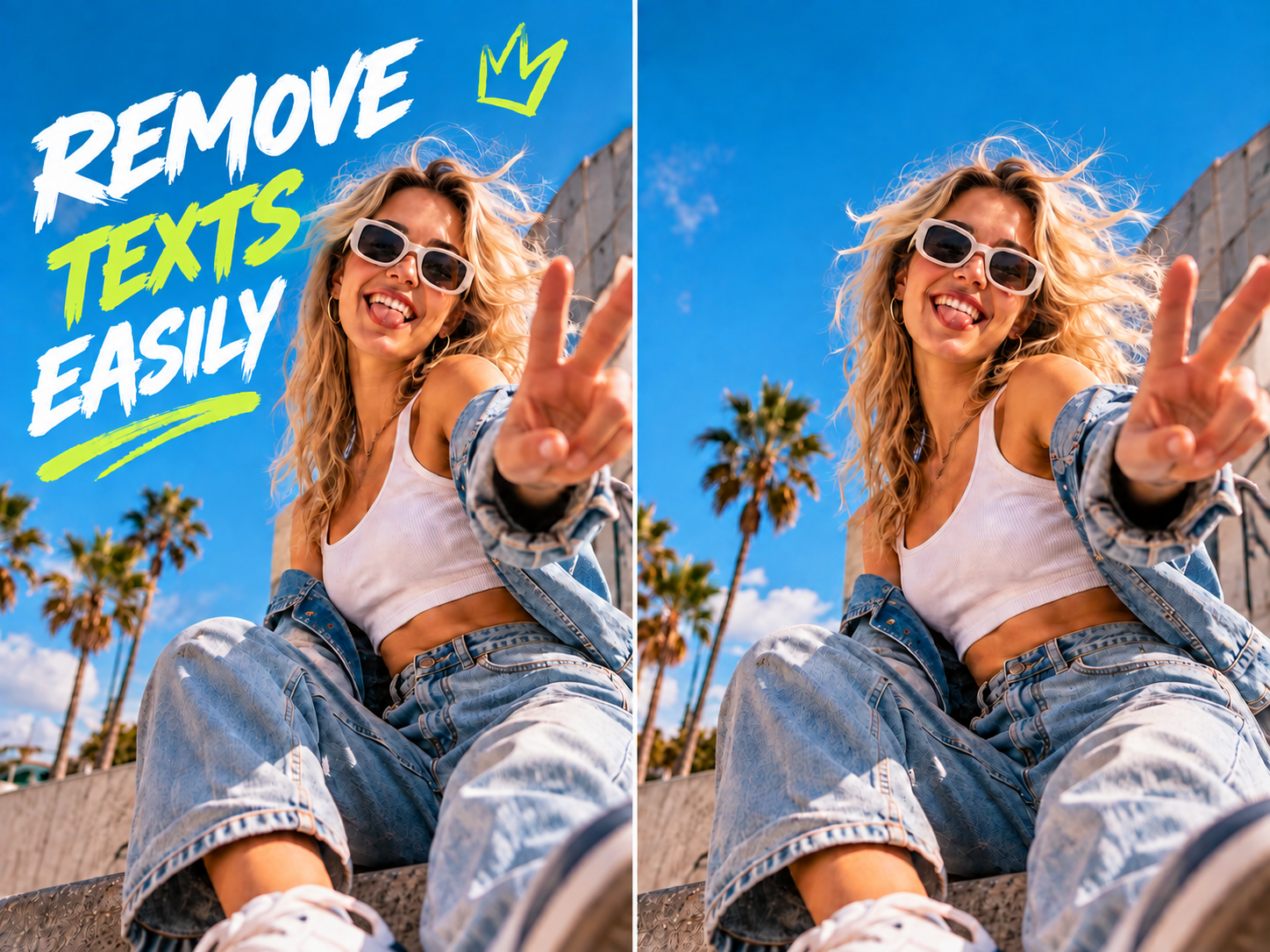
Preserve Image Details
After removing text from an image, AI analyzes the surrounding content to preserve original textures, edges, lighting, and subject details. The edited area blends naturally with the image, helping product photos, posters, and social visuals stay clear and natural.
Remove the Text Without Turning It into a Retouching Project

Different images need different approaches. Use Smart Selection or the Brush when you need control over the area, while AI helps preserve natural backgrounds, textures, and subject details after removal.

If text removal leaves a blurry patch or broken texture, the edit is not really finished. Koozee AI Text Remover is designed to keep surrounding details natural-looking, so the cleaned image is easier to reuse in product pages, posters, and social content.

Removing text is only the first step. What matters is whether the image remains usable afterward. Koozee AI Text Remover helps preserve surrounding details and reduce extra cleanup.
Remove Text from an Image in 3 Steps
Upload an Image with Text
Choose an image where the text you want to remove and the surrounding visual are clearly visible. Supported input formats, file size limits, and resolution requirements: TBD.
Choose How to Target the Text
Upload your image, select the text area to remove, and let AI process the content while preserving surrounding details. Review the result and reuse the image for product pages, posters, or social content.
Remove the Text and Review the Image
Run the text removal, then check that the target text is gone and review the nearby background, texture, and subject details. The AI-filled area is a reconstruction, not a recovery of the original pixels that were hidden behind the text.
FAQs
What is an AI text remover?
How do I remove specific text from an image?
Upload the image, then choose a text instruction, Smart Selection, or the Brush. If the image contains multiple text elements, Smart Selection or the Brush can help define the area you want to work on. Do not assume the current tool automatically detects and removes every piece of text in the image.
Will removing text damage the background?
Koozee AI Text Remover is designed to keep the surrounding visual and non-target details as natural-looking as possible.
Can I remove text from an image without Photoshop?
Yes. Upload your image, then use a text instruction, Smart Selection, or the Brush to target the text you want to remove. No layers, masks, or advanced photo-editing skills are required.
Which should I use: a text instruction, Smart Selection, or the Brush?
Use a text instruction when you want a quick way to start. Choose Smart Selection when you need to target a specific text area. Use the Brush when the text sits close to product edges, textures, or other details and you want more control over the removal area.
Don’t Rebuild a Good Image Just to Change the Copy
If the product image still works, keep it. Remove the outdated text with a text instruction, Smart Selection, or the Brush, then reuse the visual for your next product page, ad, poster, or social post.