Fashion Visual Teams
Keep fashion model selection, scene exploration, and video extensions moving around the same collection—without breaking the flow or repeating the work.
A node-based workspace for producing high-quality apparel visuals and videos at volume. Build the process once, then run it across a whole collection of outfit looks for campaigns, product pages, and social.
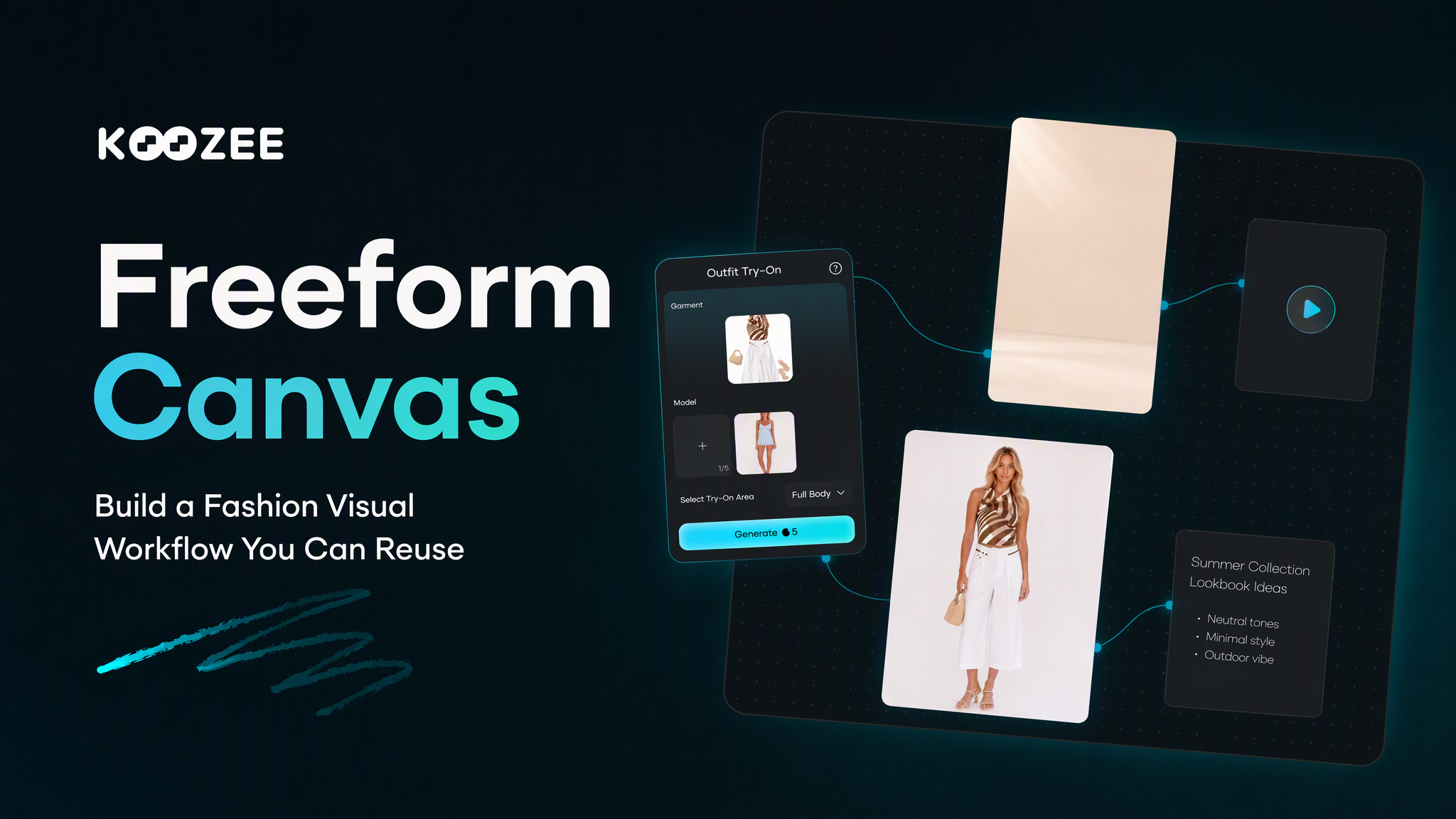
Open a new Freeform Canvas and shape the workflow around the content you want to create.
Upload garment, fashion model, and reference images—or start with a written idea and let AI generate the text, images, or video you need first.
Start with a prebuilt fashion template such as AI Try-On, Change Pose, or Flat Lay, or choose an AI engine to create the next image or video. Once the result feels right, carry it straight into the next step.
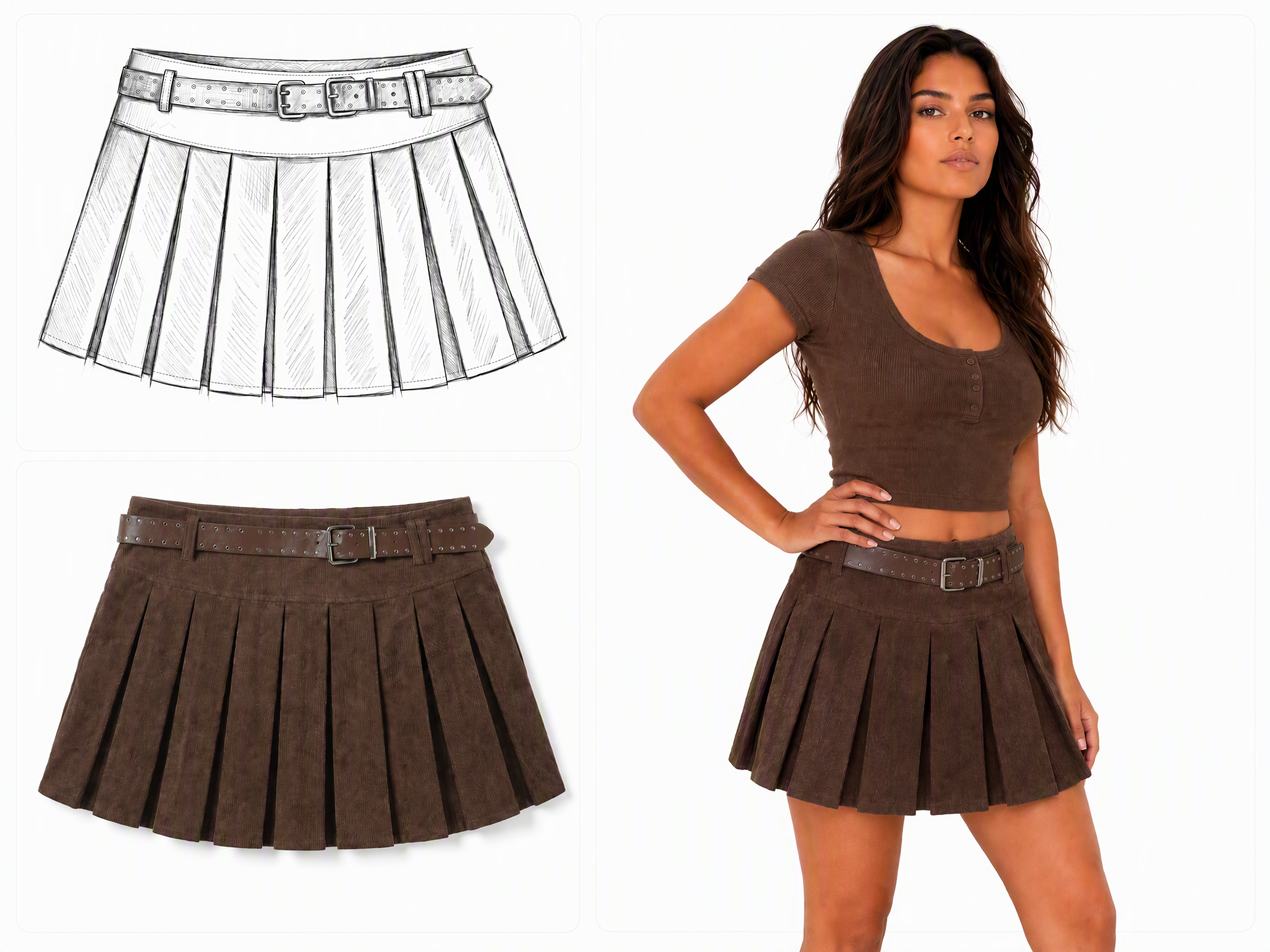
Upload garments, fashion model photos, and visual references—or generate fresh text, images, and video. Everything stays connected and ready for the next step.
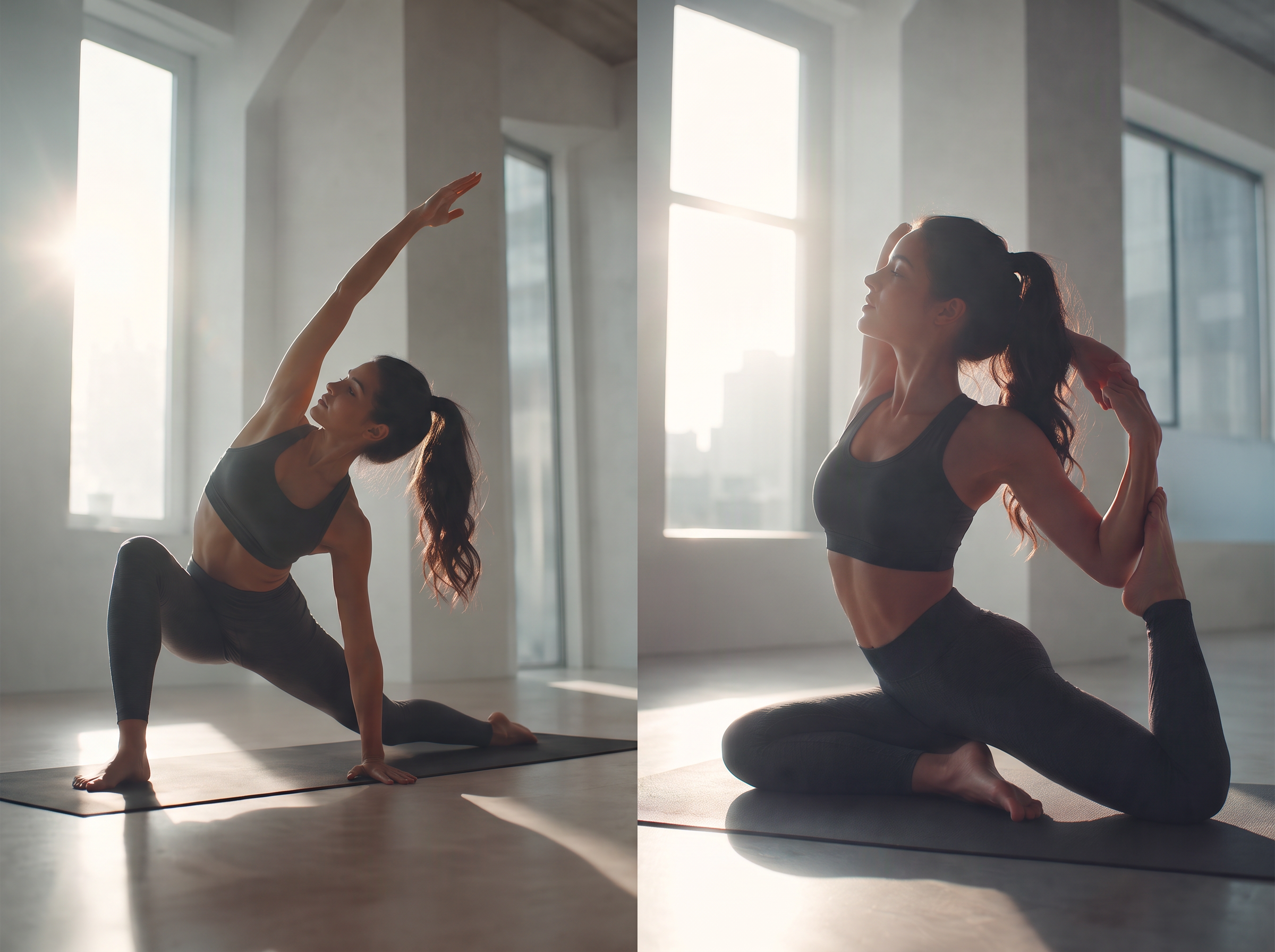
Use prebuilt templates for AI Try-On, Outfit Swap, Change Pose, Change Background, and Recolor Garment to adjust the fashion model, garment, or scene—without building a complex workflow from scratch.
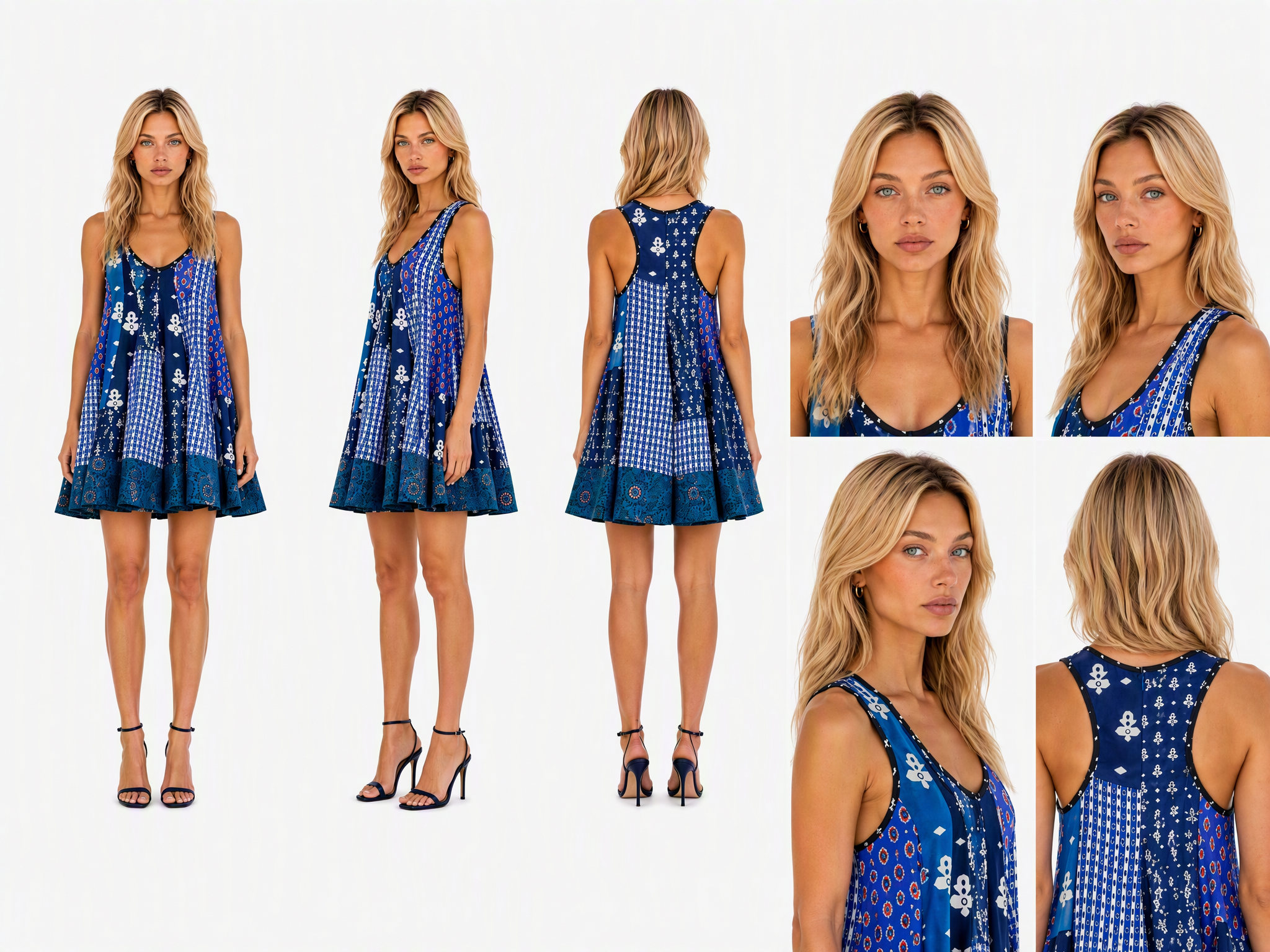
Start with a result you like, then expand it into flat lays, three-view outfit images, nine-frame storyboards, and new scenes for product pages, ads, and social.
Call on Gemini, Claude, GPT, Nano Banana, Seedance, or Kling to create copy, images, or video. Pick the AI engine that fits the task and keep the work moving in the same workflow.
Create garment shots, fashion model visuals, scene images, campaign assets, and video for product pages, ads, and social. Keep the assets, nodes, and steps you have already organized, then refine and reuse them in the next project.
Drop AI Try-On, Outfit Swap, Change Pose, Change Background, and Recolor Garment directly into the workflow—without stitching together generic tools.
Turn the current result into flat lays, three-view outfit images, nine-frame storyboards, and video. Skip repeated uploads and constant tool switching.
Save the workflow you have already organized, then adapt it for new collections, seasonal refreshes, or different brands.
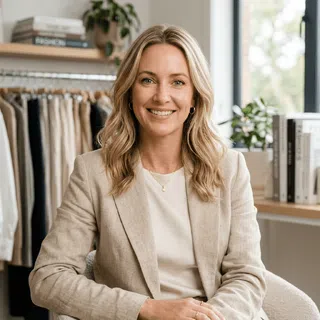
Fashion Visual Teams
Keep fashion model selection, scene exploration, and video extensions moving around the same collection—without breaking the flow or repeating the work.

Fashion Brands & Ecommerce Teams
Start with a supplier image or studio shot, then build product images, AI fashion model visuals, and marketing content in Freeform Canvas.
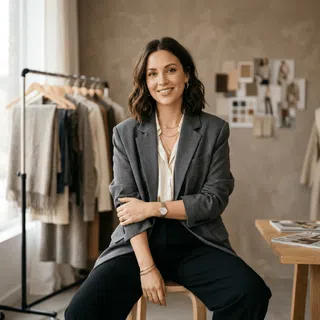
Agencies & Multi-Brand Teams
Organize assets and creative direction by brand, then keep expanding each project into more images and video.
Create text, images, and video, then keep building around product shots, AI fashion model try-ons, garment recolors, atmospheric backgrounds, storyboards, and marketing videos.
Freeform Canvas is built for multi-step creation you want to see, refine, and reuse. Import or generate assets, combine prebuilt fashion templates with different AI engines, and carry each result into further edits, storyboards, or video. Use Quick Create when you need a fast, focused output such as an AI try-on, background change, recolor, or marketing video. Choose KOOZEE MCP when you want an AI agent to call KOOZEE’s fashion visual tools from your existing AI workspace.
No. Start with your garment assets and the tools already in Freeform Canvas, then add nodes as the task requires. When you need more control over the visual direction, add a written instruction or reference image.
Yes. Depending on the node, you can add garment images, fashion model images, visual references, text, or any other required input.
Yes. Keep the same node structure, then add or replace assets so more garments can follow a similar production process.
Paid subscribers may use eligible generated content in digital commercial contexts, including ecommerce, advertising, and social media. You must hold the necessary rights to all uploaded materials and follow KOOZEE’s Terms of Service. See the Privacy Policy for details on how uploaded materials are handled.
Start with a written idea or garment asset. Connect each step, move from image to video, and save a fashion AI workflow you can run again.